To resize a widget
1
Touch and hold a widget until it magnifies and the device vibrates, then release
the widget. If the widget can be resized, for example, the Calendar widget, then a
highlighted frame and resizing dots appear.
2
Drag the dots inward or outward to shrink or expand the widget.
3
To confirm the new size of the widget, tap anywhere on the Home screen.
To move a widget
•
Touch and hold the widget until it magnifies and the device vibrates, then drag it
to the new location.
To Remove a Widget
•
Touch and hold the widget until it is selected, then drag it to Remove from Home
screen.
Shortcuts and folders
Use shortcuts and folders to manage your applications and keep your Home screen tidy.
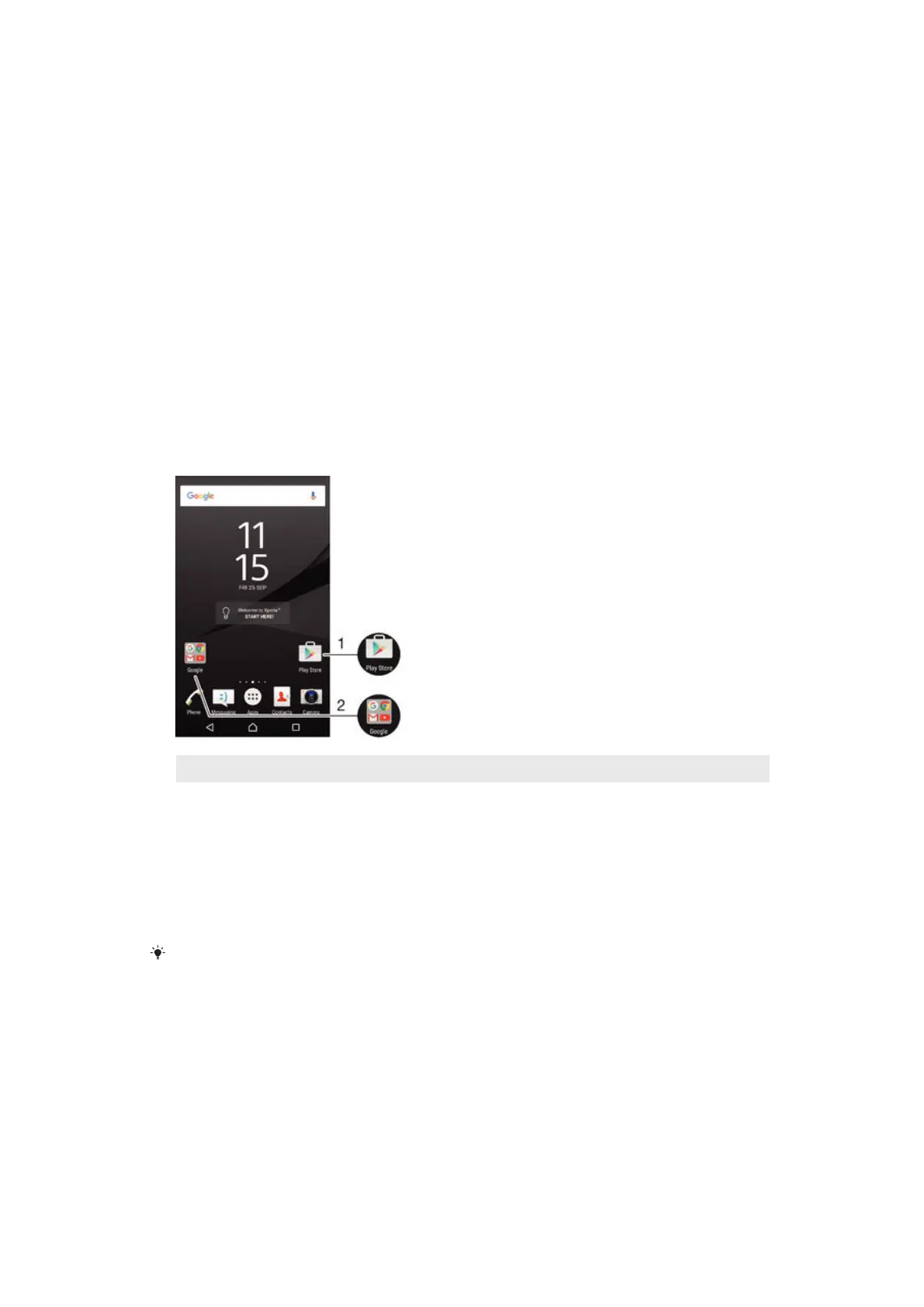
1 Access an application using a shortcut
2 Access a folder containing applications
To add an application shortcut to your Home screen
1
Touch and hold an empty area on your Home screen until the device vibrates and
the customization menu appears.
2
In the customization menu, tap Apps.
3
Scroll through the list of applications and select an application. The selected
application gets added to the Home screen.
In step 3, alternatively, you can tap
Shortcuts and then select an application from the list
available. If you use this method to add shortcuts, some of the applications available allow
you to add specific functionality to the shortcut.
To Move an Item on the Homescreen
•
Touch and hold the item until it is selected, then drag the item to the new location.
To Remove an Item from the Homescreen
•
Touch and hold the item until it becomes selected, then drag the item to Remove
from Home screen at the top of the screen.
30
This is an Internet version of this publication. © Print only for private use.









 To Next Page