To Create a Folder on the Homescreen
•
Touch and hold an application icon or a shortcut until it is selected, then drag and
drop it on top of another application icon or shortcut.
To Add Items to a Folder on the Homescreen
•
Touch and hold an item until it is selected, then drag the item to the folder.
To rename a folder on the Home screen
1
Tap the folder to open it.
2
Tap the folder's title bar to show the Folder name field.
3
Enter the new folder name and tap Done.
Background and Themes
You can adapt the Homescreen to your own style using wallpapers and different themes.
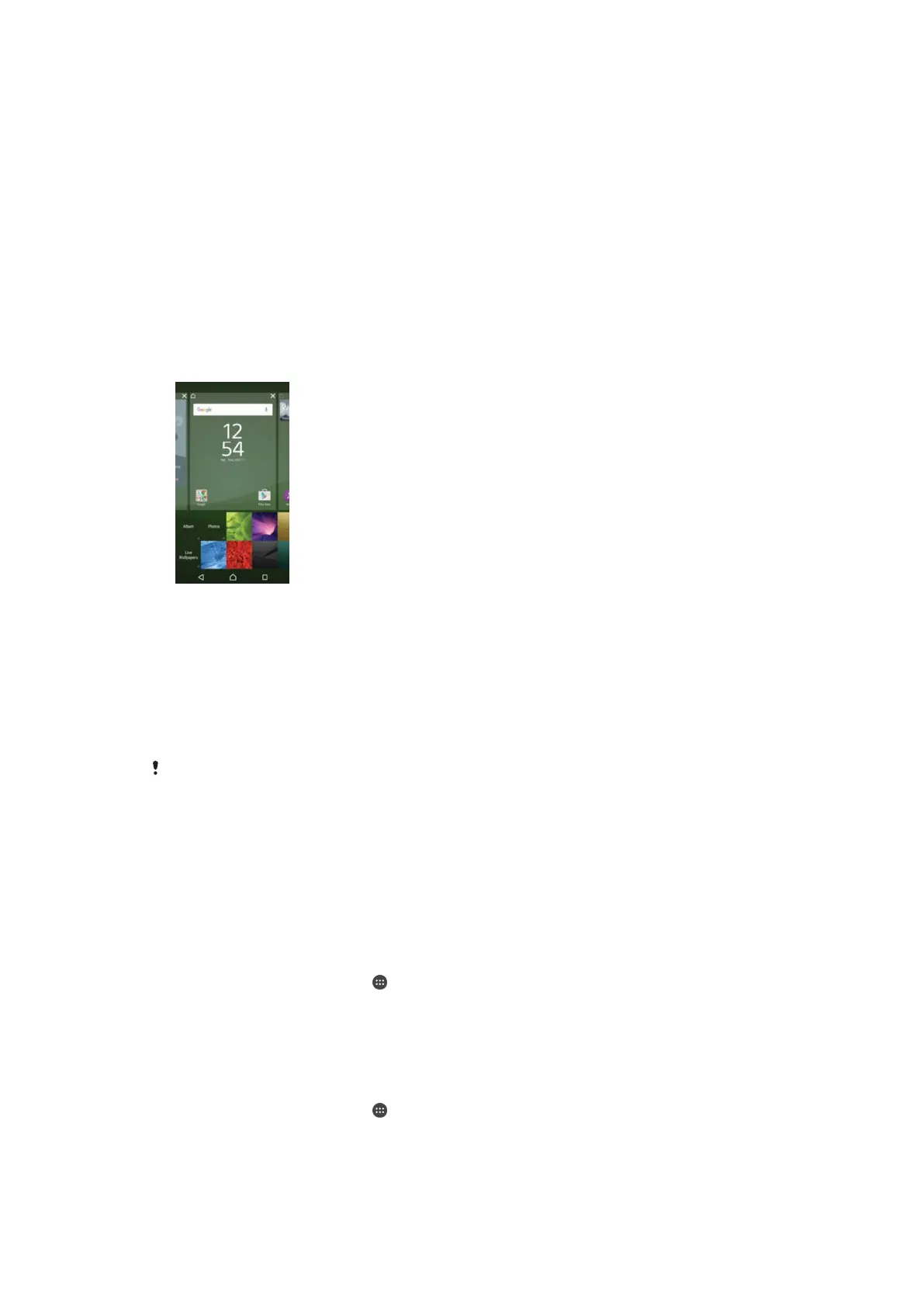
To change your Home screen wallpaper
1
Touch and hold an empty area on your Home screen until the device vibrates.
2
Tap Wallpapers and select an option.
To set a theme
1
Touch and hold an empty area on your Home screen until the device vibrates.
2
Tap
Themes
.
3
Select an option and follow the instructions in your device.
When you change a theme, the background also changes in some applications.
Battery and power management
Your device has an embedded battery. You can keep track of your battery consumption
and see how much power applications are using. You can remove apps and activate
Battery saver to get more out of your battery. You can also view an estimate of how
much battery time is left and adjust your settings to improve performance and make your
battery last longer.
To view your battery consumption and estimated battery time
1
From your Home screen, tap
.
2
Find and tap Settings > Battery usage. An overview appears showing battery
usage data and an estimated battery time.
3
Review the information, then proceed as required, for example, uninstall an
application or restrict its usage.
To view how much battery power applications use
1
From your Home screen, tap .
2
Find and tap Settings > Apps.
3
Select an application and review its battery consumption via App info > Battery
usage.
31
This is an Internet version of this publication. © Print only for private use.









 To Next Page