To enable or disable the Smart backlight control function
1 Find and tap Settings > Display > Smart backlight control.
2 Tap the slider to enable or disable the function.
Home screen
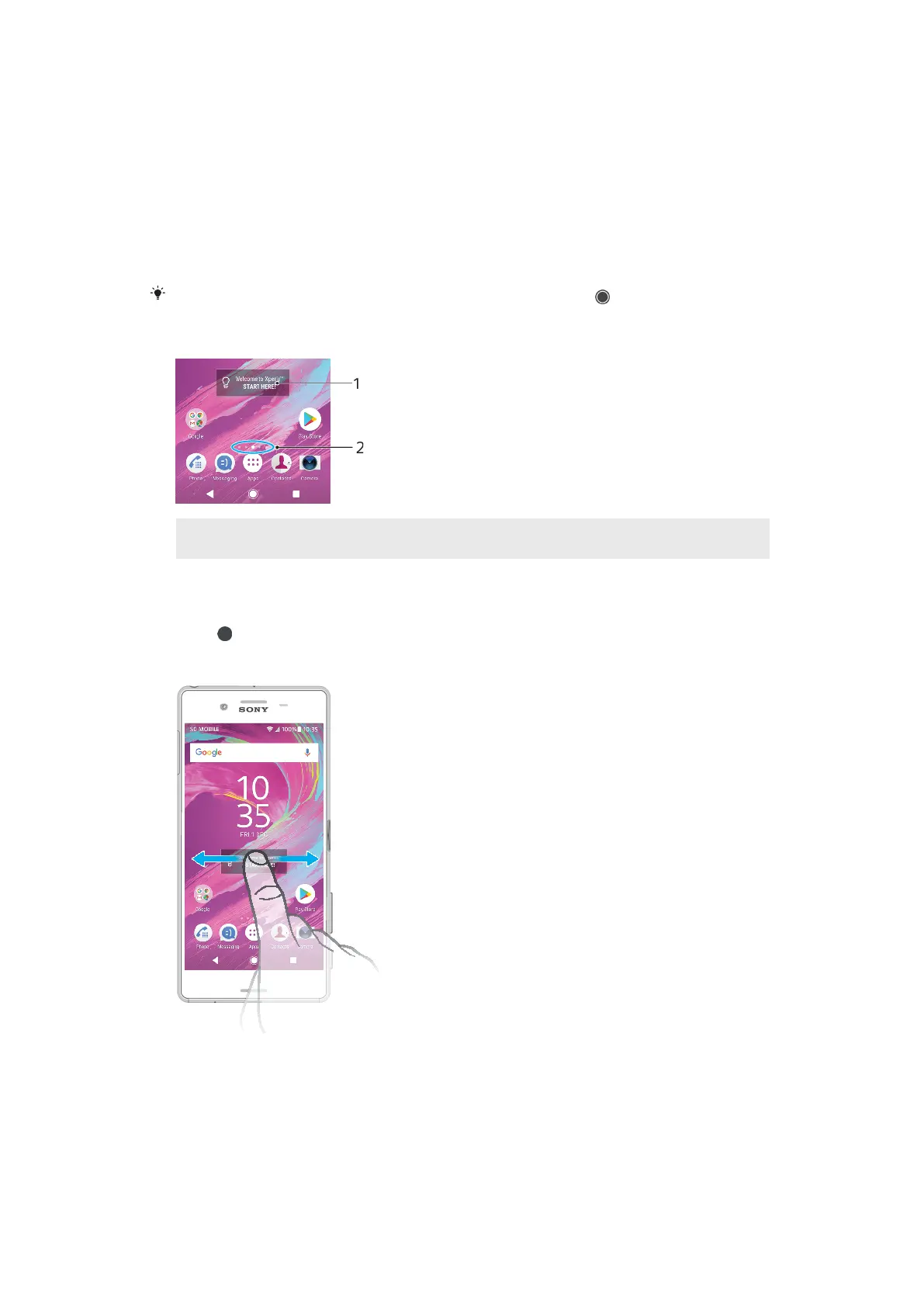
The Home screen is the starting point for using your device. It's similar to the
desktop on a computer screen. The number of Home screen panes is represented
by a series of dots at the lower part of the Home screen. The highlighted dot
shows the pane that is currently displayed.
If Google Assistant is enabled, the Home screen icon appears as in the navigation bar.
Home screen overview
1 Welcome to Xperia widget — Tap to open the widget and select a task such as copying content
from your old device or setting up Xperia services
2 Dots — Represents the number of Home screen panes
To go to the Home screen
• Press .
To browse the Home screen
Home screen panes
You can add new panes to your Home screen (up to a maximum of twenty panes)
and delete panes. You can also set the pane that you want to use as the main
Home screen pane.
20
This is an internet version of this publication. © Print only for private use.














 To Next Page