To take a screenshot
1 Long press the power key until a prompt window appears.
2 Tap .
You can also take a screenshot by pressing and holding the power key and volume down
key at the same time.
To view your screenshot
1 Double-tap the status bar to display the Notification panel.
2 Tap the screenshot.
Notifications
Notifications inform you of events such as new messages and calendar
notifications as well as activities in progress such as file downloads. Notifications
appear in the following places:
• The status bar
• The notification panel
• The lock screen
• The app icon
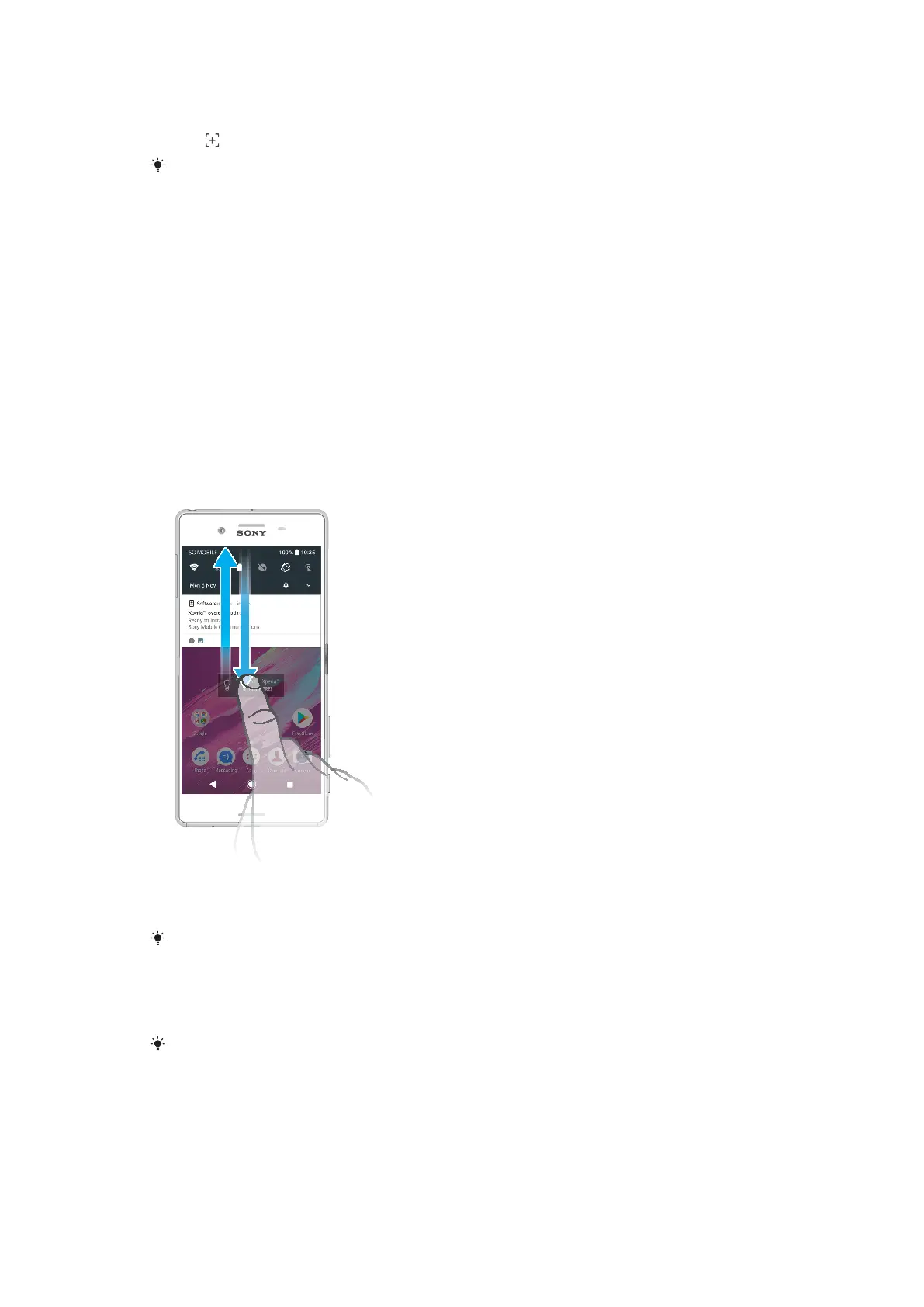
To open or close the Notification panel
1 To open the Notification panel, drag the status bar downwards, or simply
double-tap it.
2 To close the Notification panel, drag or flick the panel upwards.
After opening the
Notification panel, you can access the Quick settings panel by dragging
the status bar down again.
To take action on a notification in the Notification panel
• Tap the notification.
You can directly reply to chat or email messages in the
Notification panel.
27
This is an internet version of this publication. © Print only for private use.














 To Next Page