Messaging and chat
Reading and sending messages
The Messaging application shows your messages as conversations, which means
that all messages to and from a particular person are grouped together.
The number of characters that you can send in a single message varies depending on the
operator and the language you use. The maximum size of a multimedia message, which
includes the size of added media files, is also operator dependent. Contact your network
operator for more information.
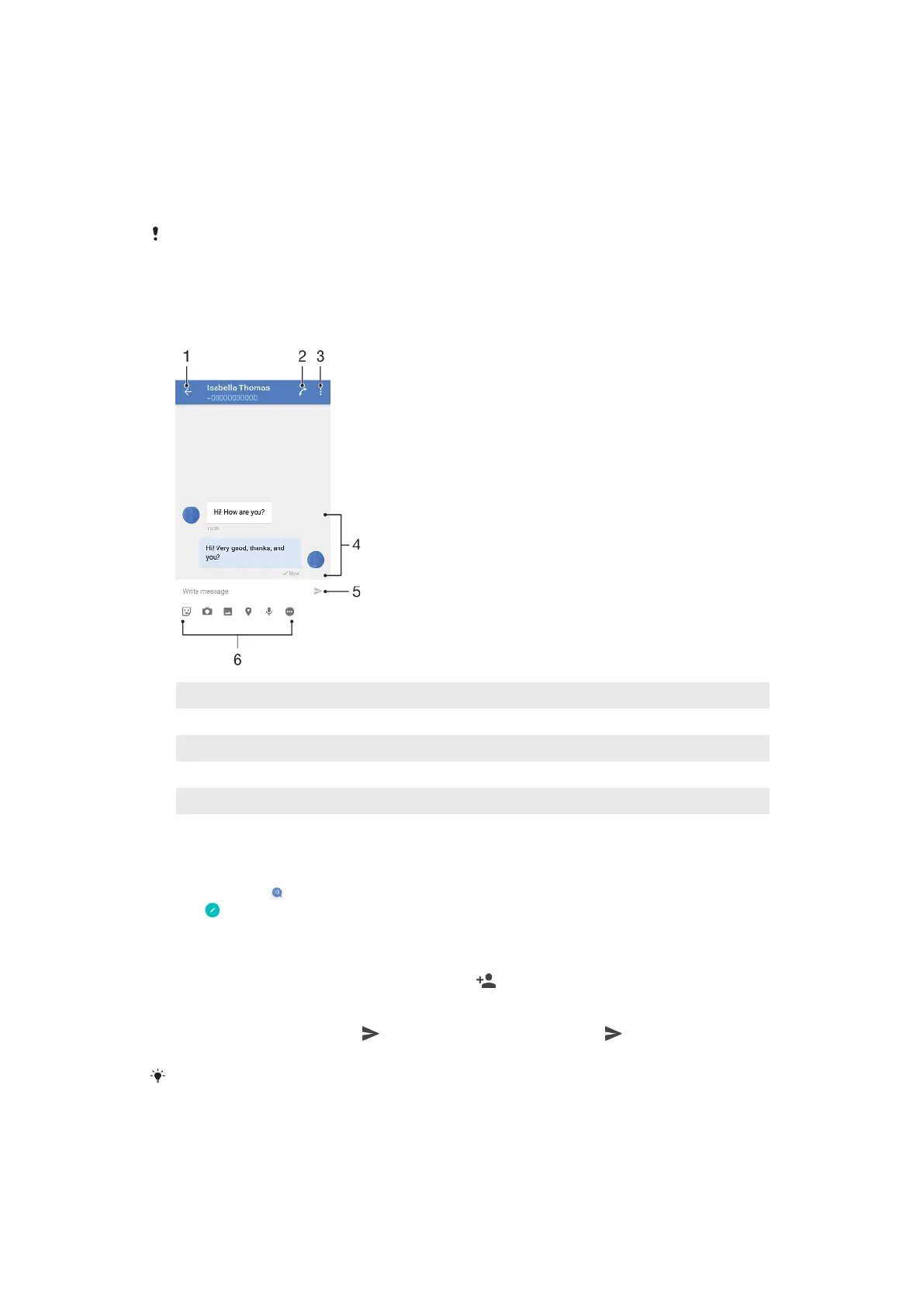
Messaging overview
1 Go back to the list of conversations
2 Call the message sender
3 View more options
4 Sent and received messages
5 Send a completed message
6 Add attachments
To create and send a message
1 Find and tap .
2 Tap
.
3 Enter the recipient’s name or phone number, then select from the
suggestions that appear. If the recipient is not listed as a contact, enter the
recipient’s number manually.
4 If you want to send a group message, tap
to add more recipients.
5 Enter your message text.
6 If you want to add an attachment, select the relevant attachment option.
7 To send the message, tap
. Dual SIM users, tap one of the buttons
according to which SIM card you wish to use.
If you exit a message before sending, it gets saved as a draft. The conversation gets tagged
with the word Draft.
71
This is an internet version of this publication. © Print only for private use.














 To Next Page