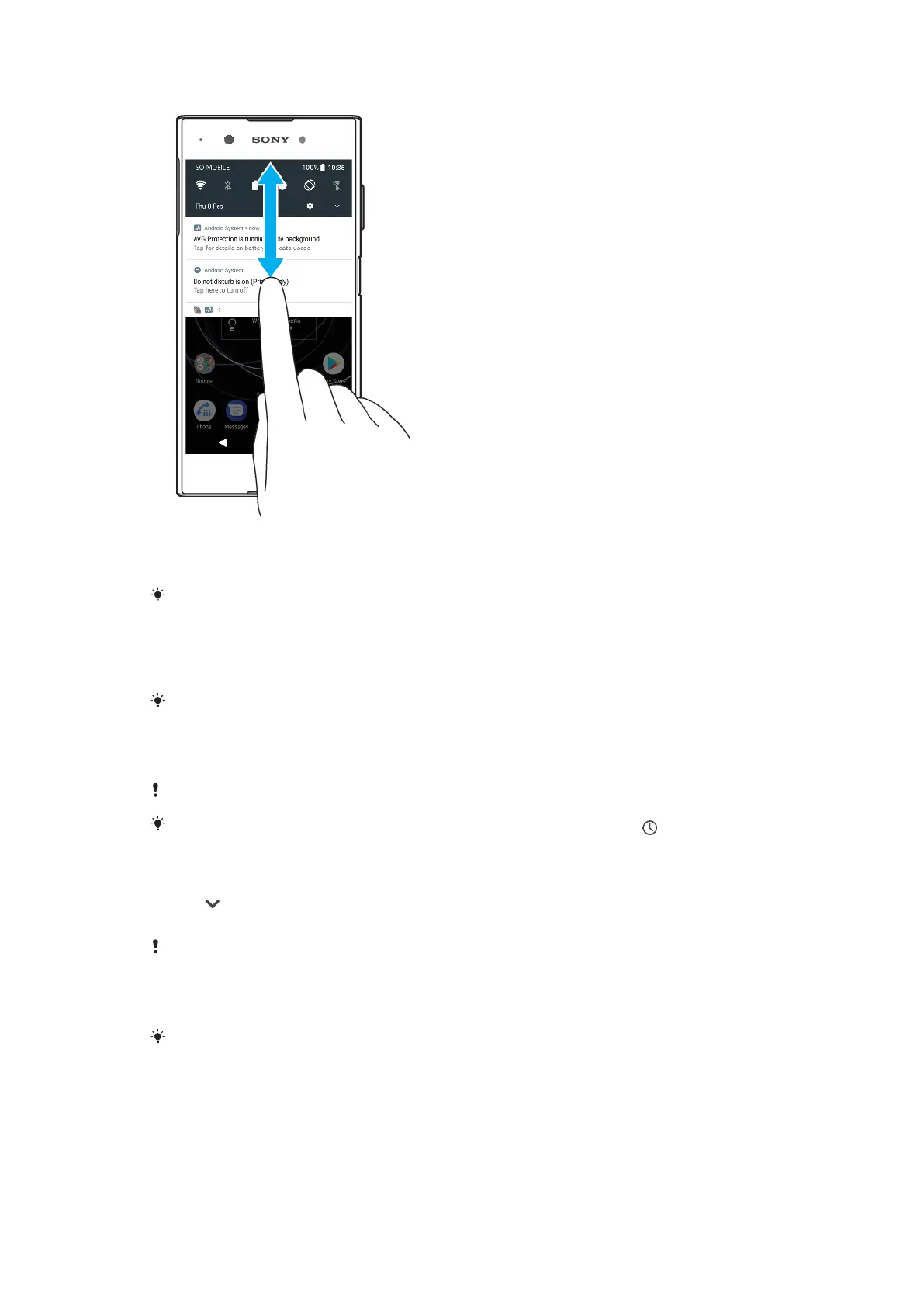
To open or close the Notification panel
1 To open the Notification panel, drag the status bar downward, or simply
double-tap it.
2 To close the Notification panel, drag or flick the panel upward.
After opening the Notification panel, you can access the Quick Settings panel by dragging
the status bar down again.
To Take Action on a Notification in the Notification Panel
• Tap the notification.
You can directly reply to chat or email messages in the Notification panel.
To dismiss a notification from the notification panel
• Swipe the notification left or right.
Not all notifications can be dismissed.
To snooze a notification, drag the notification slowly to the side and tap . Notifications
can be snoozed for 15 minutes, 30 minutes, 1 hour, or 2 hours.
To expand a notification on the Notification panel
• Tap to expand and view more information about the notification without
opening the app.
Not all
notifications are expandable.
To clear all notifications from the Notification panel
• Tap CLEAR ALL.
If there is a long list of
notifications, scroll down to find the CLEAR ALL button.
To Take Action on a Notification from the Lockscreen
• Double-tap the notification.
To Dismiss a Notification from the Lockscreen
• Swipe the notification left or right.
30
This is an internet version of this publication. © Print only for private use.



 To Next Page