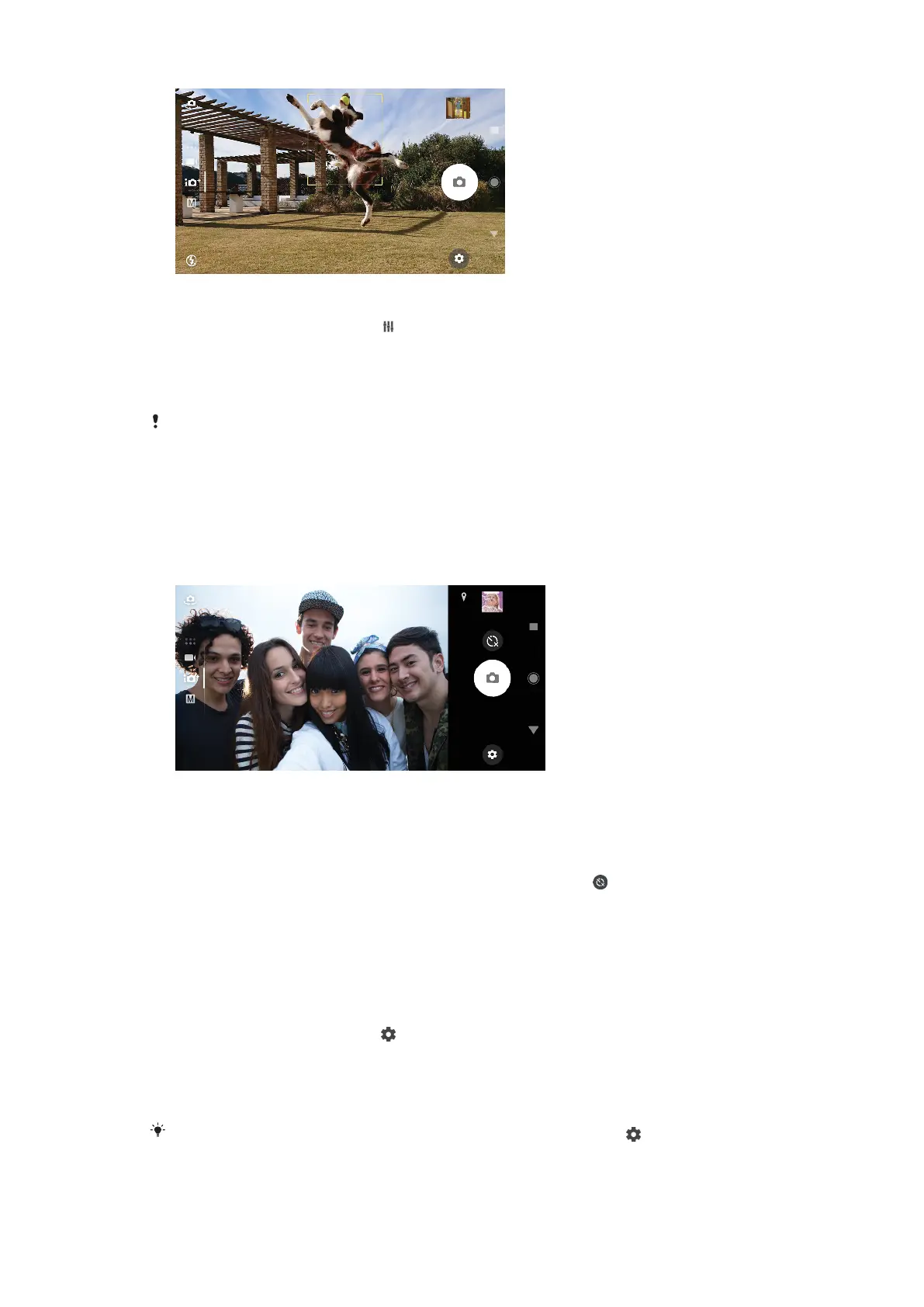
To set the focus distance
1 When using the camera, tap .
2 Tap Focus.
3 Tap the slider to adjust the focus distance.
4 Close the settings menu. The setting is saved.
5 Press the camera key or tap the shutter button to take a photo.
This setting is only available in Manual mode for the main camera.
People, selfies, and smiling faces
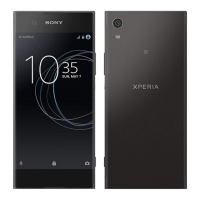
Faces in focus are indicated with a colored frame. Tap any frame to select a face to
focus on.
Use Smile Shutter to automatically take a photo when a person smiles. If you are
recording a video, a photo is taken each time a smile is detected.
Taking photos and videos of people
• Consider the camera orientation. Use portrait for close-up photos, to fill the frame.
Use landscape for close-up group photos, or to capture an object in the
background.
• Place the camera on a solid surface and use the self-timer
to prevent blurred
photos.
To focus on another face
• Before taking a photo or recording a video, tap one of the frames to select a
face to focus on.
To take a photo when someone smiles
1 When using the camera, tap
.
2 Tap More > Auto capturing > Smile Shutter.
3 Close the settings menu. The setting is saved for the capturing mode
selected.
4 When a smile is detected, the camera automatically takes a photo.
This feature can also be used for videos. When using the camera, tap
> More > Auto
capturing (video) > Smile Shutter.
89
This is an internet version of this publication. © Print only for private use.



 To Next Page