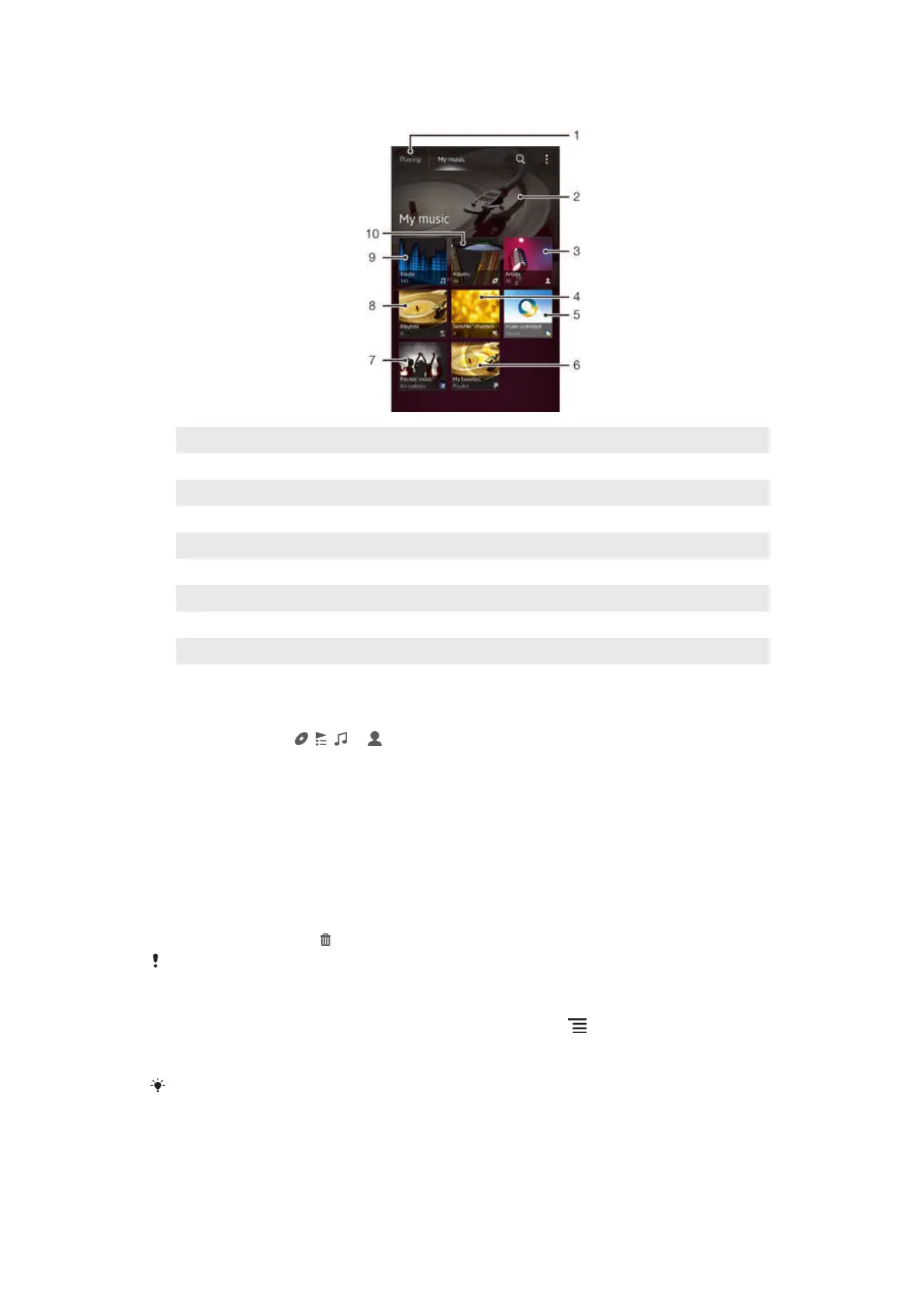
Overview of My music
1 Go back to the current track
2 Picture of the currently playing artist (if available)
3 Browse your music by artist
4 Categorize your music using SensMe™ channels
5 Manage and edit your music using Music Unlimited™
6 Browse your favorite playlists
7 Collect links to music and related content that you and friends have shared using online services
8 Browse all playlists
9 Browse audio by track
10 Browse by album
To add a shortcut to a track
1 In My music, tap , , or , then browse to the track for which you want to
create a shortcut.
2 Touch and hold the track title.
3 Tap Add as shortcut. The shortcut now appears in the My music main view.
To rearrange shortcuts
• In My music, touch and hold a shortcut until it magnifies and your device vibrates,
then drag the item to a new location.
To delete a shortcut
• In My music, touch and hold a shortcut until it magnifies and your device vibrates,
then drag the item to .
You can only delete shortcuts that you create yourself.
To update your music with the latest information
1 In the "WALKMAN" application, tap My music, then press .
2 Tap Download music info > Start. Your device searches online and downloads
the latest available album art and track information for your music.
The SensMe™ channels application is activated when you download music information.
57
This is an Internet version of this publication. © Print only for private use.







 To Next Page