EasyManua.ls Logo

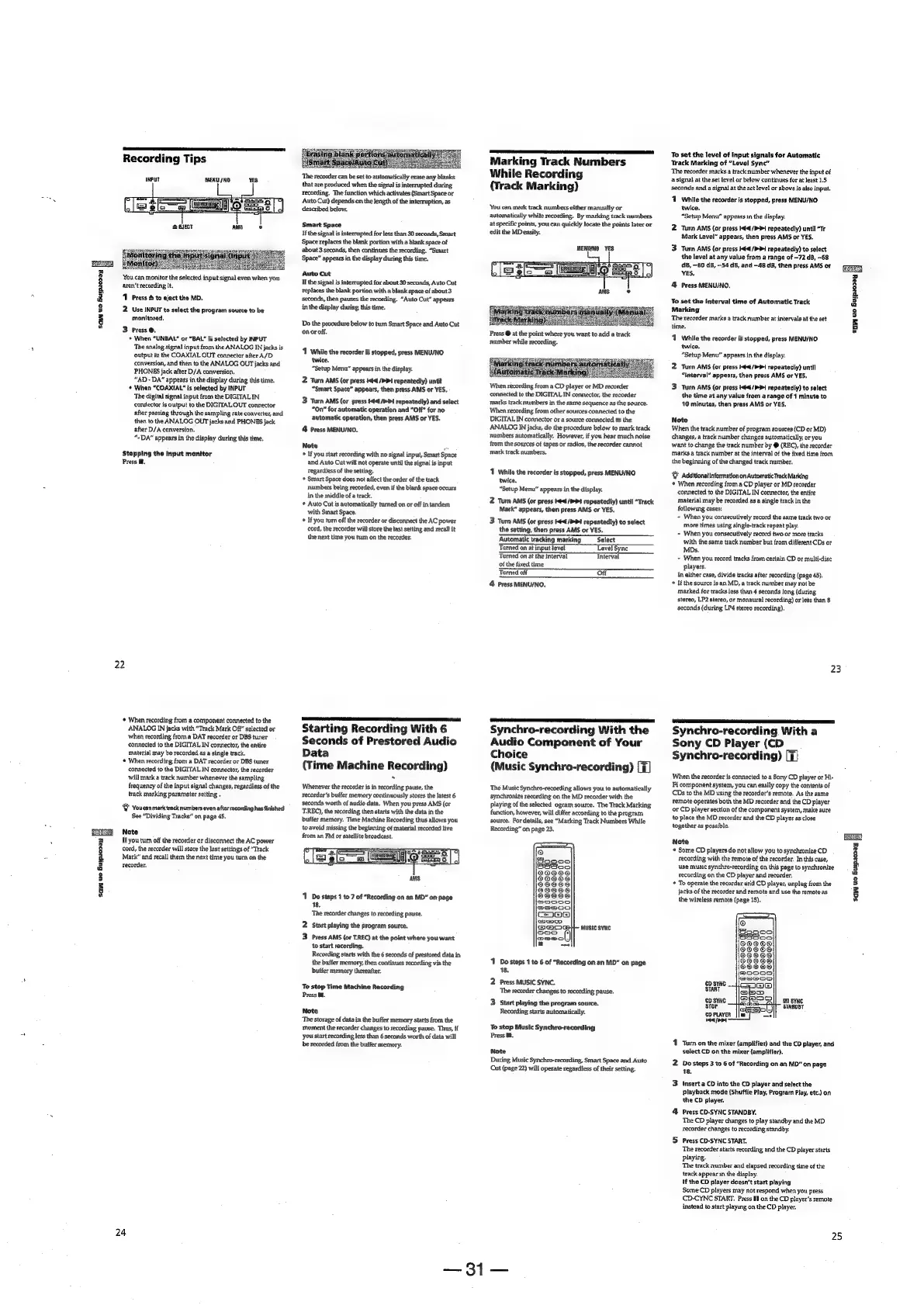
Sony MDS-E12 - Recording Tips; Synchro-recording With the Audio Component of Your Choice (Music Synchro-recording); Synchro-recording With a Sony CD Player (CD Synchro-recording)

Sony MDS-E12
120 pages
Print Icon
To Next Page IconTo Next Page
To Previous Page IconTo Previous Page
Loading...
SQW
Uc
Guipiozay
FS
:
a
§
=
g
Recording
Tips
INPUT
MENU/NO
YES
‘You
can
monitor
the
selected
input
signal
even
when
you
aren't
recording
it.
‘11
Press
&
to
eject
the
MD.
2
Use
INPUT
to
select
the
program
source
to
be
monitored,
3
Press
@.
*
When
“UNBAL”
or
“BAL”
is
selected
by
INPUT
The
analog
signal
input
from
the
ANALOG
IN
jacks
is
output
to
the
COAXIAL
OUT
connector
after
A/D
conversion,
and
then
to
the
ANALOG
OUT
jacks
and
PHONES
jack
after
D/A
conversion.
“AD
-~
DA”
appears
in
the
display
during
this
time.
*
When
“COAXIAL”
is
selected
by
INPUT
‘The
digital
signal
input
from
the
DIGITAL
IN
constector
is
output
to
the
DIGITALOUT
connector
after
passing
through
the
sampling
rate
converter,
and
then
to
the
ANALOG
OUT
jacks
and
PHONES
jack
after
D/A
conversion.
“+
DA”
appears
in
the
display
during
this
time.
Stopping
the
Input
monitor
Press
@.
22
©
When
recording
from
a
component
connected
to
the
ANALOG
IN
jacks
with
“Track
Mark
Off”
selected
or
when
recording
from
a
DAT
recorder
or
DBS
tuner
connected
to
the
DIGITAL
IN
connector,
the
entire
material
may
be
recorded
as
a
single
track.
©
When
recording
from
a
DAT
recorder
or
DBS
tuner
connected
to
the
DIGITAL
IN
connector,
the
recorder
will
mark
a
track
number
whenever
the
sampling
frequency
of
the
input
signal
changes,
regardless
of
the
track
marking
parameter
setting
.
Y
Youcan
mark
track
numbers
even
after
recording
has
finished
See
“Dividing
Tracks”
on
page
45.
Note
If
you
turn
off
the
recorder
or
disconnect
the
AC
power
cord,
the
recorder
will
store
the
last
settings
of
“Track
Mark’
and
recall
them
the
next
time
you
turn
on
the
recorder,
24
‘The
recorder
can
be
set
to
automatically
erase
any
blanks
that
are
produced
when
the
signal
is
interrupted
during
recording.
The
function
which
activates
(Smart
Space
or
Auto
Cut)
depends
on
the
length
of
the
interruption,
as
described
below.
Smart
Space
Jf
the
signal
is
interrupted
for
less
than
30
seconds,
Smart
Space
replaces
the
blank
portion
with
a
blank
space
of
about
3
seconds,
then
continues
the
recording.
“Smart
Space”
appears
in
the
display
during
this
time.
Auto
Cut
If
the
signal
is
interrupted
for
about
30
seconds,
Auto
Cut
replaces
the
blank
portion
with
a
blank
space
of
about
3
seconds,
then
pauses
the
recording.
“Auto
Cut”
appears
in
the
display
during
this
time.
Do
the
procedure
below
to
tum
Smart
Space
and
Auto
Cut
onor
off,
1
While
the
recorder
is
stopped,
press
MENU/NO
twice.
“Setup
Menu”
appears
in
the
display.
2
Turn
AMS
(or
press
44
/>
Pi
repeatedly)
untit
“Smart
Space”
appears,
then
press
AMS
or
YES,
3
Turn
AMS
(or
press
#44/>>4
repeatedly)
and
select
“On"
for
automatic
operation
and
“Off”
for
no
automatic
operation,
then
press
AMS
or
YES.
4
Press
MENU/NO.
Note
me
*
If
you
start
recording
with
no
signal
input,
Smart
Space
and
Auto
Cut
will
not
operate
until
the
signal
is
input
regardless
of
the
setting.
*
Smart
Space
does
not
affect
the
order
of
the
track
numbers
being
recorded,
even
if
the
blank
space
occurs
in
the
middie
of
a
track,
+
Auto
Cut
is
automatically
turned
on
or
off
in
tandem
with
Smart
Space.
*
If
you
turn
off
the
recorder
or
disconnect
the
AC
power
cord,
the
recorder
will
store
the
last
setting
and
recall
it
the
next time
you
tum
on
the
recorder.
RT
LL
TT
LTO
TT
Starting
Recording
With
6
Seconds
of
Prestored
Audio
Data
(Time
Machine
Recording)
Whenever
the
recorder
is
in
recording
pause,
the
recorder’s
buffer
memory
continuously
stores
the
latest
6
seconds
worth
of
audio
data.
When
you
press
AMS
(or
T.REC),
the
recording
then
starts
with
the
data
in
the
buffer
memory.
Time
Machine
Recording
thus
allows
you
to
avoid
missing
the
beginning
of
material
recorded
live
from
an
FM
or
satellite
broadcast.
1
Do
steps
1
to
7
of
“Recording
on
an
MD”
on
page
18.
The
recorder
changes
to
recording
pause.
2
Start
playing
the
program
source.
3
Press
AMS
{or
T.REC)
at
the
point
where
you
want
to
start
recording.
Recording
starts
with
the
6
seconds
of
prestored
data
in
the
buffer
memory,
then
continues
recording
via
the
buffer
memory
thereafter.
To
stop
Time
Machine
Recording
Press
Mm.
Note
The
storage
of
data
in
the
buffer
memory
staris
from
the
moment
the
recorder
changes
to
recording
pause.
Thus,
{f
you
start
recording
Jess
than
6
seconds
worth
of
data
will
be
recorded
from
the
buffer
memory.
Marking
Track
Numbers
While
Recording
(Track
Marking)
You
can
mark
track
numbers
either
manually
or
automatically
while
recording.
By
marking
track
numbers
at
specific
points,
you
can
quickly
locate
the
points
later
or
edit
the
MD
easily.
MENU/NO
YES
pack
Mal
Press
@
at
the
point
where
you
want
to
add
a
track
number
while
recording.
connected
to
the
DIGITAL
IN
connector,
the
recorder
marks
track
numbers
in
the
same
sequence
as
the
source.
When
recording
from
other
sources
connected
to
the
DIGITAL
IN
connector
or
a
source
connected
to
the
ANALOG
IN
jacks,
do
the
procedure
below
to
mark
track
numbers
automatically,
However,
if
you
hear
much
noise
from
the
sources
of
tapes
or
radios,
the
recorder
cannot
mark
track
numbers.
1
While
the
recorder
is
stopped,
press
MENU/NO
twice.
“Setup
Menu”
appears
in
the
display.
2
Turn
AMS
(or
press
Kd
/
>t
repeatedly)
until
“Track
Mark”
appears,
then
press
AMS
or
YES.
3
Turn
AMS
(or
press
44
/PD4t
repeatedly)
to
select
the
setting,
then
press
AMS
or
YES.
Automatic
tracking
marking
Select
Turned
on
at
input
level
Level
Sync
‘Turned
on
at
the
interval
Interval
of
the
fixed
time.
Turned
off
OF
4
Press
MENU/NO.
Synchro-recording
With
the
Audio
Component
of
Your
Choice
(Music
Synchro-recording)
[7]
The
Music
Synchro-recording
allows
you
to
automatically
synchronize
recording
on
the
MD
recorder
with
the
playing
of
the
selected
ogram
source.
The
Track
Marking
function,
however,
will
differ
according
to
the
program
source.
For
details,
see
“Marking
Track
Numbers
While
Recording”
on
page
23.
MUSIC
SYRC
1
Do
steps
1
to
6
of
“Recording
on
an
MD”
on
page
18.
2
Press
MUSIC
SYNC.
The
recorder
changes
to
recording
pause.
3
Start
playing
the
program
source.
Recording
starts
automatically.
To
stop
Music
Synchro-recording
Press
i.
Note
During
Music
Synchro-recording,
Smart
Space
and
Auto
Cut
(page
22)
will
operate
regardiess
of
their
setting.
oes
Gee
To
set
the
level
of
input
signals
for
Automatic
‘Track
Marking
of
“Level
Sync”
‘The
recorder
marks
a
track
number
whenever
the
input
of
a
signal
at
the
set
level
or
below
continues
for
at
least
1.5
seconds
and
a
signal
at
the
set
level
or
above
is
also
input.
1
While
the
recorder
is
stopped,
press
MENU/NO
twice.
“Setup
Menu”
appears
in
the
display.
2
Turn
AMS
(or
press
I€4/>1
repeatedly)
until
“Tr
Mark
Level”
appears,
then
press
AMS
or
YES.
3
Turn
AMS
(or
press
K€
/PP
repeatedly)
to
select
the
level
at
any
value
from
a
range
of
-72
dB,
-68
dB,
60
dB,
54
dB,
and
-48
dB,
then
press
AMS
or
Gears
YES,
4
Press
MENU/NO.
To
set
the
interval
time
of
Automatic
Track
Marking
The
recorder
marks
a
track
number
at
intervals
at
the
set
time.
zp
:
é
§
=
2
1
While
the
recorder
is
stopped,
press
MENU/NO
twice.
“Setup
Menu”
appears
in
the
display.
2
Turn
AMS
(or
press
H4¢<¢/>4
repeatedly)
until
“Interval”
appears,
then
press
AMS
or
YES.
3
Turn
AMS
{or
press
t44/P1
repeatedly)
to
select
the
time
at
any
value
from
a
range
of
1
minute
to
10
minutes,
then
press
AMS
or
YES,
Note
When
the
track
number
of
program
sources
(CD
or
MD)
changes,
a
track
number
changes
automatically,
or
you
want
to
change
the
track
number
by
@
(REC),
the
recorder
marks
a
track
number
at
the
interval
of
the
fixed
time
from
the
beginning
of
the
changed
track
number.
"8
Additional
information
on
Automatic
Track
Marking
¢
When
recording
from
a
CD
player
or
MD
recorder
connected
to
the
DIGITAL
IN
connector,
the
entire
material
may
be
recorded
as
a
single
track
in
the
following
cases:
-
When
you
consecutively
record
the
same
track
two
or
more
times
using
single-track
repeat
play.
-
When
you
consecutively
record
two
or
more
tracks
with
the
same
track
number
but
from
different
CDs
or
MDs.
-
When
you
record
tracks
from
certain
CD
or
multi-dise
players.
In
either
case,
divide
tracks
after
recording
(page
45).
If
the
source
is
an
MD,
a
track
number
may
not
be
marked
for
tracks
less
than
4
seconds
tong
(during
stereo,
LP2
stereo,
or
monaural
recording)
or
less
than
8
seconds
(during
LP4
stereo
recording).
23
PS
AO
ETA
TS
NT
OS
Synchro-recording
With
a
Sony
CD
Player
(CD
Synchro-recording)
[7]
When
the
recorder
is
connected
to
a
Sony
CD
player
or
Hi-
Fi
component
system,
you
can
easily
copy
the
contents
of
CDs
to
the
MD
using
the
recordet‘s
remote.
As
the
same
Temote
operates
both
the
MD
recorder
and
the
CD
player
or
CD
player
section
of
the
component
system,
make
sure
to
place
the
MD
recorder
and
the
CD
player
as
close
together
as
possible.
Note
*
Some
CD
players
do
not
allow
you
to
synchronize
CD
recording
with
the
remote
of
the
recorder.
In
this
case,
use
music
synchro-recording
on
this
page
to
synchronize
recording
on
the
CD
player
and
recorder,
©
To
operate
the
recorder
arid
CD
player,
unplug
from
the
jacks
of
the
recorder
and
remote
and
use
the
remote
as
the
wireless
remote
(page
15).
‘SCI
UO
Buipioray
CD
SYNC
_.
START
CD
SYNC
STOP
CD
PLAYER
—_
corwves
lla
€D
SYHC
‘STANDBY
1
Turn
on
the
mixer
(amplifier)
and
the
CD
player,
and
select
CD
on
the
mixer
{amplifier}.
2
Do
steps
3
to
6
of
“Recording
on
an
MD"
on
page
18.
3
Insert
a
CO
into
the
CD
player
and
select
the
playback
mode
{Shuffle
Play,
Program
Play,
etc.)
on
the
CD
player.
4
Press
CD-SYNC
STANDBY.
The
CD
player
changes
to
play
standby
and
the
MD
recorder
changes
to
recording
standby.
5
Press
CD-SYNC
START,
The
recorder
starts
recording
and
the
CD
player
starts
playing.
The
track
number
and
elapsed
recording
time
of
the
track
appear
in
the
display.
If
the
CD
player
doesn't
start
playing
Some
CD
players
may
not
respond
when
you
press
CD-CYNC
START.
Press
BI
on
the
CD
player’s
remote
instead
to
start
playing
on
the
CD
player.
25

Other manuals for Sony MDS-E12

Related product manuals