SONY.
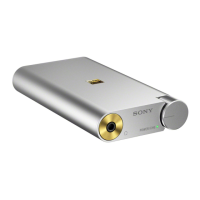
Portable Headphone Amplifier
Amplificateur
portatif pour
casque
d'ecoute
Amplificador portatil
de
auriculares
PHA·
lA
4-568·297·
11
{1)
Gufadereferencia
0 2015 Sony Corporation
Printed in Malaysia
http://www.sony.net/
ll
l
ml
l
l ~l
ll
iiWII
IIII
I
m
i~
I
IRII
m
. 4
56
8 2 9
711.
(1)
Manuals
supplied
The 3
following
manua
ls are inc
lu
ded.
0
Reference Guide (this
document)
Provides
you
with
precautions
and
product
specifications.
0
Startup
Guide
(exhibit
document)
Provides you with instructions on
how
to
connect
the
unit
with
devices
and
basic
operations.
r.iil
Help Guide
(Operating
Instructions)
~
Read
the
Help
Guide
on
your
computer
or
smartphone, when you want to know how to use
the
unit
in
greater
detail. The
Help
Guide also
contains a troubleshooting guide which provides
you
with
remedies for the problems you might
encounter
URL:
http:
//
rdl.sony.net/help
/
mdr
/pha·la/h
_
uc
/
Two-dimensional code:
For
the
customers
in
the
USA
Owner's
Record
The
serial number
is
located at the bottom
of
the unit.
Record these numbers
in
the spaces provided below.
Refe
r to
them whenever you
call upon your
Sony
dealer regarding this
product.
Model
No.
PHA-1A
Serial
No•
~--------
Information
If you have any questions about this product, you may call:
Sony
Customer Information Service Center 1-800-222-7669 or
http
·//www
sony
co
m/
Declaration
of
Conformity
Trade
Name:
SONY
Model No.:
PHA-1A
Responsible Sony Electronics Inc
Party:
Address:
Telephone
No.:
16S30
Via
Esprillo.
Sa
n Diego,
CA
92127
USA
8S8
-942-2230
This device compli
es
with Part
15
of
the
FCC
Rules.
Operation
is
subject
to
the following
two
conditions: (1) this device may not
cause harmful interference, and
(2)
this device must accept any
interference received, including interference that may cause
undesired operation.
You
are cautioned that any changes or modifications not
expressly approved in this manual could void your authority
to
operate this equipment.
Note
This
equipment
has
been tested and found to comply with the
limits for a
Class
B digit
al
device, pursuant
to
Part 15
oft
l'e
FCC
Rules.
The
se
limits
are
designed to provide reasonable
protection against harmful interference
in
a residential
installation. This equipment generates, uses and can radiate
radio frequency energy and, if not
installed and used in
accordance with the instructions, may cause harmful
interference to radio communicatio
ns.
However, there
is
no
guarantee that interference
wi ll not occur
in
a particular
installation.
If
this equipment does cause harmful interference to
radio or television reception, which can be determined by
turning the equipment
off
and on,
the
user
is
encouraged to try
to correct the interference by one or more
of
the following
measures:
-Reor
ient or relocate the receiving antenna.
-Increase
the separation between the equipment and receiver.
-Connect
the equipment into an outlet on a circuit different
from that to which the receiver
is
connected.
-Consult
the dealer or an experienced radio/TV technician for
help.
Troubleshooting
If you run into any problems using this unit,
use
the following
chec
kl
is
t and
read
the product support information on our
website.
Shou
ld any problem persist, consult your nearest
Sony
dealer.
The
unit may become warm during
use.
This
is
not a
malfunction.
No sound
- This unit
is
digital input exclusive. Analog input
is
not
supported.
-
Check
that the unit and the audio devi
ce
are
connected
correctly.
-
Check
that the connected device is turned on.
-
Check
that the unit
is
turned on.
-
If the
POWER/CHG
(charge) indicator does not light up,
charge the battery.
- Turn up the volume
of
the connected device.
- Turn up the volume
of
the unit.
-
Connect the headphone plug firmly
to
the unit.
-
Check
that the connected headphones have a 3-pole stereo
mini plug.
The unit supports only a 3-pole stereo mini plug.
Do
not
connect other plugs.
It may cause a malfunction.
When connected
to
a computer,
there
is no sound
or
the
sound is
not
played back properly.
- The computer does not recognize the unit
as
a
USB
device.
Restart your compute
r.
Install the driver software for Windows "
Sony
USB
Device
Driver· on your Windows computer. Visit the following
website, and install the software.
http:/
/www.sony.com/support/
-
Turn
up the volume
of
your computer or software.
-
If the unit was connected to the computer while using audio
playback so
ft
ware, restart the audio playback software.
- When playing High-Resolution Audio format data on your
computer wi
th
the unit, use the audio playback software,
"Hi-Res Audio
Player,· compatible with the High-Resolution
Audio format data.
When "Hi-Res
Audio Player"
is
not installed, install it on your
computer. Visit the
following website, and install the
software.
http:/
/www.sony.com/support/
-If
the computer enters standby,
slee
p or hibernation mode,
while the music
is
played back by using the audio playback
software, restart the audio playback software.
-
Check
that the sound device settings
of
your computer are
correct.
- For
Window
s 8/8.1
Press
and hold the [Windows] and
[X]
keys
to display the
menu, select
[Con
trol Panel], [Hardware and Sound],
[Sound], [Playback]
tab, select [Sony Headphone
Amplifier(PHA-
1A)]
for the playback device, then click [Set
default].
- For
Windows
7/
Windows
Vista
Click
the [Start] menu, select
[Control
Panel], [Hardware and
Sound],
[Sou
nd
],
[Playback] tab, select
[So
ny Headphone
Amplifier(PHA-1A)] for the playback device, then click [Set
default]
- For Macintosh
Click the [Apple] menu, select
[System Preferences].
[Sound]. [Output] tab, then select [Sony Headphone
Amplifier(PHA-1A)] for [Select a device for sound output].
-
The
volume control
of
your computer or the audio playback
software
is
set
to
suppress the sound. Cancel the setting.
-
The
CD-ROM
drive does not support the digital reproduction
function.
Use
a
CD-ROM
drive that supports the digital
reproduction function.
- Digitally broadcast sound may not
be
output from a
computer's
USB
port
.
The
driver
software
for
Windows
cannot be installed
onto
a
Windows
computer
.
-
The
unit needs
to
be connected
to
your Windows computer
at a certain point while
installing the driver software.
In this case, connect the Windows computer to the
computer/WALKMAN
11
/Xperia connection I
NPUT
port
of
the
unit
us
ing the micro-USB cable (supplied).
For
details concerning connection,
re
fer to the illustration
of
"Computer" in step 2
of
the Startup Guide.
low
sound
-
Tu
rn
up the volume
of
the connected device.
-
Turn
up the volume
of
the unit.
- When using high-impedance headphones, set the
GA
IN
select
switch to
HIGH.
- U
se
headphones that have a stereo mini plug. The unit only
supports headphones that have a stereo mini
plug. If you
use
headphones/headset with a remote control or microphone,
there may be low sound or no sound.
The
unit
does
not
turn
on.
- Charge the battery
of
the unit.
-
Whe
n battery life reduces to half, the battery
is
approaching
the end
of
its service life. Consult your nearest Sony dealer
for replacement.
Even
though
the
power
tab
is
in
the
on
position,
the
POWER
/
CHG
(charge)
indicator
lights
up
in
red.
- When the unit
is
used over a long time and the remaining
battery power becomes
low,
if
you connect the
DC
IN
VS
port
of
the unit to a comp
ut
er or other device, the
POWER/CHG
(charge) indicator lights up in red. T
he
unit cannot be turned
on.
In
this
case,
turn
off
the power
of
the unit and turn on it
again.
The
POWER/CHG
(charge) indicator lights up in green
and the unit turns on.
The
battery
cannot be charged.
-
Check
that the unit and your computer are firmly connected
using the micro-
USB
cable (supplied).
-
Check
that the computer
is
turned on and not
in
standby,
sleep or hibernation mode.
-
Check
that the unit and the computer are directly connected,
not
via
a
USB
hub.
-+
Try
the
USB
connection procedu
re
again in
cases
other than
those stated above.
-The
USB
port
of
the connected computer may have a
problem.
Connect the unit to another
USB
port
of
the
computer
if
available.
- A
USB
AC
adaptor that
is
not recommended
is
being used.
- The battery
is
fully charged.
If the battery
is
fully charged, the
POWER/CHG
(charge)
indicator may
blink and go off, and charging may not start.
This
is
not a malfunction.
- If
the
unit
is
not used for a long time, the
POWER/CHG
(c
harge) indicator may take a while to light up red when you
connect
it
to your computer. In this
case,
do not disconnect
the
micro-USB cable from the unit, and wait until the
POWER/
CHG
(charge) indicator lights up red.
Charging
time
is
too
long.
-
Check
that the unit and the computer
are
directly connected,
not
via
a
USB
hub.
- A cable which
is
not supplied
is
used.
- A
USB
AC
adaptor
that
is not recommended
is
being used
Noise is generated.
-
Keep
the computer away from the unit
- Restart the audio playback software.
-
Turn
off
the connected audio device, then turn
it
on again.
Sound
is
interrupted
when
connecting
to
the
computer
.
-
The
CPU
of
your computer is overloaded. Close other
applications.
- Other
USB
devices
are
connected
to
your computer and
being used simultaneously. Quit operating other
USB
devices.
The remote
control
of
the
headset does
not
work.
- Remote control operation
is
not supported by this unit.
The microphone
of
the
headset
doe
s
not
work.
- Headset microphones
are
not supported by this unit.
Compatible
iPhone/iPad/iPod
models
You
can
use
the unit with only the following models. Update
your iPhone, i
Pad
or iPod
to
the latest software before use.
• iPhone6Pius
•
iPhone6
• iPhoneSs
• iPhoneS<
• iPhoneS
• iPhone4s
• iPhone4
• iPhone3GS
• iPhone3G
• iPhone
• iPadAir2
•
iPadmini3
• iPadAir
•
iPadmini2
• iPadmini
•
iPad
(4thgeneration}
•i
Pad(3rdgeneration)
• iPad2
•
iPad
•
iPodtouch(
1
stthrough5th
generation}
• iPod classic 120GB/160GB
(2009)
•
iPodnano(2ndthrough7th
generation)
(AsofDece
mber2014)
Th
is unit
is
compatible only with the audio playback functions
iPhones/iPads/iPods
Depending on the
Apple product, there may be significant
electr
ic
power required when starting the communication
connected with the unit. The battery power
of
the unit may be
drained and the unit may turn
off
if
you connect the Apple
product to the unit when the battery power
is
low. In this
case,
charge the unit or use the
USB
AC
adaptor to connect with the
Apple product.
Compatible
WALKMAN
~
models
The unit only supports audio function
of
a
WALKMAN
~>
which
supports High-Resolution Audio.
For
the latest compatible models,
access
the following
URL:
http:/
/www.sony
.com/supportl
Compatible Xperia
models
The
compatibility
of
digital output supported Xperia models
depend on the country/region.
For
the latest compatible models,
access
the following
URL:
http:/
/www.sony.com/supp
ort/
Precautions
On
Safety
•
Whenyoucarrytheunitandtheaudiodeviceconnectedwiththe
connecling cable,ma
ke
surenottoapply
theexternalforceasitmaycause
a malfunction.
•
Donotputweightorpressureonthisunitasitmaycausetheunitto
deformduringlongstorage.
•
Donotdroplheun
i
torsubjectittoexternalshock,asitmaycausea
malfunction.
•
Cleantheunitwithasoftdrycloth.
•
If
there
is
noise while listening
to
the radio. etc., move the unit farther away
fromtheconnecteddevice.
•
Do
not
e~pose
the unit to water. The unit
is
not
waterproof.
Remember to
follow the precautions below.
-
Becarefulnottodroptheunitintoasinkorothercontainerfilledw
ith
-
Do
not use the unit
in
humid locations or bad weather, such
as
in
the rain
or snow
-Donotgettheunitwet
lfyouto
uchtheunitwi
thwethands.orputtheunitinadamparti
cleof
clothing. the unit may get
we
t and this may cause a malfunction
of
the
unit.
• When inserting and removing the unit from a bag or other object.
th
e
volume tab may be caught and the position
of
the volume tab may
be
changedcausingaloudsoundtobeoutput
.
Becarefulwheninsertingand
remo
vingtheu
nitfromabagorotherobject
On
placement
•
Oonotplacetheunitinalocationwhereitis·
- Subject to extreme high temperature (such
as
in a
car
with its windows
closed).
-Subjecttodirectsunlightornearaheatsource
-Subjecttomechanicalvibrationorshoc
k.
-
Subjecttoamagne
ti
cfield
(suchasnearamagnet.speakerorTV).
- SubjecttoeKcessivedust.
Note
on
static
electricity
Whenusingtheheadphonesinparticularlydryairconditions,mildtingling
may be felt on your
ears.
This
is
a result
of
static electricity accumulated in the
body,andnotamalfunctionoftheheadphones
The effect
can
be minimized by wearing clothes made from natural materials
On
charging
• ThisunitusesUSBchargingexclusively.
Tochargetheunit,itisnecessaryto
use a computer which has a
USB
port, or the
USB
AC
adaptor
AC·UD10
(sold
separately).
•
You
can
use the unit while it
is
connected
to
the computer
or
AC
power
source.lnthiscase,dependingontheusageenvironment.itmaytaketime
tochargeorchargingmaynotbeavailable.
• When the unit
is
stored for a long period. to prevent
e~cessive
discharge,
chargetheuniteverysixmonthsorso.
•
Whenthebatterylifeisreducedtoanextremelyshortperiod,thebatteryis
approachingtheendofitsservicelife
. ConsultyournearestSonydealerfor
replacement.
Specifications
Frequency range
10Hz
-1
00kHz
Supported impedance
B0
-
6000
Maximum
output
(when
using
the
built-in
lithium-ion
rechargeable battery)
Approx. 148 mW +
148
mw
(8
0,
10%
distortion)
Approx.
80
mw
+
80
mW
(32
0,1% distortion)
Approx.
16
.4
mw
+
16.4
mw
(300
0.
10
% distortion)
Output
jack
Stereo mini jack''
(0
(headphones
))
., Only a 3·pole stereo mini plug
is
supported. Other plugs,
in
cluding 2·pole
miniplugor4·polestereominiplug.arenotsupported.
Input
jack/
port
Computer/WALKMAN•!Xperia connecting port
iPhone/iPad/iPodconnectingport
Operating
temperature
o •c to 40 •c
{32
"F to 104"
F)
Charging
temperature
s
•c
to35
"C(
41
"
Fto95
"F)
Power source
DC3.
7V:built
-inlithium-ionrechargeablebattery
DC
5 V: when chargi
ng
via
USB
Battery life
Approx.6hours•>
"' when
using the unit at 1
mw
+ 1
mw
output
(24
0). Time may vary,
depending on the immediate environment or conditions
of
use.
Charging
time
When connected
to
a computer: Approx.
3.5
hours•
1
When connected to an
AC
outlet using the recommended
USB
AC
adaptor
(so
ld separate
ly
):Approx.2hours•
1
'
1
Timerequiredforemptybatterytorechargewhiletheunitisoff
Dimensions
Approx.
62
mm
x
18.5
mm
><
109 mm
(2'h><
1
/,><4
1
/oin
)(w/h/d,projectingpartsa
renotin
cluded)
Ma
ss
Appro~.14Sg(5.11
oz)
Supported
sampling
fr
e
quencie
s/
bit
Ma
x
imum192kHz/24bit
Included
items
PortableHeadphoneAmplifier(thisunit)(1)
Digital
cable for
WALKMAN
•
(1)
DigitalcableforXperia(1)
Micro-USBcable(l}
Siliconebelt(2}
Protectionsheet(1}
StartupGuide(1)
ReferenceGuide(thisdocument)(1)
Removetheinclude<litemsotherthantheunitbyopen
i
ngthetrayunderthe
unit and removing them.
Recommended accesso
ry
USB
AC
adaptor:
AC
-
UD10
(sold separately)
Operating
environment
Compliant
OS
Windows 8.1/Windows
8.1
Pro/Windows 8/Windows 8
Pro
Windows7
Starter
(SP1
or later}/Home
Basic
(SP1
or later)/Home Premium
(SP1
or later)/
Professionai (SP1orlater}/Uitimate(SP1orlater )
Windows Vista
Home
Basic
(SP2
or later)/Home Premium
(SP2
or later}/Business
(SP2
or
later)/Uitimate{SP2orlater)
Mac0SX(v10.6.8orlater)
CPU:
Intel
Core
2 Processor
1.6
GHz
or better
Memory:1GBorbetter
USBport(US82.
0HighSpeed}
• One
of
the above
OS
need to be installed
to
t
he
computer at the factory
•
TheunitisnotguaranteedtooperatewithaUcomputers
•
Theunitisnotguaranteedtooperatewithhomebuiltcomputers
, operating
systemsthatarepersonallyupgraded,ormullipleoperatingsystems.
•
Theunitisnotguaranteedtooperatewithfunctionssuchasstandby.sleep,
orhibernation,onanycomputer.
Designandspecificationsaresubjecttochangewithoutnotice
Trademark
Notices
•
WALK
MAN
• and
WALKMAN
• Iogo
are
registered trademarks
of
Sony
Corporation
• 'Xperia' and ' XperiaTablet'aretrademarksofSonyMobile
CommunicationsAB
•
iPad
, iPhone,iPod,iPoddassic.iPodnano,iPodtouch,andRetinaare
trademarks
of
Apple Inc., registered
in
t
he
U.S.
and other countries.
iPad
Air,
andiPadminiaretrademarksofApplelnc
• 'Made for
iPod
; 'Made for iPhone,' and ' Made for
iPad
' mean that
an
electronic accessoryhasbeendesignedtoconnectspecifical
tytoiPod,
iPhoneoriPad,respectively,andhasbeencertifiedbythedeveloperto
meetAppleperformancestandards.Appleisnotresponsibleforthe
operationofthisdeviceoritscompliancewithsafetyandregulatory
standards.Pieasenotethat t
heuseofthisaccessorywithiPod.iPhone,or
iPadmayaffectwirelessperformance
• Macintosh and
Mac
OS
are
trademarks
of
Apple Inc., registered in the
U.S.
and other countries
• Microsoft, Windows and Windows Vista are registered trademarks or
trademarks
of
Microsoft Corporation
in
the United States
and/or
other
countries.
• AIIothertrademarksandreg
is
teredtrademarksaretrademarksor
registeredtrademarksoftheirrespectiveholders.lnthismanuai,TMand •
marks are not specified.


 To Next Page
 Loading...