
 Need help?
Do you have a question about the Sony PlayStation 5 Digital Edition and is the answer not in the manual?
Instructions on attaching the console base for vertical or horizontal placement.
Connect the console to your TV using HDMI and plug in the AC power cord.
Connect the console to the internet using a LAN cable for a wired connection.
Turn on your TV and set the input to HDMI.
Power on the console by pressing the power button.
Connect your wireless controller via USB and press the PS button to pair.
Follow on-screen prompts for console setup, account creation, and content download.
Enjoy compatible PS4 games on your PS5 console.
Move game saves, user data, and downloaded content from PS4 to PS5.
Sign in with your PS4 account to retain game history, trophies, and profile data.
Create a child account and set parental controls simultaneously.
Check and update child's parental control settings via the home screen.
Learn to identify game age ratings for child-appropriateness.
Navigate between games and media content from the main screen.
Access console features and activities without leaving your game or app.
Details on controller charging, muting microphone, and basic functions.
Connect and assign numbers to up to four controllers simultaneously.
Put the console in power-saving rest mode for background operations.
Completely power down the console from the control centre.
Review safety guidelines, warranty terms, and product specifications.
Find detailed information on console features, settings, and functions.
Access online troubleshooting and FAQs on the official PlayStation website.
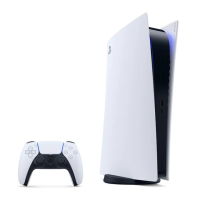
The provided document is a Quick Start Guide for the PlayStation®5 Digital Edition console. It outlines the initial setup, basic usage, and some key features of the device.
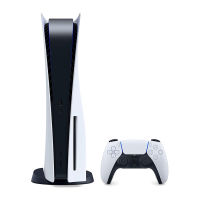
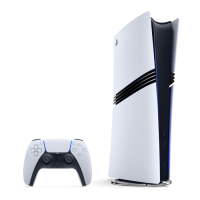
The PlayStation®5 Digital Edition is a home video game console developed by Sony Interactive Entertainment. It is designed to provide an immersive gaming experience through high-fidelity graphics and fast loading times. As a "Digital Edition," it does not include a disc drive, meaning all games and media must be downloaded digitally.
The primary function of the PlayStation®5 Digital Edition is to play video games. Users can download and play PS5™ games, as well as supported PlayStation®4 games, from the PlayStation™Store. Beyond gaming, the console also serves as a media hub, allowing users to download and access various media apps for music, video, and other non-game related content.
The console connects to a TV via an HDMI cable for video and audio output. An AC power cord supplies electricity to the console. For internet connectivity, users can either connect a LAN cable for a wired connection or use Wi-Fi®.
The console is controlled using a wireless controller, which connects to the console via a USB cable for initial pairing and charging. Once paired, the controller operates wirelessly. The controller features a (PS) button, which is used to turn on the console, access the control centre, and return to the home screen.
The Quick Start Guide details the steps for setting up the console. This includes attaching the base, which can be configured for both vertical and horizontal positions. The base ensures stability and proper ventilation for the console. Connecting the HDMI cable to the TV and the AC power cord to an electricity supply are crucial for operation. For internet access, users can connect a LAN cable or rely on Wi-Fi®.
The console is turned on by pressing the (power) button on the console itself. The power indicator blinks blue and then turns white, indicating it's fully on. The console can also be turned on by pressing the (PS) button on a paired controller. To turn off the console completely, users can select "Power" from the control centre and then "Turn Off PS5." The power indicator blinks white and then turns off.
The PlayStation®5 Digital Edition features a power-saving "rest mode." In this mode, the console can perform various tasks such as charging controllers via USB ports, automatically updating system software, and keeping games or apps suspended. The power indicator turns orange when in rest mode. To enter rest mode, users select "Power" from the control centre and then "Enter Rest Mode." To exit, the (PS) button on the controller is pressed.
The console's home screen is divided into two main content types: games and media. Users can switch between these home screens. The games home displays downloaded games, access to the PlayStation™Store, and game-related apps. The media home provides access to music, video, and other non-game apps. The control centre, accessed by pressing the (PS) button on the controller, offers quick access to various features without leaving the current game or app. This includes "Cards" that show activities related to games and apps, and "Controls" for basic functions like returning to the home screen or powering off the console.
The wireless controller needs to be paired with the console by connecting it with a USB cable and pressing the (PS) button. Up to four controllers can be used simultaneously, with player indicator lights assigning numbers to each controller. The controller also features a mute button for the microphone. Pressing it toggles the mic between muted (button lit) and unmuted (button off). Holding the mute button mutes the mic and turns off sound output from the controller and TV speakers.
Users can set up their console by selecting language, configuring internet connection settings, and managing power save settings. An account can be created or an existing one (e.g., from a PS4™ console) can be signed into. This allows for downloading purchased PS5™ games and media apps. Data, including game save data and user information, can be transferred from a PS4™ console to the PS5™ console. If a USB drive was used for extended storage on a PS4™ console, it can continue to be used with the PS5™ console.
The console offers comprehensive parental controls, allowing adults to manage settings for children's accounts. Restrictions can be set on games, play duration, chat functions, and more. Each adult and child needs a separate account, with child accounts linked to an adult's account to form a family. Parental control settings, including family settings, can be carried over from a PS4™ console. Game rating icons (e.g., G, PG, M, MA 15+ in Australia; G, PG, 13, M, 16, 18 in New Zealand) help determine age-appropriate content.
The console can automatically update its system software, especially when in rest mode, ensuring the device runs the latest version and has access to new features and improvements. This is important for optimal performance and compatibility with games and apps.
The console's power saving features, particularly rest mode, contribute to its maintenance by allowing background tasks like updates and controller charging without being fully powered on. Users can configure power saving settings to suit their needs.
The guide emphasizes the importance of proper shutdown procedures. Disconnecting the AC power cord only when the power indicator is off is crucial to prevent data loss, corruption, or damage to the console.
Users are encouraged to consult the supplied Safety Guide for safe usage, product warranty terms, and specifications. A comprehensive User's Guide, accessible from the console's home screen (Settings > User's Guide, Health and Safety, and Other Information > User's Guide), provides detailed information on configuring settings and using all functions. Online support, including step-by-step troubleshooting and FAQs, is available via the PlayStation website.
 General
| Memory | 16GB GDDR6 |
|---|---|
| Storage | 825GB Custom NVMe SSD |
| Usable Storage | 667GB |
| Expandable Storage | NVMe SSD slot, USB HDD support |
| Max Resolution | 8K |
| Frame Rate | Up to 120fps |
| Ray Tracing | Yes |
| Audio | Tempest 3D AudioTech |
| Power Consumption | 340W |
| Dimensions | 390mm x 92mm x 260mm |
| Weight | 3.9kg |
| Operating System | PlayStation 5 System Software |
| Controller | DualSense Wireless Controller |
| CPU | AMD Zen 2, 8-core, 3.5GHz |
| GPU | 10.28 TFLOPs, 36 CUs at 2.23GHz |
| Backward Compatibility | PS4 games |
| Ports | USB Type-C, USB Type-A, HDMI |
| Networking | Wi-Fi 6, Bluetooth 5.1 |


 To Next Page
