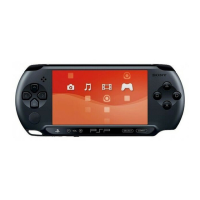
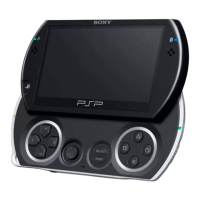
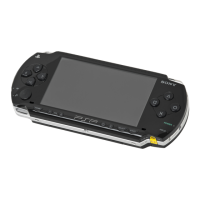
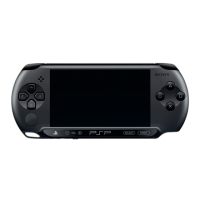
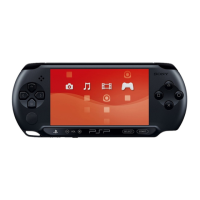
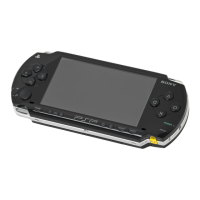
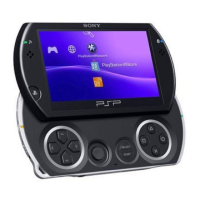
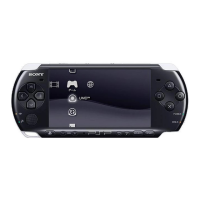
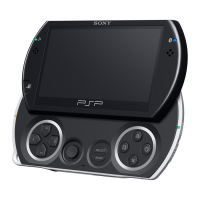
This document describes the basic operations of the PSP® (PlayStation®Portable) system, model PSP-3001, and serves as a quick reference guide. For detailed instructions, users are directed to the online user's guide at http://manuals.playstation.net/document/.
Function Description:
The PSP® system is a portable gaming and multimedia device. It features a user interface called "XMB" (XrossMediaBar) which serves as the main screen. From the XMB, users can access various categories including GAME, VIDEO, MUSIC, PHOTO, NETWORK, and SETTINGS. The system allows for playing games, videos, and music, displaying images, connecting to the Internet, and adjusting system settings.
Important Technical Specifications:
- User Interface: XMB (XrossMediaBar)
- Controls:
- Directional buttons: Used to select categories/items.
- PS button: Returns to the home menu, quits gameplay.
- △, □, 〇, ✕ buttons: ✕ button cancels selected operations, 〇 button confirms selected items.
- ▲ button: Displays the options menu/control panel.
- L and R buttons.
- Analog stick.
- START and SELECT buttons.
- POWER/HOLD switch: Turns the system on/off, puts it into sleep or hold mode.
- WLAN switch: Turns the wireless LAN feature on/off.
- USB connector (top).
- LCD screen.
- Memory Stick Duo™ access indicator.
- WLAN access indicator.
- Analog stick.
- Strap holder.
- Microphone (page 8).
- Volume + and Volume – buttons.
- Sound button.
- Display button.
- PS button.
- Power: Rechargeable battery pack, AC adaptor.
- Media: UMD® (Universal Media Disc) for content, Memory Stick Duo™ for storing music, videos, and images.
- Connectivity: USB, WLAN (wireless LAN).
- Video Output: Can output video to a TV using a video output cable (sold separately), either Component AV cable or AV cable.
Usage Features:
- Initial Setup: Involves sliding the power/hold switch up to turn on the system and following on-screen instructions to make initial settings. The power indicator lights green when on.
- Charging the Battery: The battery must be charged before first use. This involves attaching the AC adaptor to the PSP® system and plugging it into an electrical outlet. The power indicator lights orange during charging and turns off when fully charged. The battery can also be charged via a USB cable connected to a PC.
- Power and Sleep Mode:
- Turning on/Putting into sleep mode: Slide the power/hold switch up.
- Turning off: Slide the power/hold switch up and hold for three seconds.
- Locking system buttons (Hold mode): Slide the power/hold switch down. In hold mode, all operations using system buttons are locked, and the hold indicator is solid yellow.
- Sleep mode: Pauses currently playing software. Playback can resume from the point where sleep mode was entered. The system consumes power at a reduced rate in sleep mode.
- Playing UMD® Content: Open the disc cover, insert a UMD®, close the cover, and then select the UMD® icon from the home menu and press the 〇 button.
- Playing Memory Stick Duo™ Content: Open the slot cover, insert the Memory Stick Duo™ media until fully inserted, and then select the desired icon from the home menu and press the 〇 button.
- Checking Battery Charge Level: The system displays the battery charge level on the XMB. Indicators include "plenty of power," "getting low," "almost run out," and "no battery power remains" (flashing green indicator).
- Copying Music/Videos/Images: Files can be copied from a PC to Memory Stick Duo™ media. For music, create a "MUSIC" folder; for videos, a "VIDEO" folder; and for images, a "PICTURE" folder. Compatible software may be needed for conversion.
- Outputting Video to a TV: Connect the PSP® system to a TV using a video output cable (Component AV or AV cable, sold separately). Adjust the TV's video input setting. Turn on the PSP® system and press and hold the display button for at least 5 seconds to output video.
- Adjusting Network Settings: Connect to the Internet via WLAN. This involves selecting "Network Settings" under "Settings," choosing "Infrastructure Mode," selecting "New Connection," and then "Scan" to find an access point. Users may need to enter SSID, WEP key, or WPA key.
- Using the Internet Browser: Select the Internet Browser icon under "Network" from the home menu. An on-screen keyboard is used for text entry.
- Using the On-screen Keyboard: The keyboard allows text entry for various functions, including the Internet browser. It supports different input modes (letters and numbers, letters with accented letters, numbers only, web address shortcuts) and allows switching between upper and lower case.
- Parental Control: The system includes a parental control feature that allows users to set a password and limit playback of content by age rating. This is set in "Parental Control Level" under "Security Settings."
Maintenance Features:
- Updating System Software: Software updates can be obtained via Network Update (using the PSP® system's wireless LAN feature), Update using a PC (downloading update data from the Internet), or Update using a UMD® (containing update data). It is recommended to use the AC adaptor during updates and ensure the battery is charged.
- Checking System Software Version: The current software version can be checked in "System Information" under "System Settings."
- Safety and Support: Users are advised to read the Safety and Support manual for information on safety, troubleshooting, specifications, and other details.
- Cleaning: The document implies general care for the device, such as not touching the recorded surface of UMDs.

 Need help?
 General

 To Next Page