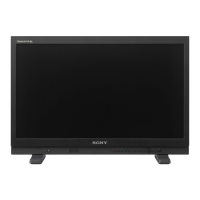
Why the pixel zoom does not function on my Sony PVM-L2300?
- SstewartanaSep 12, 2025
If the pixel zoom feature isn't working on your Sony Monitor, it might be because the native scan mode is not selected. Set to the native scan mode.

Why the pixel zoom does not function on my Sony PVM-L2300?
If the pixel zoom feature isn't working on your Sony Monitor, it might be because the native scan mode is not selected. Set to the native scan mode.
Why is the marker not displayed on my Sony PVM-L2300?
The marker might not be displayed on your Sony Monitor for several reasons: the display is set in the multi display or the pixel zoom display (set Side by Side to Off in the Function Switch menu of the Display Function menu and set the Pixel Zoom button to off); the DVI Computer signal or the computer signal of HDMI is displayed; the internal signal is displayed; or the signal is displayed in H delay mode or V delay mode. The marker is not displayed in these cases.
| Screen Size | 23 inches |
|---|---|
| Aspect Ratio | 16:9 |
| Brightness | 250 cd/m² |
| Contrast Ratio | 1000:1 |
| Viewing Angle | 178° (H) / 178° (V) |
| Response Time | 8 ms |
| Resolution | 1920 x 1080 (Full HD) |
| Panel Type | LCD (IPS) |
| Input Connectors | HDMI |
Warnings about fire or electric shock and opening the cabinet.
Requirements for earthing and avoiding liquid exposure.
Safety instructions for operation, power, and servicing.
Guidelines for air circulation and avoiding heat sources.
Precautions for LCD screen care and pixel issues.
Step-by-step instructions for installing optional input adaptors.
Detailed steps for connecting the BKM-16R monitor controller.
Configuring IP addresses and monitor IDs for network control of multiple units.
Details automatic and manual adjustment of chroma and phase.
Procedures for adjusting color temperature using probes or manual methods.
Overview of the adjustment menu structure and its sub-menus.
Structure of the input configuration menu.
Structure of the system configuration menu.
Overview of the adjustment menu for picture, color temperature, and position.
Detailed functions within Picture Adjust, including color bar and manual adjustments.
Detailed functions within Color Temperature Adjust.
Overview of the input configuration menu for setting input signal parameters.
Setting Matrix/Gamma data based on input signal format and standards.
Overview of the display setting menu for color reproduction and frame adjustments.
Overview of the display function menu for picture-related settings.
Overview of the system configuration menu for network, power, and password settings.
Network configuration, SNMP settings, and protocol settings.
Procedures for upgrading monitor software, kernel, and FPGA data.
Overview of the file management menu for system data operations.
Overview of the controller menu for network settings and function key assignments.
Network configuration for the controller, including trap settings and community names.
Assigning functions to the controller's F1-F16 buttons.
Setting monitor ID display and upgrading the controller.
How to select display modes like progressive, black frame insertion, and interlace.
Configuring the picture display type for native scan modes.
Methods to select native scan and scan modes (normal, under, over).
How to display two input signals simultaneously in a side-by-side format.
How to magnify a portion of the picture using pixel zoom.
How to display the picture in black detail mode for assessing low color gradation.
Capturing and saving HD signal frames to a Memory Stick.
Saving settings/adjustments to Memory Stick and copying to another monitor.
Procedures for upgrading monitor and controller firmware via Memory Stick.
Step-by-step guide to upgrade monitor software, kernel, or FPGA data.
Common symptoms, assumed causes, and remedies for operational problems.