HT-CT290/CT291
18
Releasing method:
Touch the [
1
] touch key on the main unit or press the [
1
] button on the remote commander to exit this mode. Touch again the [
1
] touch
key on the main unit or press again the [
1
] button on the remote commander and the LED lights will display as below table:
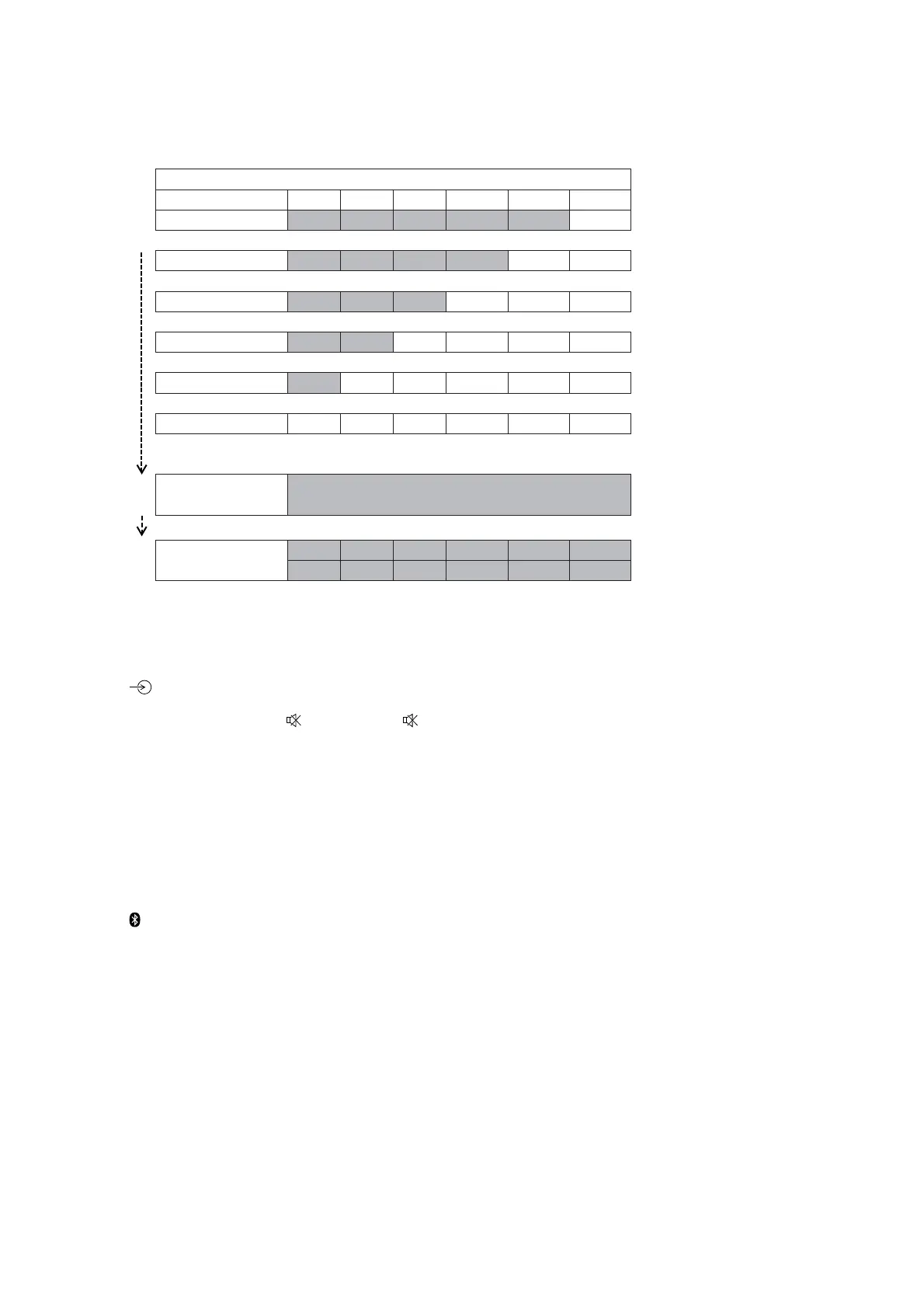
LED REACTION SPEC
Action USB TV BT MOVIE MUSIC BT LED
MODE OUT SEQ1 O O O O O
AUTO
MODE OUT SEQ2 O O O O
MODE OUT SEQ3 O O O
MODE OUT SEQ4 O O
MODE OUT SEQ5 O
MODE OUT SEQ6
TIME OUT DISPLAY FUNCTION
Press POWER
RESET
. . . . . . . . . . . . . . . . . . . . . . . . . . . . . .
*3**3**3**3**3**3*
DEMO MODE
The demo mode can be performed.
(This mode is used by shop front)
Procedure:
1. Touch the [
1
] touch key on the main unit to turn the power on.
2. Touch the [ ] touch key and [−] touch key on the main unit simultaneously for fi ve seconds.
Or press the button on the remote commander as following order (each buttons press within 5 seconds).
[BACK] [ENTER] [INPUT] [ ] [INPUT] [ ]
3. LED lights on from USB, TV, BT, MOVIE, and MUSIC. After that, all LED lights on and blinks 3 times.
4. The message “TV” appears on the screen display panel.
Releasing method:
Perform the “RESET”.
Note: The demo mode will not release by unplug the AC cord.
USB UPDATE TEST MODE
To update micontroller software through USB.
Procedure:
1. Plug in USB device in power on condition.
2. Touch the [ ] touch key and [1] touch key on the main unit simultaneously for fi ve seconds.
3. The message “USB” appears.
4. If the updating progress succeeds, all LED lights on and the main unit will restart.
5. If the updating progress fails, all LED lights blink continuously.



 To Next Page