EasyManua.ls Logo

Sony SB-V3000 - 1-2. Control Locations and Functions

Sony SB-V3000
79 pages
Print Icon
To Next Page IconTo Next Page
To Previous Page IconTo Previous Page
Loading...
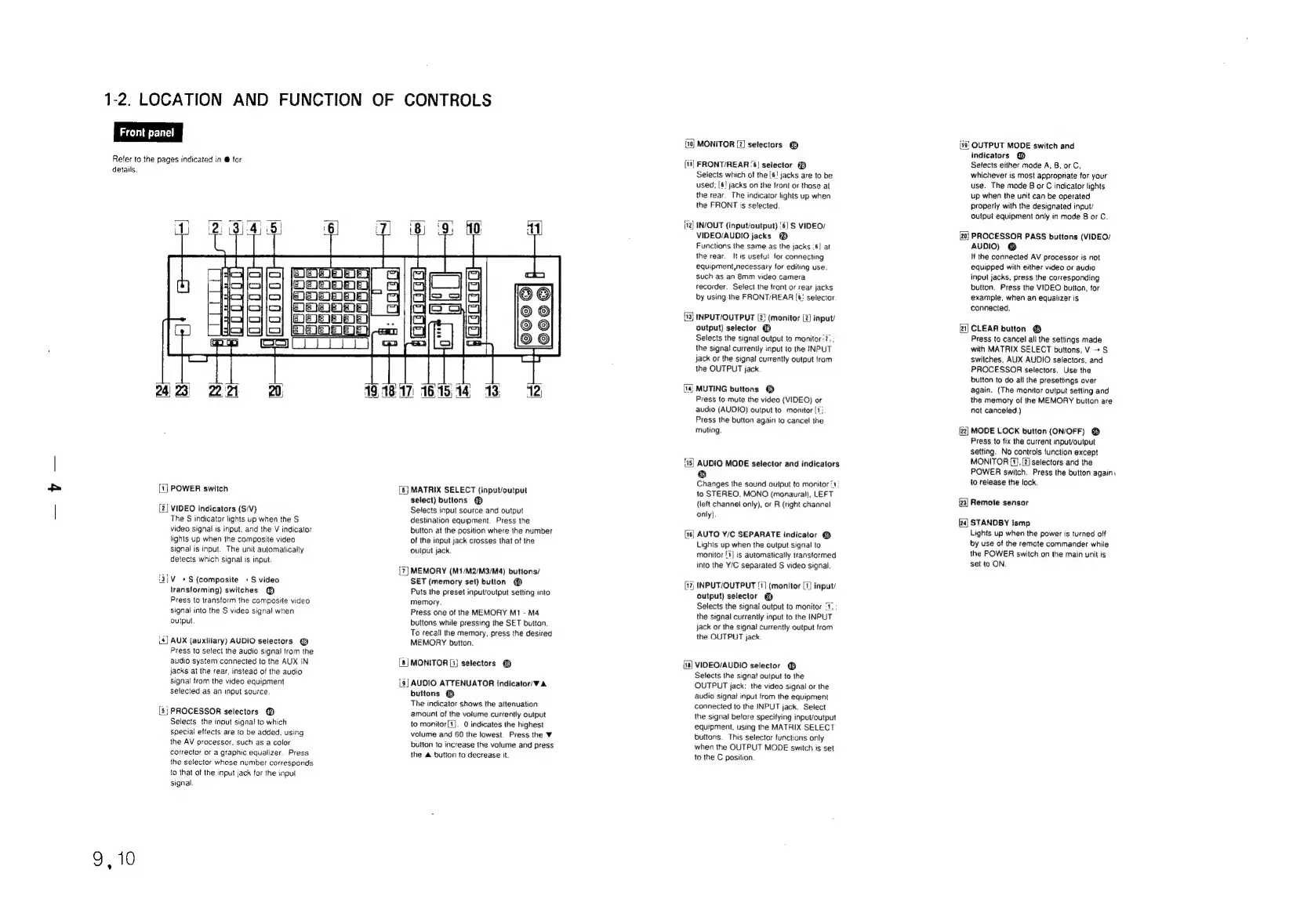
1-2.
LOCATION
AND
FUNCTION
OF
CONTROLS
Front
panel
Refer
to
the
pages
indicated
in
@
for
details.
(1]
POWER
switch
[2]
VIDEO
indicators
(S/V)
The
S
indicator
lights
up
when
the
S
video
signal
is
input,
and
the
V
indicator
lights
up
when
the
composite
video
Signal
is
input.
The
unit
automatically
detects
which
signal
is
input.
i3])V_
+S
(composite
+S
video
transforming)
switches
@
Press
to
transform
the
composite
video
signal
into
the
S
video
signal
when
output
(4)
AUX
(auxiliary)
AUDIO
selectors
@
Press
to
select
the
audio
signal
from
the
audio
system
connected
to
the
AUX
IN
jacks
at
the
rear,
instead
of
the
audio
signal
from
the
video
equipment
selected
as
an
input
source
(8;
PROCESSOR
selectors
®
Selects
the
input
signal
to
which
special
effects
are
to
be
added,
using
the
AV
processor,
such
as
a
color
corrector
or
a
graphic
equalizer.
Press
the
selector
whose
number
corresponds
to
that
of
the
input
jack
for
the
input
signal
9,10
[6]
MATRIX
SELECT
(input/output
select)
buttons
Selects
input
source
and
output
destination
equipment.
Press
the
button
at
the
position
where
the
number
of
the
input
jack
crosses
that
of
the
output
jack.
{7]
MEMORY
(M1/M2/M3/M4)
buttons/
SET
(memory
set)
button
@
Puts
the
preset
input/output
setting
into
memory
Press
one
of
the
MEMORY
M1
-
M4
buttons
while
pressing
the
SET
button.
To
recall
the
memory,
press
the
desired
MEMORY
button.
[8]
MONITOR
[1j
selectors
@
[3]
AUDIO
ATTENUATOR
indicator/¥
A
buttons
@
The
indicator
shows
the
attenuation
amount
of
the
volume
currently
output
to
monitor[1].
0
indicates
the
highest
volume
and
60
the
lowest.
Press
the
¥
button
fo
increase
the
volume
and
press
the
&
button
to
decrease
it.
10]
MONITOR
[2]
selectors
©
itt]
FRONT/REAR
‘6!
selector
@
Selects
which
of
the
[6!
jacks
are
to
be
used;
[8!
jacks
on
the
front
or
those
at
the
rear.
The
indicator
lights
up
when
the
FRONT
is
selected
12]
IN/OUT
(input/output)
'6]
S
VIDEO,
VIDEO/AUDIO
jacks
Functions
the
same
as
the
jacks
:6|
at
the
rear.
Itis
useful
for
connecting
equipment,
necessary
for
editing
use,
such
as
an
8mm
video
camera
recorder.
Select
the
front
or
rear
jacks
by
using
ihe
FRONT/REAR
[6:
selector
{13}
INPUT/OUTPUT
(2:
(monitor
(2)
input
output)
selector
@
Selects
the
signal
output
to
monitor?)
;
the
signa
currently
input
to
the
INPUT
jack
or
the
signal
currently
output
from
the
OUTPUT
jack.
{14}
MUTING
buttons
@
Press
to
mute
the
video
(VIDEO)
or
audio
(AUDIO)
output
to
monitor
[1
Press
the
button
again
to
cancel
the
muting
18]
AUDIO
MODE
selector
and
indicators
i)
Changes
the
sound
output
to
monitor
‘1
to
STEREO.
MONO
(monaural),
LEFT
(left
channel
only),
or
R
(right
channel
only)
[15]
AUTO
Y/C
SEPARATE
indicator
Lights
up
when
the
output
signal
to
monitor
/1]
is
automatically
transformed
into
the
Y/C
separated
S
video
signal
(17)
INPUT/OUTPUT
(7)
(monitor
(1)
input/
output)
selector
@
Selects
the
signal
output
to
monitor
‘1,
:
the
signal
currently
input
to
the
INPUT
jack
or
the
signa!
currently
output
from
the
OUTPUT
jack
{18]
VIDEO/AUDIO
selector
@
Selects
the
signal
output
to
the
OUTPUT
jack:
the
video
signa!
or
the
audio
signai
input
from
the
equipment
connected
to
the
INPUT
jack.
Select
the
signal
betore
specifying
input/output
equipment,
using
the
MATRIX
SELECT
buttons.
This
selector
functions
only
when
the
OUTPUT
MODE
switch
is
set
to
the
C
position.
(13!
OUTPUT
MODE
switch
and
indicators
@
Selects
either
mode
A,
8,
or
C,
whichever
is
most
appropriate
for
your
use.
The
mode
B
or
C
indicator
lights
up
when
the
unit
can
be
operated
properly
with
the
designated
input/
output
equipment
only
in
mode
B
or
C.
(20}
PROCESSOR
PASS
buttons
(VIDEO/
AUDIO)
@
If
the
connected
AV
processor
is
not
equipped
with
either
video
or
audio
input
jacks,
press
the
corresponding
button.
Press
the
VIDEO
button,
for
example,
when
an
equalizer
is
connected.
21]
CLEAR
button
@
Press
to
cancet
all
the
settings
made
with
MATRIX
SELECT
buttons,
V
+
S
switches,
AUX
AUDIO
selectors,
and
PROCESSOR
selectors.
Use
the
button
to
do
all
the
presettings
over
again.
(The
monitor
output
setting
and
the
memory
of
the
MEMORY
button
are
not
canceled.)
22]
MODE
LOCK
button
(ON/OFF)
@
Press
to
fix
the
current
input/output
setting.
No
controls
function
except
MONITOR
{1},
[2]
selectors
and
the
POWER
switch.
Press
the
button
again.
to
release
the
lock,
{z3]
Remote
sensor
z=
STANDBY
lamp
Lights
up
when
the
power
is
turned
off
by
use
of
the
remote
commander
while
the
POWER
switch
on
the
main
unit
is
set
to
ON

Related product manuals