29
GB
Disc/USB Playback
3 Press / repeatedly to select
[PARENTAL CONTROL], then
press .
4 Enter or re-enter your 4-digit
password using the numeric
buttons, then press .
5 Press / repeatedly to select
[STANDARD], then press .
6 Press / repeatedly to select a
geographic area as the playback
limitation level, then press .
The area is selected.
When you select [OTHERS t], enter
the area code for the geographic area
you want according to the “Parental
Control area code list” on page 66 by
using the numeric buttons.
7 Press / repeatedly to select
[LEVEL], then press .
8 Press / repeatedly to select
the level you want, then press
.
The lower the value, the stricter the
limitation.
To turn off the “PARENTAL
CONTROL” function
Set [LEVEL] to [OFF] in step 8.
To play back a disc for which
“PARENTAL CONTROL” is set
1 Load the disc and press N.
The display for entering your password
appears on the TV screen.
2 Enter your 4-digit password using
the numeric buttons, then press .
The system starts playback.
If you forget your password
Remove the disc and repeat steps 1 to 3 of
“Restricting playback of the disc”
(page 28). When you are asked to enter
your password, enter “199703” using the
numeric buttons, then press . The
display will ask you to enter a new 4-digit
password. After you enter a new 4-digit
password, reload the disc and press N.
When the display for entering your
password appears, enter your new
password.
Viewing information of
a disc and USB device
Hold down SHIFT, then press
DISPLAY repeatedly during
playback.
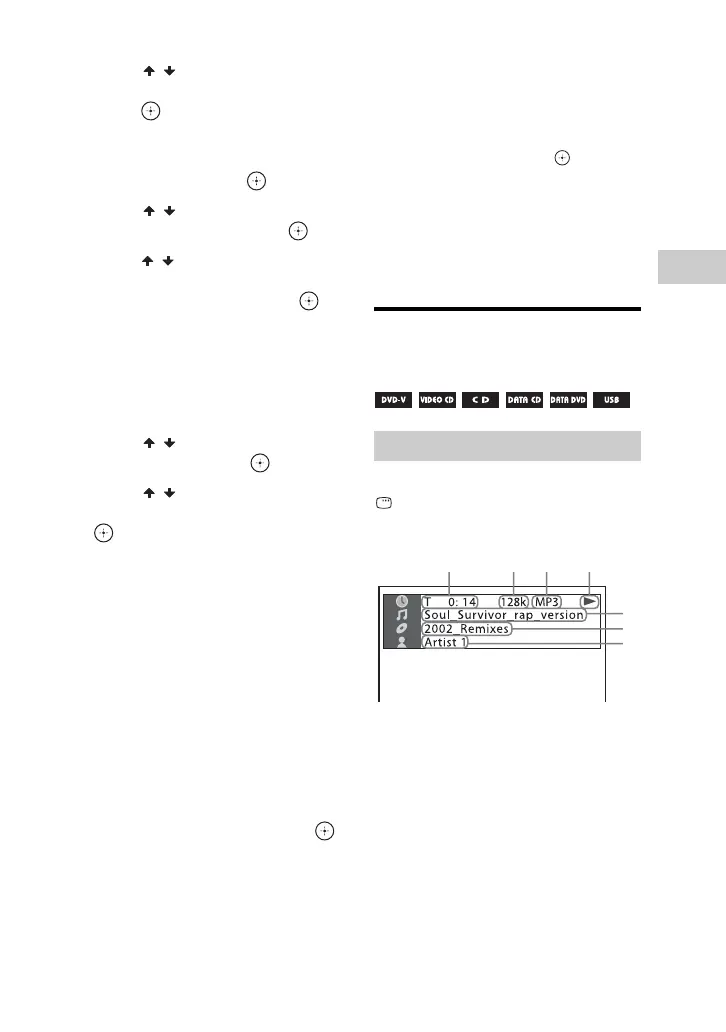
1 [T **:**:**/C **:**:**/D **:**:**]
Playing time of the current title, track/
chapter/disc
[T-**:**:**/C-**:**:**/D-**:**:**]
Remaining time of the current title,
track/chapter/disc
[**:**:**]
Playing time of the current scene/
video file
Information on the TV screen
1234
5
6
7



 To Next Page