8(E)
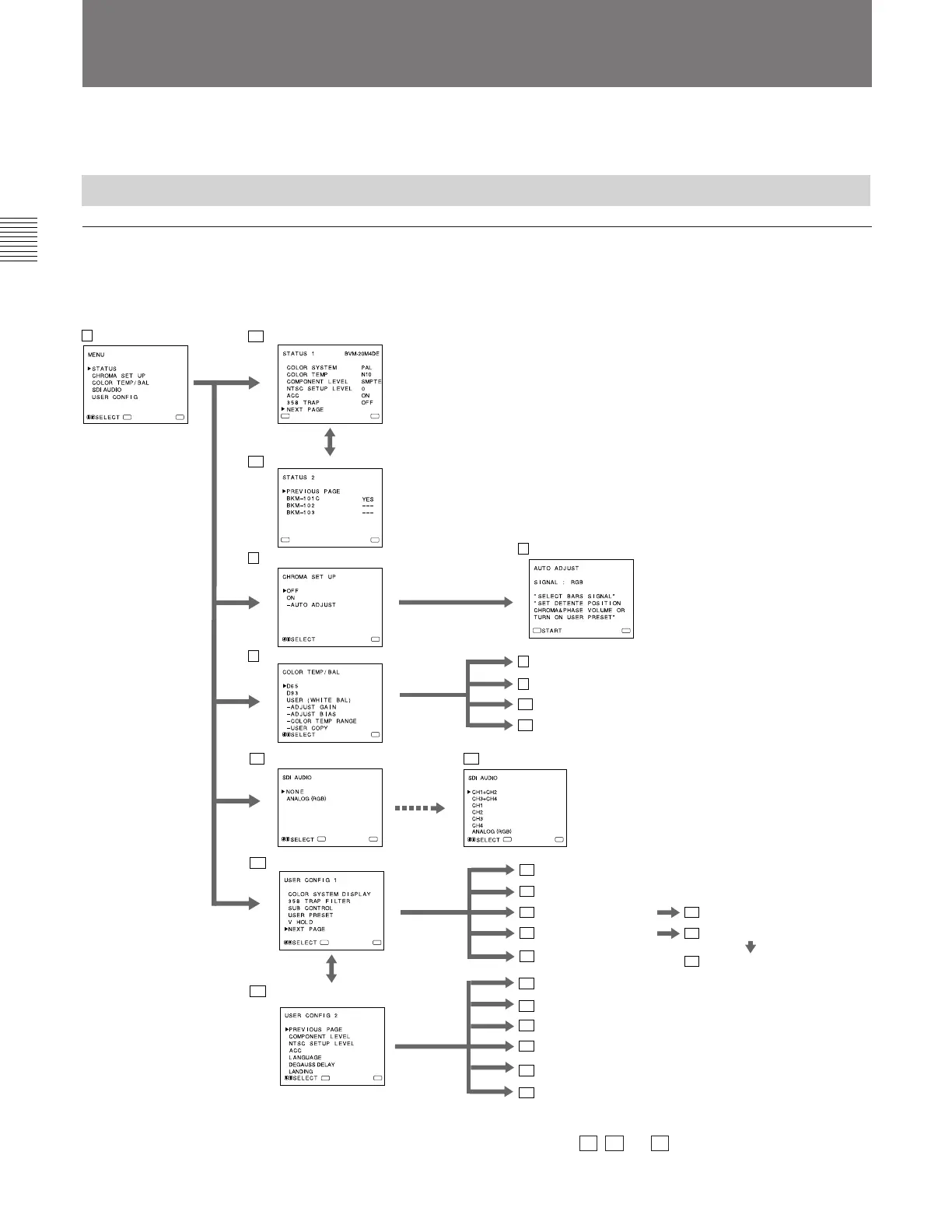
On-screen menu tree-chart
Using On-Screen Menus
On-Screen Menu Configuration
Main menu
You can enter another menu such as status menu or setting
menu.
Status menu
You can confirm the current settings.
Setting menu
You can select an item or enter an adjustment screen on this
menu by using the >/+, ./– and ENTER/SELECT buttons.
Adjustment screen
You can make adjustments on this screen. The adjustments
you made remain unchanged until next change even if you
turn off the power.
1) BVM-20M4DE/14M4DE: As the Component SDI Kit
BKM-101C is built in these units, the item of BKM-
101C always appears YES .
You can make various settings and adjustments of the
monitor using the on-screen menus.
.........................................................................................................................................................................................................
ENTER
MENU
ENTER
MENU
ENTER
MENU
ENTER
MENU
ENTER
MENU
MENU
MENU
1 Main menu 2a STATUS 1 menu
2b STATUS 2 menu
1)
3 CHROMA SET UP menu
4 COLOR TEMP/BAL menu
6a USER CONFIG 1 menu
7 AUTO ADJUST screen
8 ADJUST GAIN screen
9 ADJUST BIAS screen
10 COLOR TEMP RANGE menu
11 USER COPY menu
12 COLOR SYSTEM DISPLAY menu
13 358 TRAP FILTER menu
14 SUB CONTROL menu
16 USER PRESET menu
19 V HOLD screen
17 PRESET ADJUST menu
15 SUB CONTROL screen
18 PRESET ADJUST screen
ENTER
MENU
ENTER
MENU
5a SDI AUDIO menu
2)
5b SDI AUDIO menu
2)
MENU
6b USER CONFIG 2 menu
20 COMPONENT LEVEL menu
21 NTSC SETUP LEVEL menu
22 ACC menu
23 LANGUAGE menu
ENTER
24 DEGAUSS DELAY menu
25 LANDING menu
2)
2) The menu 5a , 5b and 25 may not be displayed due to the
model.
For details, see pages 10(E) and 11(E).



 To Next Page