8
2 LINE B connectors
Input connectors for the composite video, Y/C separate
video and audio signals.
To monitor the input signal fed through these
connectors, press the LINE B button on the front
panel.
Y/C IN connector (4-pin mini-DIN)
Connect to the Y/C separate output connector of a
video camera, VCR or other video equipment.
VIDEO IN connector (BNC-type)
Connect to the video output connector of video
equipment, such as a VCR or a color video camera.
For a loop-through connection, connect to the video
output connector of another monitor.
AUDIO IN connector (phono jack)
Connect to the audio output connector of a VCR or
other equipment. For a loop-through connection,
connect to the audio output of another monitor.
3 Ground (1) terminal
Connect a GND cable.
4 ⁄AC IN (inlet) connector
Connect the supplied AC power cord to this connector
and to a wall outlet.
Location and Function of Parts and Controls
9
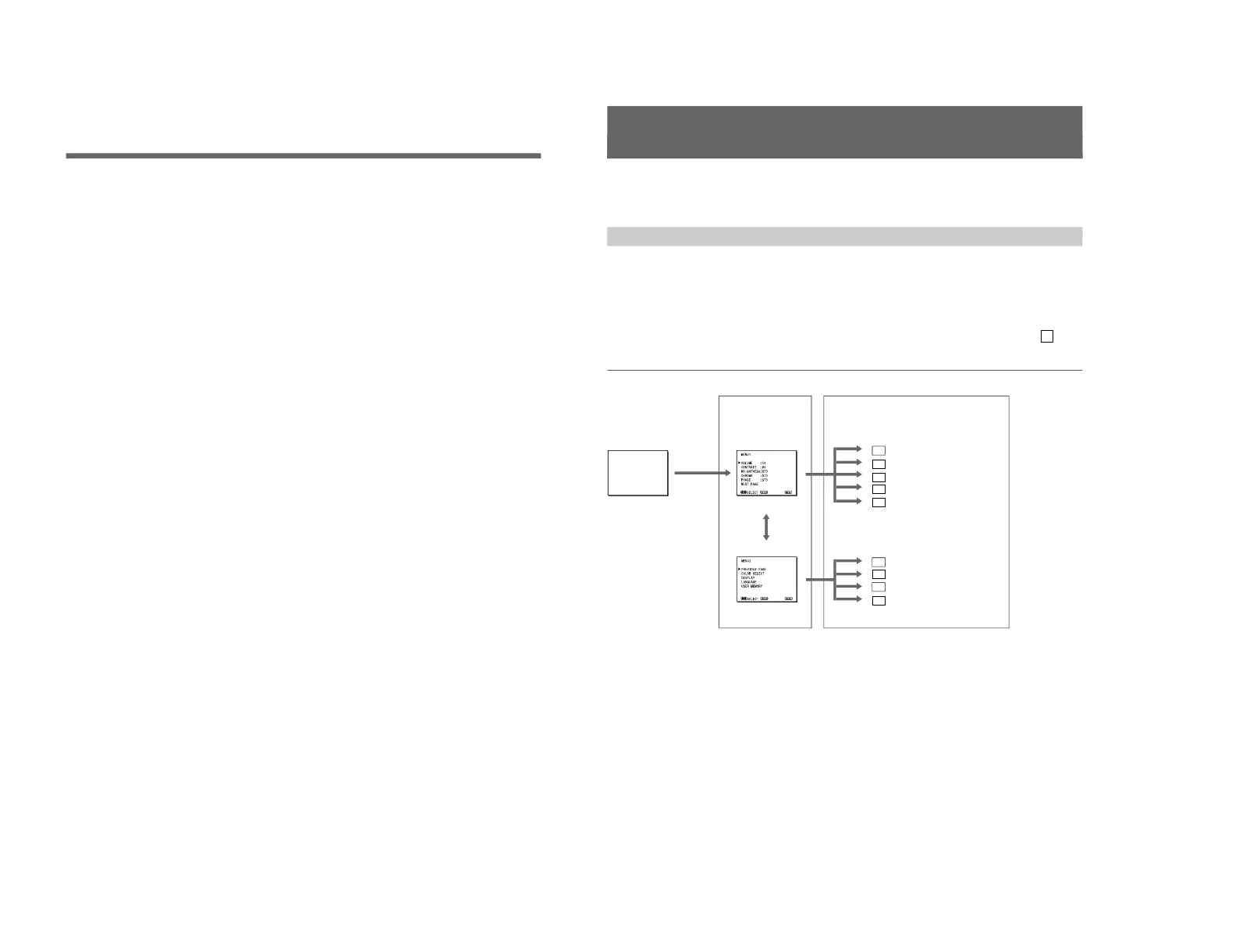
Using On-Screen Menus
You can make various settings and adjustments of the
monitor using the on-screen menus.
Regular screen
1 MENU 1
1a VOLUME menu
1b CONTRAST menu
1c BRIGHTNESS menu
1d CHROMA menu
1e PHASE menu
2a COLOR SELECT menu
2c LANGUAGE menu
2b DISPLAY menu
On-screen menu tree-chart
2 MENU 2
Item selection menus Adjustment and setting menus
2d USER MEMORY menu
Adjustment and setting menus
You can make desired adjustment or setting on
corresponding menu. The settings and adjustments
remain unchanged until next adjustment even if you
turn off the power.
To reset the settings and adjustments to the factory-
settings, select “ FACTORY PRESET” from 2d USER
MEMORY menu.
The on-screen menu is composed of the following two
menu types.
Item selection menu
You can select an adjustment and setting item such as
sound volume, contrast, brightness, color intensity,
color system and menu language by using the >,. and
ENTER buttons.
On-Screen Menu Configuration




 To Next Page