1-14
SIIA Chassis
Operation through On-Screen
Menus
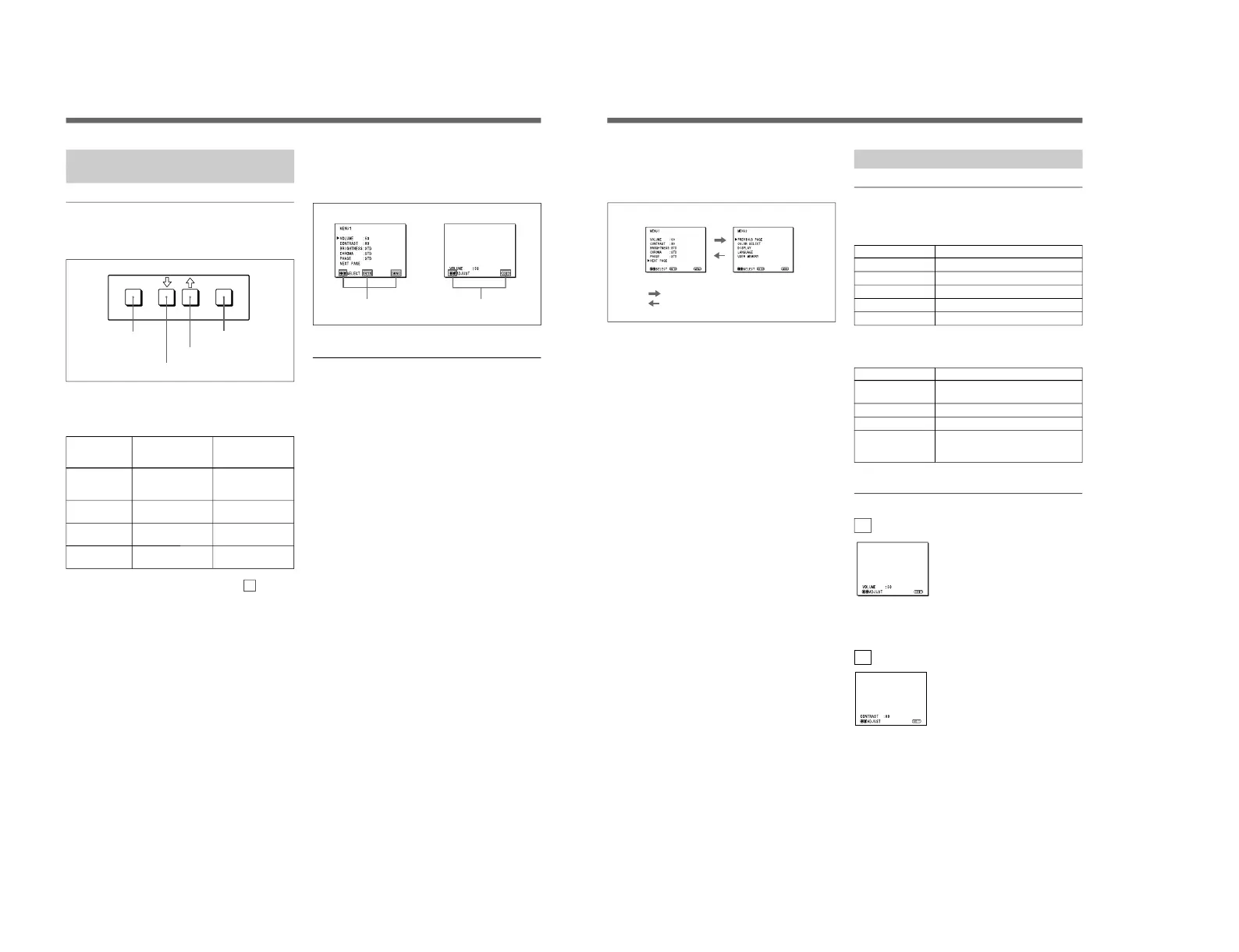
Menu operation buttons
There are four menu operation buttons on the front
panel of the monitor.
Button functions depend on the displayed menu. The
following table shows the button functions on the item
selection menus and adjustment and setting menus.
Button
1 MENU/EXIT
2 .
3 >
4 ENTER
a) You can use the ENTER button only on the 2d USER
MEMORY menu of the adjustment and setting menus.
1 MENU/EXIT button
3 > button
2 . button
4 ENTER button
Function on the
item selection
menus
To return to the
regular screen.
To move the cursor
downward.
To move the cursor
upward.
To decide a
selected item.
Function on the
adjustment and
setting menus
To return to the
item selection
menu.
To decrease value/
select item.
To increase value/
select item.
To decide a
selected item
a)
.
Operating procedures
To display the menu, follow this procedure.
1
Press the MENU/EXIT (1) button.
1 MENU 1 appears.
To select items other than ones not displayed on
MENU 1
Select 2 MENU 2.
For details of how to select, see the “To change the item
selection menus” described later.
2
Move the cursor to the desired item by pressing the
. or > (2, 3) button.
3
Press the ENTER (4) button.
The adjustment and setting menu selected in step 2
appears.
For detailed information of menus, see “Functions of On-
Screen Menus” on page 11.
Usable buttons depend on the displayed menu. Buttons
that can be used on the menu are displayed at the
bottom line of the screen. You can perform menu
operation using displayed buttons.
Display of the usable menu operation buttons
Menu
Usable buttons
Usable buttons
Using On-Screen Menus
11
To change the item selection menus
Select NEXT PAGE on the menu to display next item
selection menu and PREVIOUS PAGE on the menu to
display the previous item selection menu.
How to change the item selection menu
To return to the item selection menu from the
adjustment and setting menus
Press the MENU/EXIT (1) button on the currently
displayed adjustment and setting menu.
To close the menu (to return to the regular
screen)
Press the MENU/EXIT (1) button when the item
selection menu is displayed. The on-screen menu
disappears and the regular screen appears.
MENU 1 MENU 2
When selecting NEXT PAGE
When selecting PREVIOUS PAGE
Functions of On-Screen Menus
Item selection menus
1 MENU 1
MENU 1 menu has the following selection items.
Item
VOLUME
CONTRAST
BRIGHTNESS
CHROMA
PHASE
2 MENU 2
MENU 2 menu has the following selection items.
Item
COLOR SELECT
DISPLAY
LANGUAGE
USER MEMORY
Adjustment and setting menu
1a VOLUME menu (Factory setting: 50)
Adjust the speaker volume.
The volume increases by pressing the > button.
The volume decreases by pressing . button.
1b CONTRAST menu (Factory setting: 80)
Adjust the contrast of the screen.
The contrast becomes higher by pressing the > button.
The contrast becomes lower by pressing . button.
Functions
To obtain the desired volume
To adjust the contrast
To adjust the brightness
To adjust the color intensity
To adjust the phase
Function
To select the color system of the
input signal
To select period of display
To select the menu language
To store and recall the values and
settings adjusted by a user, and recall
the factory-settings




 To Next Page