EasyManua.ls Logo

Sony Trinitron PVM-20M4E - Page 12

Sony Trinitron PVM-20M4E
19 pages
Print Icon
To Next Page IconTo Next Page
To Previous Page IconTo Previous Page
Loading...
MIU
Using
On-Screen
Menus
SA
A
Te
Aa
IS
a
nN
ah
a
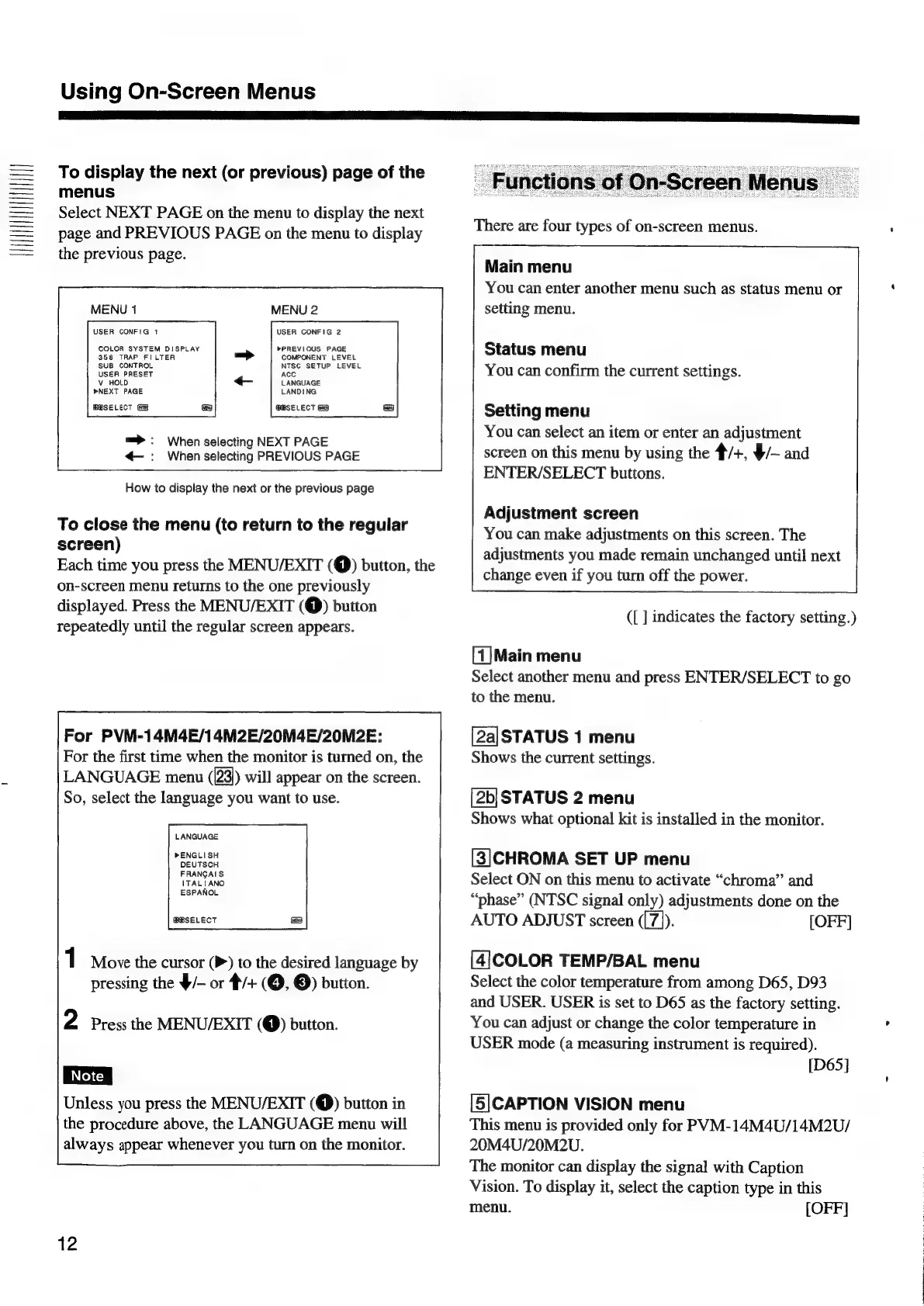
To
display
the
next
(or
previous)
page
of
the
menus
Select
NEXT
PAGE
on
the
menu
to
display
the
next
page
and
PREVIOUS
PAGE
on
the
menu
to
display
the
previous
page.
USER
CONFIG
1
USER
CONFIG
2
»PREVIOUS
PAGE
COMPONENT
LEVEL
NTSC
SETUP
LEVEL
COLOR
SYSTEM
DISPLAY
358
TRAP
FILTER
SUB
CONTROL
USER
PRESET
LANGUAGE
Vv
HOLD
»NEXT
PAGE
LANDING
@BSELECT
@BSELECT
Ga)
=>:
When
selecting
NEXT
PAGE
¢-—:
When
selecting
PREVIOUS
PAGE
How
io
display
the
next
or
the
previous
page
To
close
the
menu
(to
return
to
the
regular
screen)
Each
time
you
press
the
MENU/EXIT
(@)
button,
the
on-screen
menu
returns
to
the
one
previously
displayed.
Press
the
MENU/EXIT
(@)
button
repeatedly
until
the
regular
screen
appears.
For
PVM-14M4E/14M2E/20M4E/20M2E:
For
the
first
time
when
the
monitor
is
turned
on,
the
LANGUAGE
menu
(23)
will
appear
on
the
screen.
So,
select
the
language
you
want
to
use.
LANGUAGE
PENGLISH
DEUTSCH
FRANGAIS
ITALIANO
ESPANOL
@BSELECT
Move
the
cursor
(P>)
to
the
desired
language
by
pressing
the
§/—
or
4/+
(©,
©)
button.
2
Press
the
MENU/EXIT
(@)
button.
Unless
you
press
the
MENU/EXIT
(@)
button
in
the
procedure
above,
the
LANGUAGE
menu
will
always
appear
whenever
you
turn
on
the
monitor.
12
There
are
four
types
of
on-screen
menus.
Main
menu
You
can
enter
another
menu
such
as
status
menu
or
setting
menu.
Status
menu
You
can
confirm
the
current
settings.
Setting
menu
You
can
select
an
item
or
enter
an
adjustment
screen
on
this
menu
by
using
the
4/+,
§/—
and
ENTER/SELECT
buttons.
Adjustment
screen
You
can
make
adjustments
on
this
screen.
The
adjustments
you
made
remain
unchanged
until
next
change
even
if
you
turn
off
the
power.
([
]
indicates
the
factory
setting.)
[1]Main
menu
Select
another
menu
and
press
ENTER/SELECT
to
go
to
the
menu.
[2a]STATUS
1
menu
Shows
the
current
settings.
[2b|
STATUS
2
menu
Shows
what
optional
kit
is
installed
in
the
monitor.
[3]CHROMA
SET
UP
menu
Select
ON
on
this
menu
to
activate
“chroma”
and
“phase”
(NTSC
signal
only)
adjustments
done
on
the
AUTO
ADJUST
screen
([7]).
[OFF]
[4]COLOR
TEMP/BAL
menu
Select
the
color
temperature
from
among
D65,
D93
and
USER.
USER
is
set
to
D65
as
the
factory
setting.
You
can
adjust
or
change
the
color
temperature
in
USER
mode
(a
measuring
instrument
is
required).
[D65]
[5|CAPTION
VISION
menu
This
menu
is
provided
only
for
PVM-14M4U/14M2U/
20M4U/20M2U.
The
monitor
can
display
the
signal
with
Caption
Vision.
To
display
it,
select
the
caption
type
in
this
menu.
[OFF]

Related product manuals