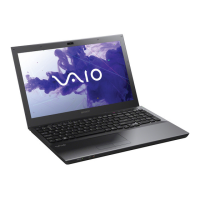
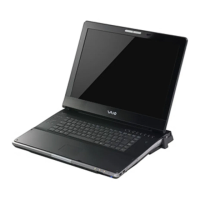
Need help?
Do you have a question about the Sony VAIO and is the answer not in the manual?
Details on printed documentation, on-screen guides, and support websites.
Guidelines for safe and comfortable computer usage to prevent strain.
Identifies and describes computer hardware components and connections.
Explains the meaning of various status indicator lights on the computer.
Instructions for connecting the computer to AC power using the adapter.
Procedures for installing, removing, and charging the computer's battery.
Steps to properly turn off the computer to avoid data loss.
Explains Sleep and Hibernate modes for conserving battery life.
Guidance on updating software for efficiency, security, and functionality.
Details on keyboard functions, including Fn key combinations.
Explains how to use the touch pad for navigation and interaction.
Describes the purpose and operation of dedicated function buttons.
Instructions for using the computer's integrated camera for images and video.
Procedures for inserting, playing, and managing discs in the optical drive.
Guide to inserting, removing, and formatting Sony's Memory Stick media.
Information on using ExpressCard and SD memory card slots.
Steps for connecting the computer to the internet via an ISP.
Instructions for connecting to a wired network using a LAN cable.
Guide to setting up and using the computer's wireless network connection.
Instructions for establishing wireless communication with Bluetooth devices.
How to connect audio output devices to the computer.
Steps to connect external monitors or projectors to the computer.
Options for configuring multiple display outputs.
How to extend the desktop across multiple displays.
Instructions for connecting an external microphone.
Guide to connecting various devices via USB ports.
Procedures for connecting devices using the i.LINK (IEEE 1394) port.
How to set power-on and Windows passwords for security.
Enabling hardware virtualization technology for enhanced performance.
Utility for accessing system info and customizing preferences.
Setting up power plans for battery life and performance.
Instructions for installing language packs and changing system language.
Step-by-step guide for installing or replacing RAM modules.
General safety guidelines for computer and power source usage.
Instructions for cleaning and maintaining the computer and its components.
Precautions for physical handling, placement, and environmental factors.
Guidelines for protecting the LCD screen from damage.
Safety advice regarding AC adapters and power outlets.
Precautions for using and protecting the built-in camera lens.
Best practices for handling optical discs to prevent errors.
Important notes and warnings about battery pack usage and care.
Precautions for storing and handling Memory Stick media.
Advice for protecting the computer's internal storage from damage.
Solutions for common computer startup and operation issues.
How to schedule Windows updates for system security and performance.
Procedures for creating and using recovery media to restore the system.
Troubleshooting steps for battery charging and replacement issues.
Solutions for issues related to the built-in camera's image quality or functionality.
Troubleshooting network connectivity problems.
Solutions for problems with Bluetooth device connectivity and performance.
Troubleshooting steps for issues with the optical disc drive and media.
Solutions for screen display problems, including blank screens and image quality.
 General
| Brand | Sony |
|---|---|
| Series | VAIO |
| Category | Laptop |
| Operating System | Varies by model |
| CPU | Varies by model |
| Memory | Varies by model |
| Storage | Varies by model |
| Display Size | Varies by model |
| Display Resolution | Varies by model |
| Graphics | Varies by model |
| Weight | Varies by model |
| Battery Life | Varies by model |

 To Next Page