132
nN
Troubleshooting >
Recovery
How do I reduce the volume of the recovery area?
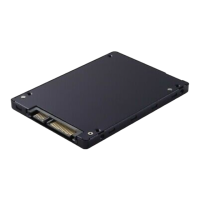
Your built-in storage device contains the recovery area where the data for system recovery is stored. If your computer
includes a solid state drive, you might want to minimize the recovery area by removing such data.
1 Insert a Recovery Media into the optical disc drive while your computer is in Normal mode, turn off the computer, and then
turn it on once again.
!
Use Recovery Media you created upon delivery of your computer.
✍
If you are using an external optical disc drive (not supplied), restart the computer and press the F11 key several times when the VAIO logo appears.
2 Press the M or m key to select VAIO Care Rescue and press the Enter key.
3 Click Tools and Start advanced recovery wizard.
✍
When the Do you need to rescue data? message appears, make a backup copy of your data, if needed.
4 Follow the on-screen instructions until the Select recovery type window appears.
5 Select Custom recovery - Remove recovery contents.
6 Follow the on-screen instructions.
!
The above procedure involves system recovery. The applications and data you added on the storage device before removing the data for system
recovery will all be lost.
Once you have removed the data for system recovery, you need the Recovery Media for later system recovery.



 To Next Page