Travel and maps
Using location services
Location services allow applications such as Maps and the camera to use information
from Wi-Fi® networks as well as Global Positioning System (GPS) information to
determine your approximate location. If you're not within a clear line of sight to GPS
satellites, your device can determine your location using the Wi-Fi® function.
In order to use your device to find out where you are, you need to enable location
services.
To enable location services
1
From your Home screen, tap
.
2
Find and tap Settings > Location.
3
Drag the slider beside Location to the right.
4
Tap Agree to confirm.
To allow Google apps to access your location
1
Make sure you are signed in to your Google™ account from your device.
2
From your Home screen, tap
.
3
Find and tap Settings > Google > Location.
4
Drag the slider beside Location to the right.
5
Tap Agree to confirm.
Improving GPS accuracy
The first time you use the GPS function in your device, it can take 5 to 10 minutes for
your location to be found. To help the search, make sure you have a clear view of the
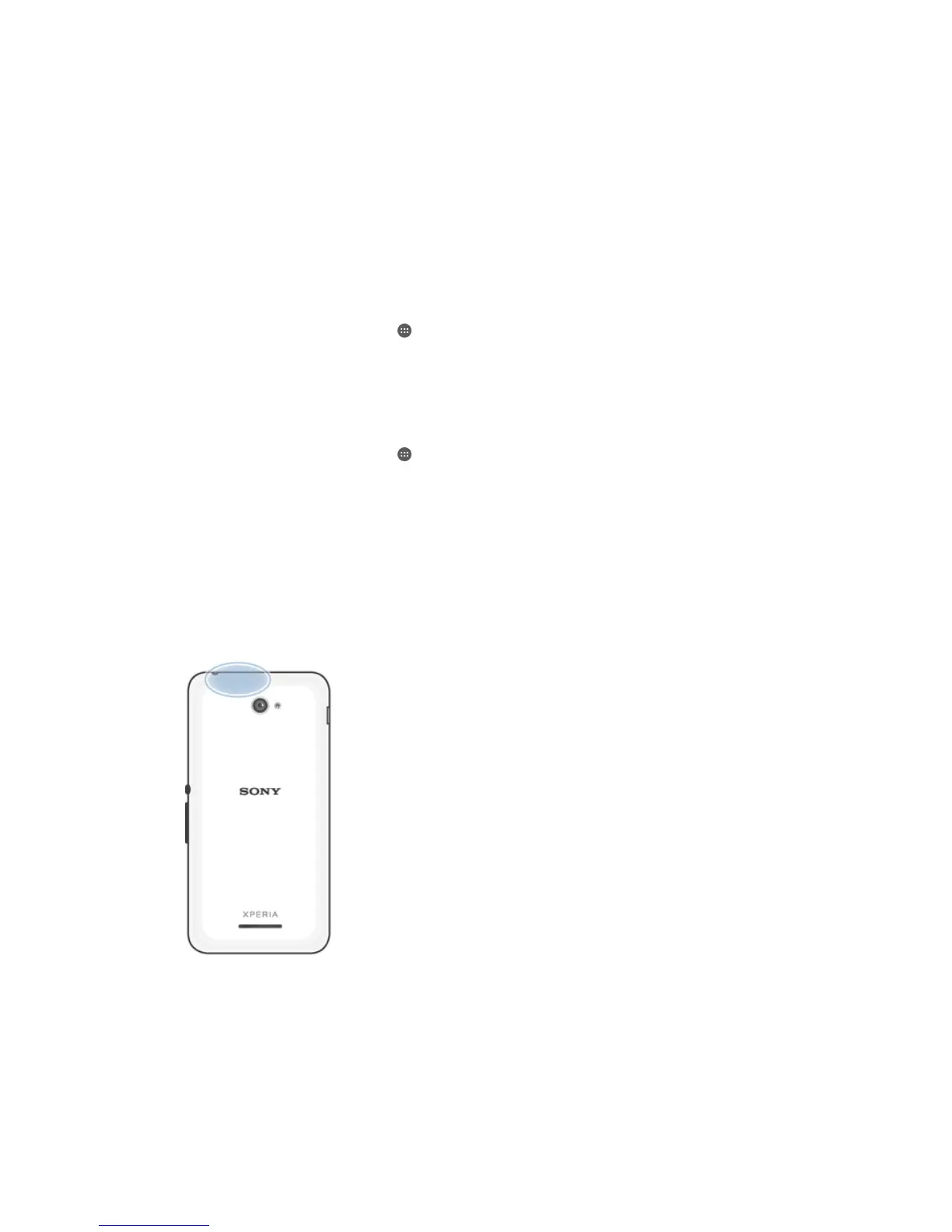
sky. Stand still and don't cover the GPS antenna (the highlighted area in the image).
GPS signals can pass through clouds and plastic, but not through most solid objects
such as buildings and mountains. If your location isn't found after a few minutes,
move to another location.
Google Maps™ and navigation
Use Google Maps™ to track your current location, view real-time traffic situations
and receive detailed directions to your destination.
104
This is an Internet version of this publication. © Print only for private use.









 To Next Page