ON SCREEN - MAIN MENU OPERATION
~
During unit operation and when this icon appeared on screen, touch to shift screen to MAIN
i.aJl
MENU for various operation and setup.
MAIN MENU MAIN MENU
2 3 4 5 6 7 8 9 10
11
a
I~
I
9)
~
tll
,/
I
~~
i
~
~
-
..
lf
r
t
·
;(
"I
i:
c.,m
i\:.IJJ Suru:i
'hilt
'
!:i:.~
-;...;:11n
""
Pt.u.,,.&n5
...
,t~t,.
,
87
"4l
1,
1
1:
-
-:(-
fr:l.00
)(;
.:!.
-
~
t.t
'.'..1.00
)((~
12 13 14 15
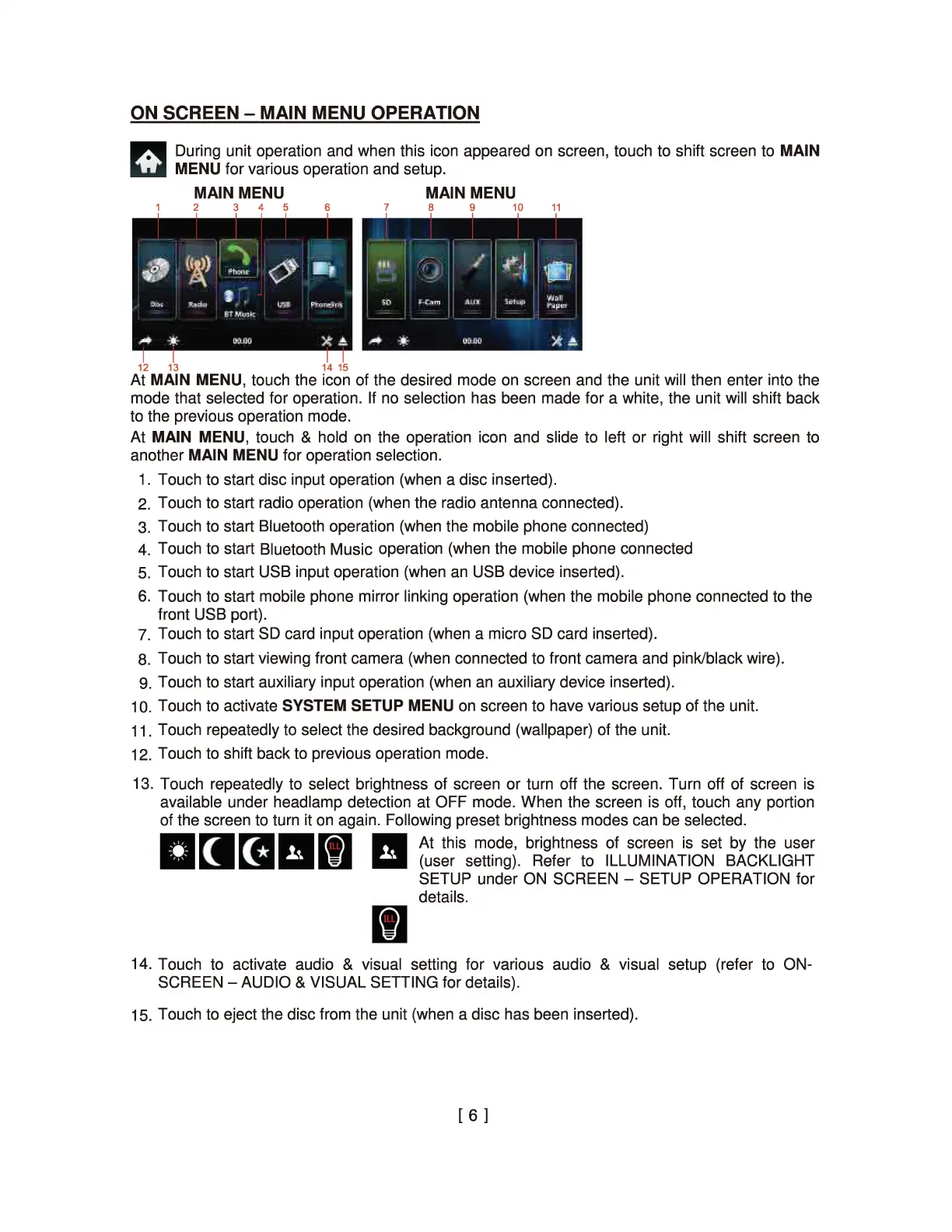
At MAIN MENU, touch the icon of the desired mode
on
screen and the unit will then enter into the
mode that selected for operation.
If
no selection has been made for a white, the unit will shift back
to the previous operation mode.
At MAIN MENU, touch & hold on the operation icon and slide to left or right will shift screen to
another MAIN MENU for operation selection.
1. Touch to start disc input operation (when a disc inserted).
2.
Touch to start radio operation (when the radio antenna connected).
3. Touch to start Bluetooth operation (when the mobile phone connected)
4.
Touch to start Bluetooth Music operation (when the mobile phone connected
5.
Touch to start USB input operation (when
an
USB device inserted).
6. Touch to start mobile phone mirror linking operation (when the mobile phone connected to the
front USB port).
7.
Touch to start SD card input operation (when a micro SD card inserted).
8. Touch to start viewing front camera (when connected to front camera and pink/black wire).
9. Touch to start auxiliary input operation (when
an
auxiliary device inserted).
1
O.
Touch to activate SYSTEM SETUP MENU
on
screen to have various setup of the unit.
11
. Touch repeatedly to select the desired background (wallpaper) of the unit.
12. Touch to shift back to previous operation mode.
13. Touch repeatedly to select brightness of screen or turn off the screen. Turn off of screen is
available under headlamp detection at OFF mode. When the screen is off, touch any portion
of the screen to turn it
on
again. Following preset brightness modes can be selected.
a
ra
ra
11111
II At this mode, brightness of screen is set by the user
li.!II
~
Ill
(user setting). Refer to ILLUMINATION BACKLIGHT
SETUP under
ON
SCREEN - SETUP OPERATION for
details.
I]
14. Touch to activate audio & visual setting for various audio & visual setup (refer to ON-
SCREEN - AUDIO & VISUAL SETTING for details).
15. Touch to eject the disc from the unit (when a disc has been inserted).
[ 6 ]


 To Next Page