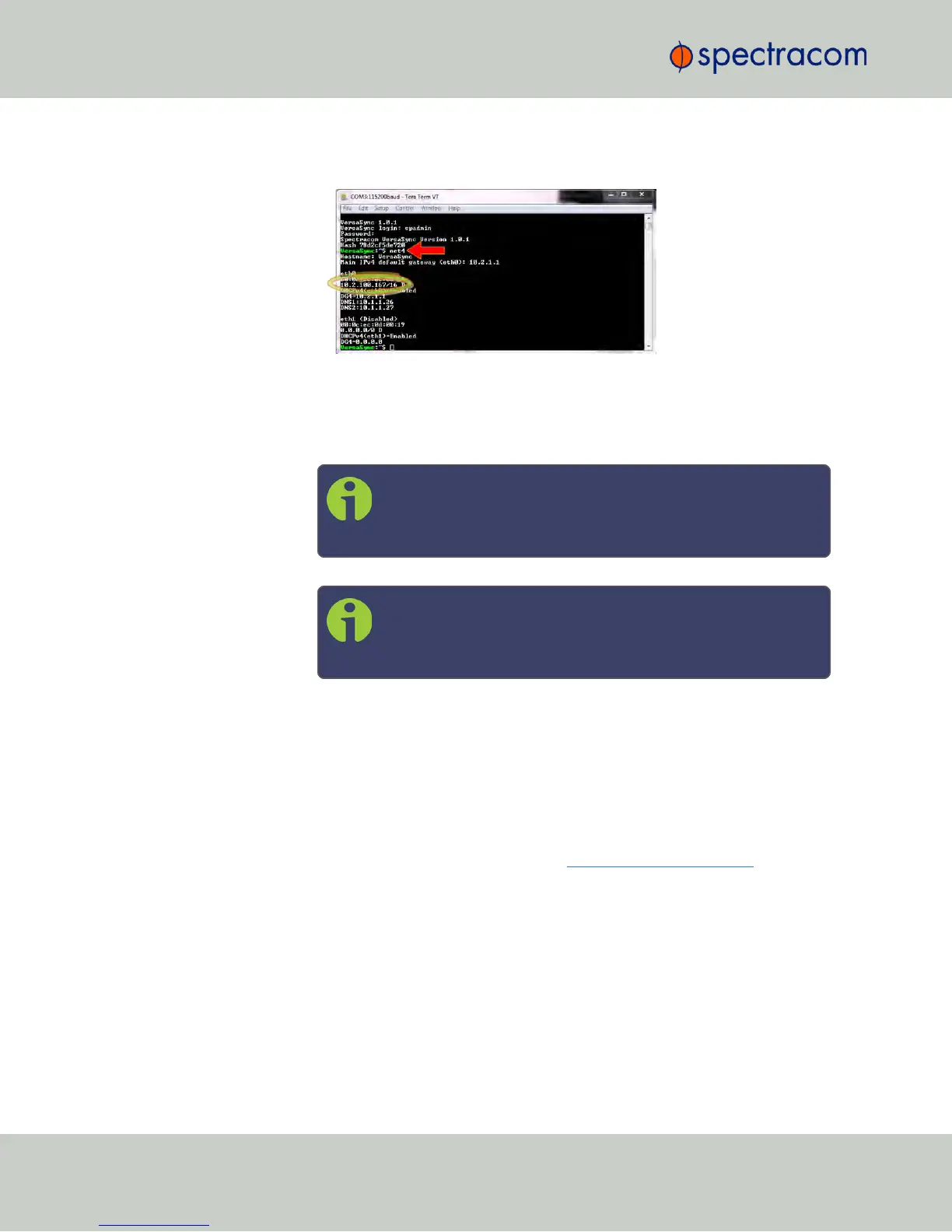
network settings, including the IP address assigned to the unit. Take note of
the IP address.
You can use this IP address to login to the VersaSync Web UI and then set
a static IP address, subnet mask and gateway (see Step 4. below).
Or, continue with the network configuration via the CLI, as described
under Step c. below.
Note: For your reference, the command helpcli produces a
list of available commands. Press the space key to display the
next page, or the b key to display the previous page.
Note: Should it become necessary to leave the VI editor
mode (indicated by a command line prompt ":"), press Q, or
Ctrl C.
c.
To disable DHCP type dhcp4set <x> off , (x being 0/1 for ETH0
and ETH1, respectively). Example:
dhcp4set 0 off
d.
Type net4 to confirm that DHCP has been turned off. Setup a new IP
address by typing ip4set <x> <IP address> <subnet
mask> and –if required– gw4set <x> <gateway address>. For
a table with subnet mask values, see manuals.spectracom.com.
4.
Login to the Web UI
a.
On a PC connected to VersaSync via ETH0 or ETH1, start a web browser.
b.
Navigate to the IP address obtained in Step 3.b, or assigned in Step 3.d.
c.
Login to the VersaSync Web UI, using the same credentials as mentioned
above.
d.
If so required, you can also change VersaSync's IP configuration (address,
subnet, gateway, ...):
4
CHAPTER 1 • VersaSync Evaluation Kit Quick Reference Guide Rev. 5


 To Next Page