EasyManua.ls Logo

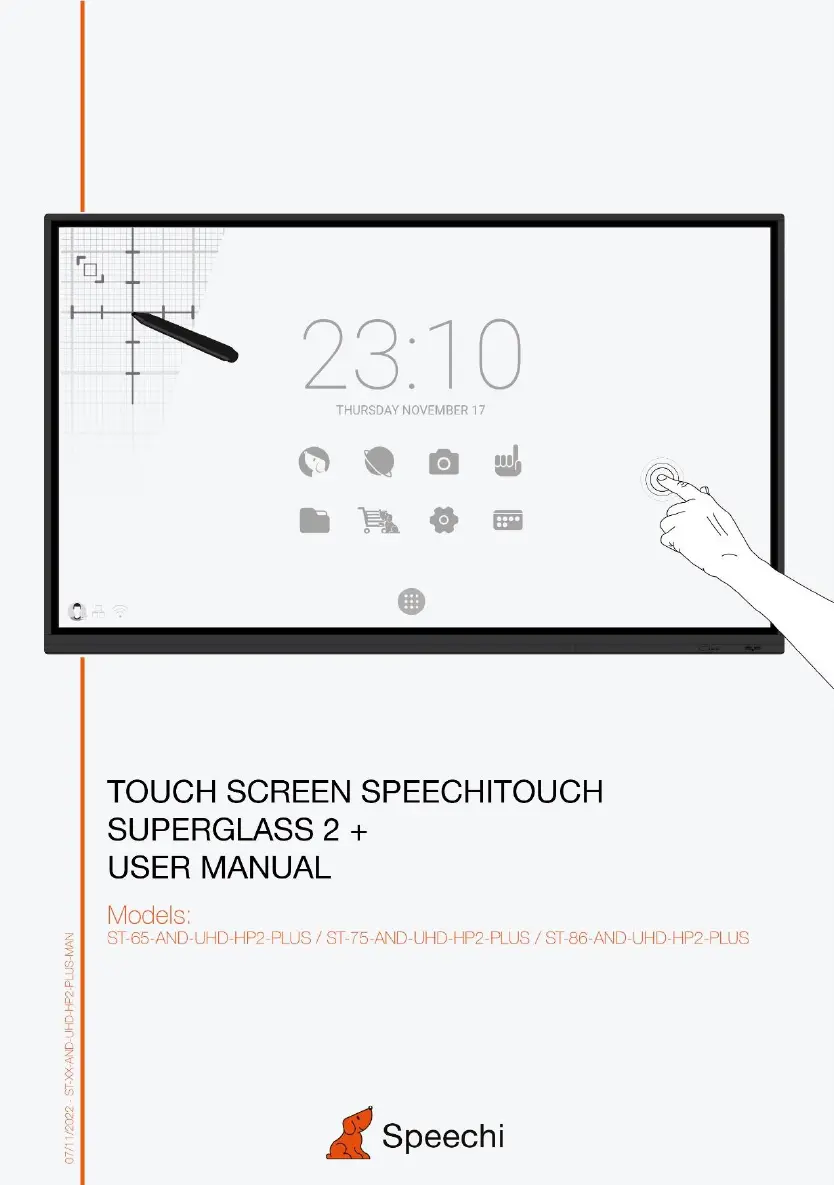
Speechi SPEECHITOUCH SUPERGLASS 2+ - User Manual

Default Icon
21 pages
Print Icon
To Next Page IconTo Next Page
Loading...

Questions and Answers

  • I
    Isaac WilliamsAug 18, 2025
    What to do if my Speechi Touchscreen has no picture and no sound?
    • B
      benjaminkennedyAug 19, 2025
      If your Speechi Touchscreen shows no picture and no sound, first ensure the device is powered on. Next, verify that the signal wires are securely connected and the INPUT setting corresponds correctly. If you're using the internal computer mode, confirm that the internal computer has been started.
  • J
    joshua60Aug 21, 2025
    Why is my Speechi SPEECHITOUCH SUPERGLASS 2+ Touchscreen remote control not working?
    • A
      Alexandra RobertsonAug 21, 2025
      If your Speechi Touchscreen remote control isn't working, make sure there are no obstructions between the remote and the equipment's receiving window. Also, check the battery's polarity in the remote and consider replacing the battery if needed.
  • B
    barnettamberAug 23, 2025
    How to fix horizontal or vertical stripes on Speechi Touchscreen?
    • R
      Robert GainesAug 23, 2025
      If you are getting horizontal or vertical stripes, or image dithering on your Speechi Touchscreen, check that the signal wire is properly connected. Also, ensure that there are no other electronic equipment or power tools placed around the device, as they may cause interference.
  • S
    Sonya ClaytonAug 26, 2025
    Why does my Speechi Touchscreen have image but no sound?
    • S
      Sarah WallaceAug 26, 2025
      If your Speechi Touchscreen has image but no sound, first check if the mute button is activated. If so, deactivate it. Next, try adjusting the volume using the VOL + / – buttons. Finally, verify that the audio line is correctly connected.
  • H
    Heather WilliamsonAug 27, 2025
    How to fix image color issues on Speechi Touchscreen?
    • F
      fmartinAug 27, 2025
      If the image on your Speechi Touchscreen lacks color or the color is incorrect, check if the VGA cable is properly connected and of good quality. You can also adjust the chromatic and brightness or contrast settings in the menu.
  • T
    Theresa StevensAug 30, 2025
    Why does my Speechi Touchscreen automatically shut down?
    • R
      Robin JonesAug 30, 2025
      If the Speechi Touchscreen machine automatically shuts down, check whether sleep mode is enabled. Also, check for any sudden power outages. If the external channel loses signal for 5 minutes, the system will automatically shut down, so verify the signal input and connection.
  • L
    Levi SmithSep 1, 2025
    How to improve weak color or image on Speechi SPEECHITOUCH SUPERGLASS 2+ Touchscreen?
    • E
      Erik GraySep 2, 2025
      If the color is weak, or the image on your Speechi Touchscreen is weak, try adjusting the chromatic, brightness, or contrast in the menu. Also, check that the signal wire is securely connected.
  • K
    Kenneth MartinezSep 4, 2025
    Why does only one speaker on my Speechi SPEECHITOUCH SUPERGLASS 2+ have sound?
    • T
      Tracy HillSep 4, 2025
      If only one speaker on your Speechi Touchscreen is producing sound, adjust the sound balance in the menu. Also, check if the computer's sound control panel is set to only one sound channel. Finally, ensure the audio line is correctly connected.
  • J
    Jennifer BlanchardSep 6, 2025
    What to do if Speechi SPEECHITOUCH SUPERGLASS 2+ display format is not supported?
    • M
      millermargaretSep 6, 2025
      If the display format is not supported on your Speechi Touchscreen, select automatic correction in the menu. You can also adjust the clock and phase position in the menu.
  • D
    Daniel RowlandSep 8, 2025
    What to do if the touch function is invalid on Speechi Touchscreen?
    • H
      Heidi BooneSep 8, 2025
      If the touch function is not working on your Speechi Touchscreen, make sure that the size of the object you are using to touch the screen is comparable to a finger.

Summary

Safety and Usage Precautions

Placement Guidelines

Safety guidelines for positioning the unit.

Power Supply Safety

Precautions for using the power cable and supply.

LED Screen Care and Operation

Best practices for screen longevity and performance.

Operating Environment: Temperature & Humidity

Recommended temperature and humidity ranges.

Ventilation, Earphone, and Battery Safety

Guidelines for ventilation, earphone use, and battery disposal.

Cleaning and Maintenance Notes

How to clean the unit and maintenance requirements.

Control Panel Overview

Installation Preparation

Steps to prepare for control panel installation.

Terminal Interface Descriptions

Detailed explanation of all input/output ports and connectors.

Remote Control Operations

Remote Control Button Functions

Explains the function of each button on the remote.

Remote Control Detailed Functions

In-depth explanation of remote control features.

Battery Installation and Range

Guide to installing batteries and understanding remote range.

Connecting and Setting Up

External Computer and Touch Setup

Connecting PCs for touch and display.

Audio, Video, and USB Connectivity

Connecting audio, video sources, and USB devices.

Other Connections: TF, LAN, RS232

How to connect TF cards, networks, and serial devices.

Troubleshooting Guide

Machine Operation Failures

Solutions for when the machine doesn't work as expected.

PC Mode Display Problems

Resolving display errors in PC mode.

Touch and Video Function Issues

Troubleshooting touch input and video display problems.

Audio Output Problems

Solutions for audio playback issues.

Maintenance and Care

Screen Cleaning Procedure

Step-by-step guide for cleaning the touch screen.

Frame Care and Storage

Cleaning the frame and precautions for long periods of non-use.

Speechi SPEECHITOUCH SUPERGLASS 2+ Specifications

General IconGeneral
BrandSpeechi
ModelSPEECHITOUCH SUPERGLASS 2+
CategoryTouchscreen
LanguageEnglish