10.
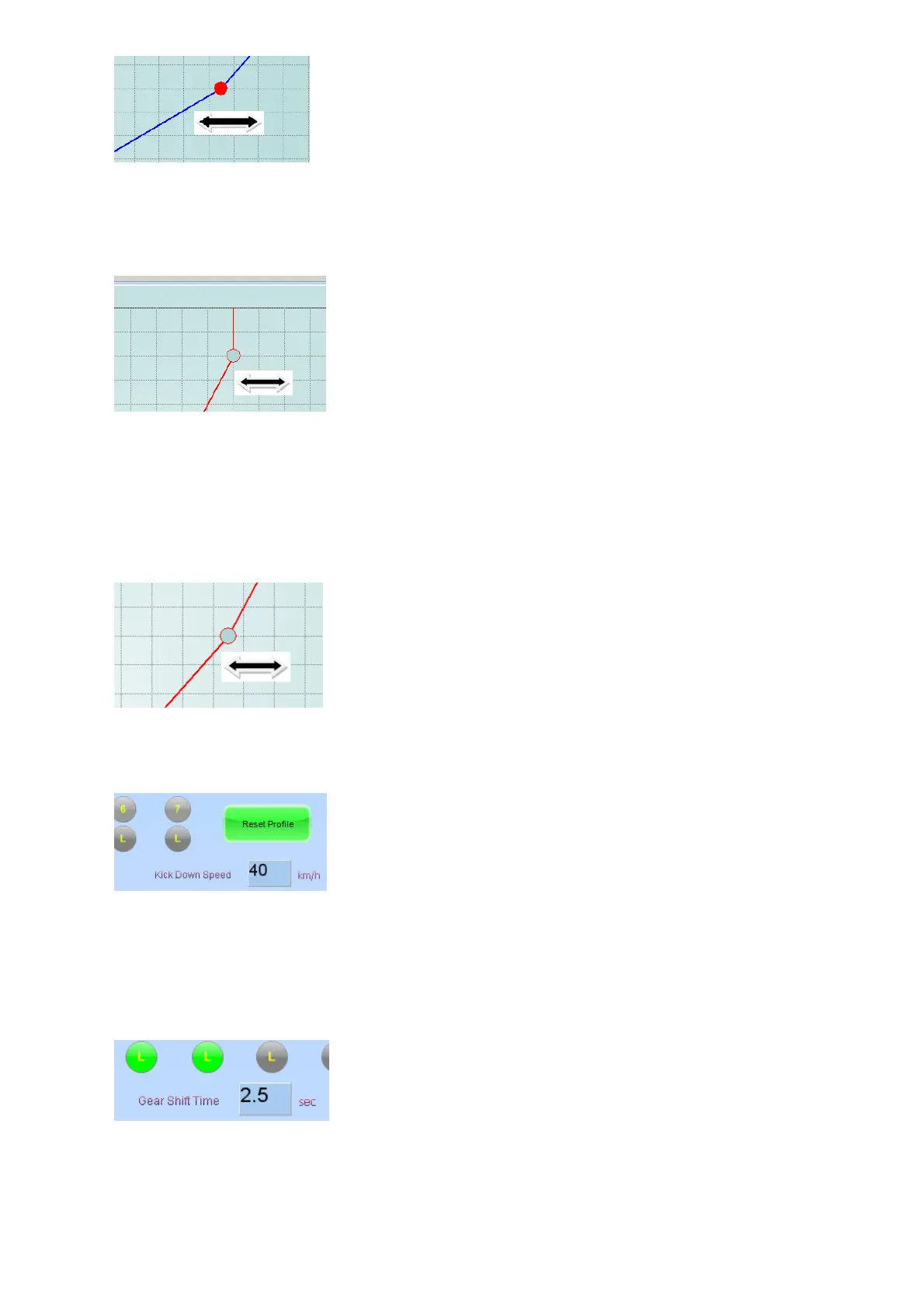
11. Now to set the Up Shift (Blue Line) Middle Dot, press the throttle in about 40% TPS value.
Again feel each shift if it takes place at the right RPM’s. If it shifts too quickly move the Dot
more to the right and vice versa. Do this for each gear.
9.1.3 Driving and Complex Settings
1.
2. Now to set the Down Shift (Red Line) High Dot RPM value, you need to cruise in the gears
higher than gear 1, and at an RPM just lower than this Dot value. Then kick the throttle in
quickly to reach a value higher than 90% TPS value. Now when the TCU shift the previous
gear, feel if the RPM in this gear is too high or too low. Adjust the Dot only left or right. This
kick back should occur at a RPM where the lower gear still have range to improve the
vehicle speed, without over revving the engine. It should also not be too low so that the
engine labor in higher gear and not be able to gear down under high load conditions. Do
this for each gear.
3.
4. To set the Down Shift (Red Line) Middle Dot for gear down when Throttle is pressed is a bit
trickier. You need to cruise in each gear at low RPM. Then press the throttle in at certain
depths and feel is gear down occurs at the correct acceleration. Adjust this Dot left and right
till kickback occurs at the correct throttle opening.
5.
6. The last shift setting to adjust is the Kick Down Speed setting. This setting lets the TCU
gear down regardless of the RPM or if the Gear Shift Time has lapsed. It will also let the
TCU shift back two gears at a time. The TCU will gear down when the speed is below this
value and the Throttle is pressed to a value greater than the Down Shift (Red Line) High
Dot value. To start with a reasonable value, use 60% of the maximum speed for the lower
gear. Example if Gear 2 can reach a speed of 100 Km/h, use 60Km/h as a setting for Gear
3. Do this for all the gears except Gear 1.
7.
8. Gear Shift Time is important to let the transmission complete its hydraulic action before the
TCU attempt its next shift. A setting here is normally 2.5 to 3 seconds.
Save the profile in the TCU and also on the PC as Profile 1 Automatic.tcu.
Now select Profile 2 and load the file Profile 1 Automatic.tcu from the PC into the TCU. Press
Connect and save it to the flash in the TCU and then start editing from there.



 To Next Page