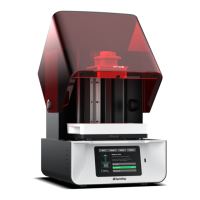
SprintRay Account
Create a Workspace
The physical space your printer occupies plays a vital
role in its success. Dust, heat, and direct sunlight can
drastically impact your system’s success or failure.
For best results, set Pro 2 up near your other SprintRay
devices for optimal workflow efficiency. Turn the
leveling feet on the bottom of the device to fine-tune the
position of the printer and ensure that it sits level.
Connecting Your SprintRay
Pro 2 is designed to be used with an active internet
connection. Ordering designs, sending print jobs, and
automatic handoff between devices require a SprintRay
account with an active internet connection.
Advanced security protocols may prevent Pro 2 from
connecting to the internet. Contact your network
administrator for assistance.
Wireless Connection
Great for most offices
Wired Connection
Great for offices with high security
Do Don’t
▪ Level surface
▪ Clean workspace
▪ Away from other equipment
▪ Away from windows and sunlight
▪ Consistent temperature 70-85 F
▪ Well ventilated area
▪ Uneven surface
▪ Dusty, dirty workspace
▪ Near other lab equipment
▪ Near windows or in sunlight
▪ Large temperature swings
▪ Poor ventilation
SprintRay Account
Level Surface
Optimal Environment
Uneven Surface
Warm Environment
Recommended
Operating
Temperature
Min 70 °F
21 °C
Max 85 °F
29 °C
A wired connection is recommended if your wireless
network uses advanced security protocols or if your Wi-Fi
signal is poor. Once you start up Pro 2, select the LAN
option to connect to the internet.
A wireless connection is recommended for most offices that
use normal networking and security protocols. Once you start
up your Pro 2, you’ll be prompted to connect to a wireless
network by selecting your network name and entering the
A network switch or router is required
to establish a wired connection.
A wireless router is required to
establish a wireless connection.
Network Security May Block Connection
Firewalls or antivirus software designed to secure your network may prevent your computer from
finding the printer and connecting to SprintRay Cloud. If you need help getting connected, work
with your network administrator and SprintRay support.
Do not place your printer near a mill or other equipment
that produces dust. The inner components of the printer
are highly sensitive, and excessive dust accumulation
can impact print quality and accuracy.
Internet Internet

 Need help?
 General

 To Next Page