Smart Life Tracking
Your SprintRay Pro S is equipped with
advanced electronics that allow the printer
to track the lifetime and health of each tank.
Follow onscreen instructions to properly set
up new resin tanks to ensure longevity and
proper tracking.
Resin Tanks Are Consumable
Resin tanks are consumable products that have an expected
lifetime. Follow the onscreen instructions to understand the
remaining life of your resin tank.
Resin Tank Fill Lines
When starting a print, the desktop software or touchscreen of
your Pro S 3D printer will display the resin level necessary for
the planned job.
Fill the tank to the suggested level, ensuring even distribution
of the resin across the tank. Pay attention to the Min and
Max indications in the tank to ensure that the correct amount
of resin is present. Before printing, double check resin levels
against the value needed which is displayed on the screen.
The Min/Max indicators on the Pro 55S and Pro 95S resin
tank are in different locations and indicate different amounts.
Resin Tank Best Practices
For best results, use a dedicated resin tank for each different
material you use. Keep a backup tank on hand in case of an
emergency to avoid ordering downtime.
Backup Resin Tank: Keep a backup resin tank on
hand to avoid downtime due to tank life.
Use the provided power cable to plug your printer into
a surge protector or uninterrupted power supply.
When not in use, the printer automatically goes into
lower power mode, and does not need to be turned
off.
Use the power switch if you need to perform a hard
reset or disconnect your Pro S from its power source.
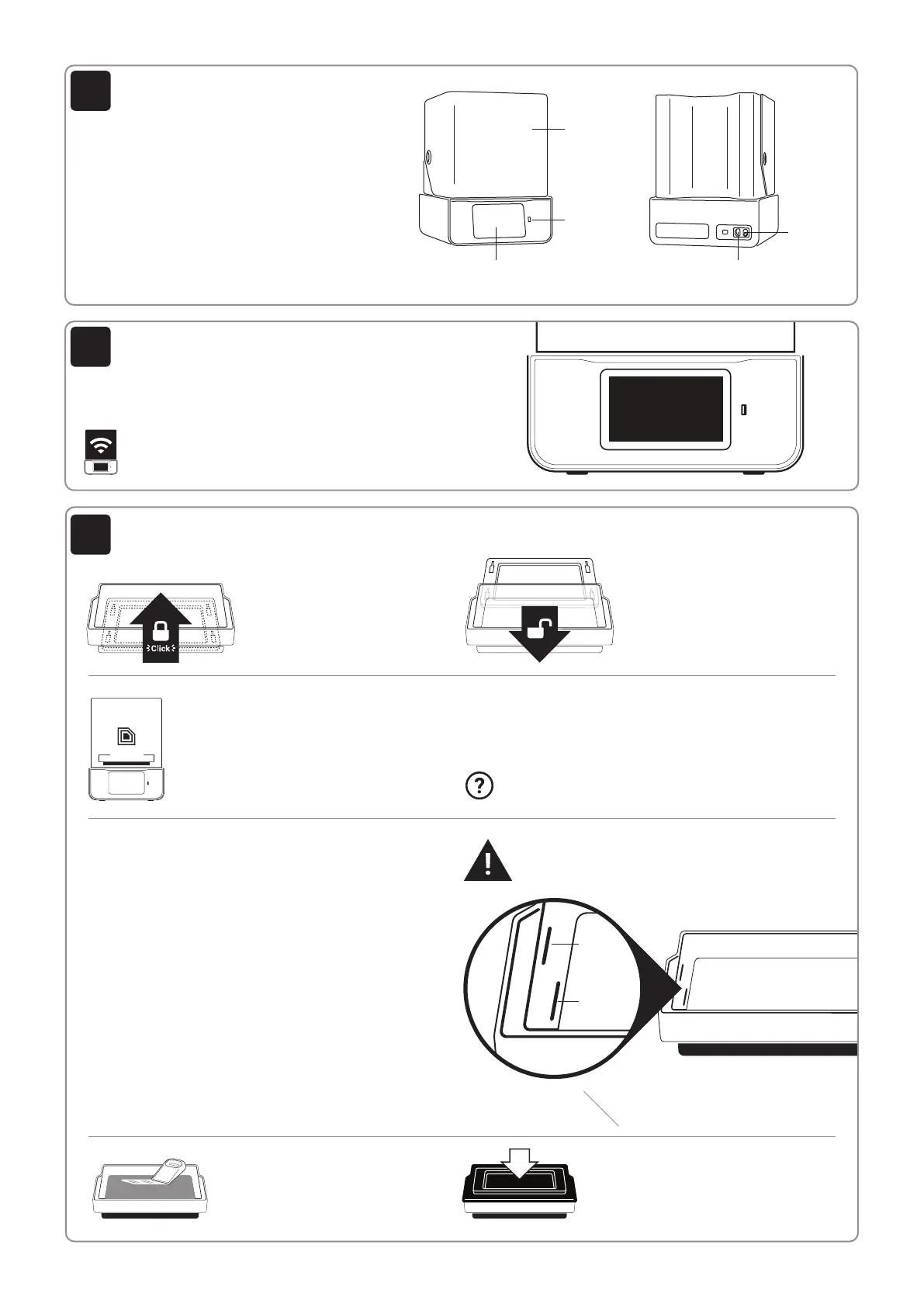
Plug in Pro S
UV Lid
USB Port
Touchscreen
Power
Switch
Power Port
Prepare Resin Tank
(Pre-installed)
Lock: Place the tank in its
cradle, then push away from
you. You will hear a ‘click’ when
the tank is properly locked.
Unlock: Gently pull toward
you until you hear a ‘click’ to
unlock. Lift up to remove the
tank from its cradle.
After powering-up your Pro S, you will be presented with onboarding
instructions on the screen which will help you connect to the internet.
Set up Pro S
Hello...
Let’s get started.
Pro 55S Min 150mL
Max 400mL
Pro 95S Min 200mL
Max 500mL
Cover Resin Tank After Print
If you’re done printing for the day,
secure the tank cover to help extend
the life of resin in tank.
Stir Resin Before Print
If you keep resin in the tank
between jobs, use the resin wiper to
mix the tank before every print.
RFID
WARNING!
Over pouring resin will cause spillage that is not
covered by the limited warranty offered by SprintRay.
Make Printer Discoverable
Ensure that your printer and computer are both
connected to the same wireless network.
3
4
5


 To Next Page
 Loading...