3D Printing
Get Software
Download RayWare Software from sprintray.com/software
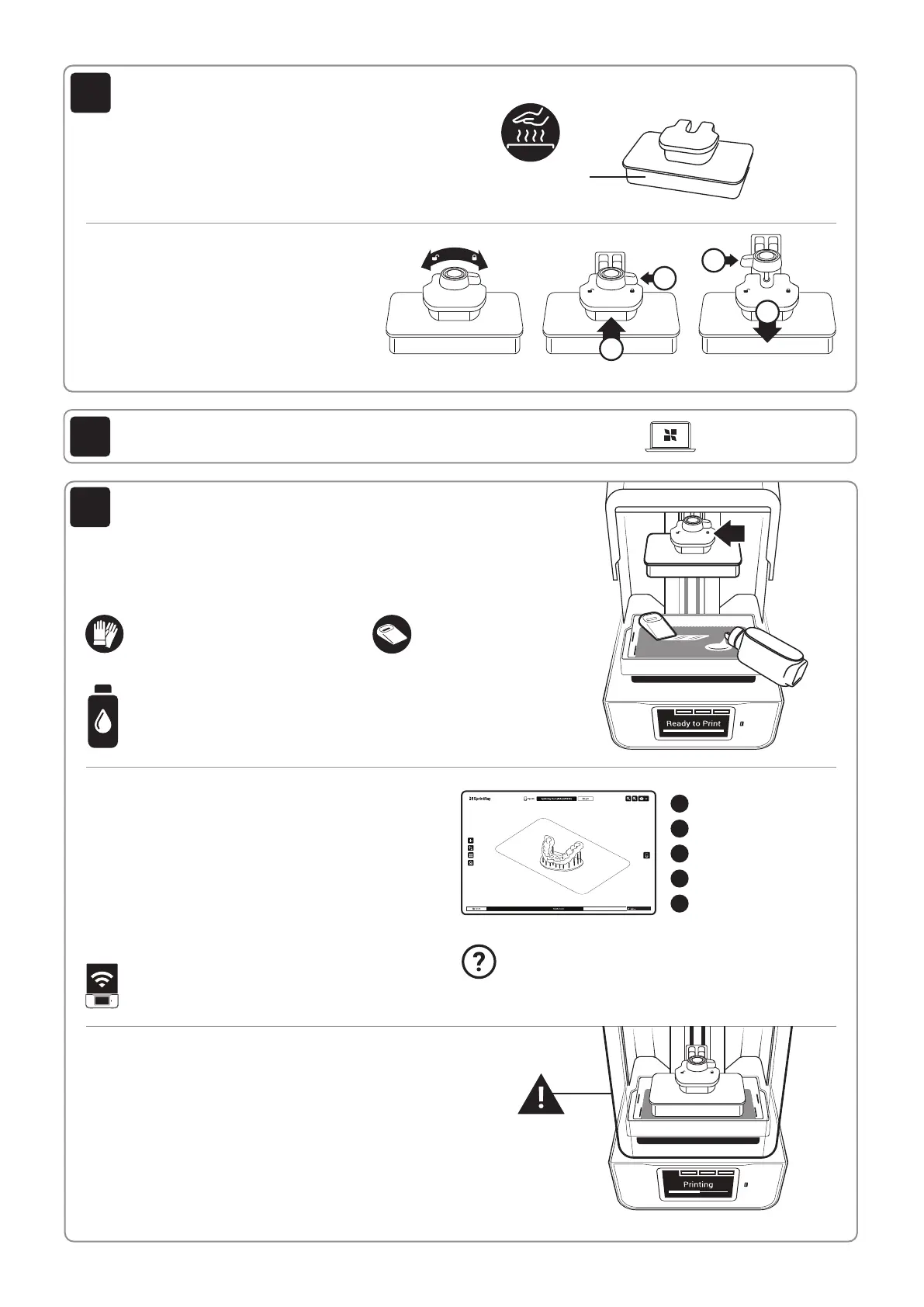
Prepare Print Platform
(Pre-installed)
Unlock and pull to remove.
A
B
Insert and lock.
A
B
Turn to lock/unlock.
Prepare a Print Job in RayWare
After launching RayWare, select your printing material and
the desired layer thickness. Import your STL model, orient
the model, and add supports if necessary.
The model is now ready for printing. Click on the green
printer icon, select your 3D printer from the list of available
printer(s) and click Print.
The software will process the job and send it to your
printer.
Printing
The print platform should now slowly descend into the resin
tank. Once this has happened, the print process has begun.
Depending on the type of resin you are printing with, the printer
may have to go through a warming resin process.
Warming resin may take up to 15 minutes.
Your printer runs independently once it begins a print job.
Any changes to your network or computer will not affect print
progress as long as the printer maintains power.
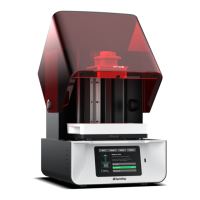
Preparing the Pro S 3D Printer
Install resin tank and print platform. It is extremely important to make sure both the
print platform and resin tank are fully secured and locked before you start a print.
Compatible with
Mac and Windows
Gently Shake Resin Bottle to Mix
Before you pour resin into your Pro’s tank,
it is important to shake the bottle until it is
thoroughly mixed.
Wear Gloves
We strongly recommend wearing
gloves while handling printer and resin.
Inspect and Stir Gently
Inspect resin tank and mix
resin with resin wiper before
every print.
Keep the UV lid
closed during the
entire print cycle.
Platform Heating
SprintRay Pro S is equipped with a heated build platform
to improve printing reliability. The platform may be warm
to the touch when this feature is enabled.
Built-in Heater
Locking/Unlocking the Print Platform
The SprintRay Pro S print platform uses magnetic
locking. When the platform is seated on the
Z-axis arm, activate the magnetic lock by turning
the red knob clockwise. Turn the knob counter-
clockwise to unlock the platform before removal.
Make Printer Discoverable
Ensure that your printer and computer are both
connected to the same wireless network.
Firewall/Antivirus May Block Connection
Keep in mind that firewall or antivirus software may prevent
your computer from finding the printer. Consult SprintRay
customer support if you need help with connection issues.
1
2
4
3
5
Select printer/resin type
Import Model(s)
Orient Model(s)
Add supports (if needed)
Send to printer
7
6
8


 To Next Page
 Loading...