Manual Recording
The camera can be triggered manually. To start a camera that has been powered off,
press the Power button for 1 second. A Welcome screen will briey appear and the
camera will start recording.
Turn off the camera by holding down the Power button for 1 second. A goodbye
screen will briey appear before the screen and all indicators on the camera go dark.
Note: If holding the camera by hand, make sure the display is pointed down toward
the ground. If it’s pointed up, resulting videos will play upside down on your computer
or TV.
Taking Photographs
If you haven’t already stopped recording video, press the Rec button. With the
blinking red dot on the screen gone and the red LED above the screen steady, press
the Mic button twice. Press the center button to save the image in live view on the
screen. You’ll hear the sound of a camera shutter. The date and time will be briey
superimposed at the bottom of the screen.
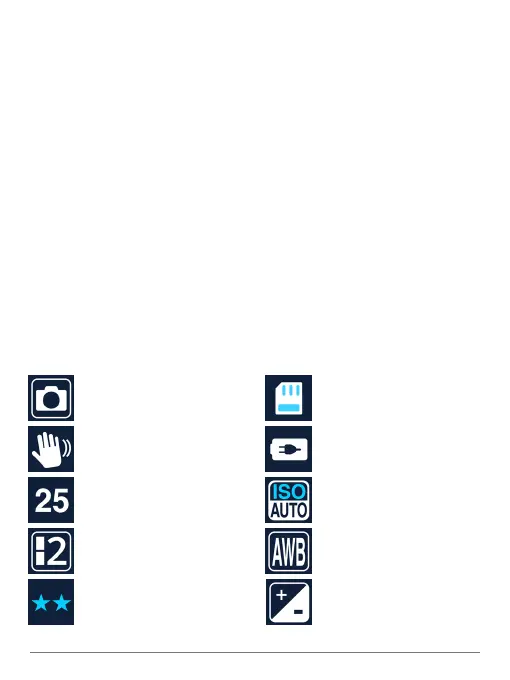
On-Screen Feedback (Photos)
As you take photos, a variety of icons and readouts are superimposed on the live
view. Here’s what you’re seeing on the screen:
SPYTEC A118C 1080P HD DASH CAMERA WITH CAPACITOR USER GUIDE 12
Photo mode
Anti-shaking, also called image
stabilization, is on; if off, an X will
overlay hand icon
Image counter
3 stars, ne; 2 stars,
normal; 1 star, economy
Image size
Memory card present or not
Camera has power
ISO (image sensor setting)
Automatic white balance
Exposure setting


 To Next Page