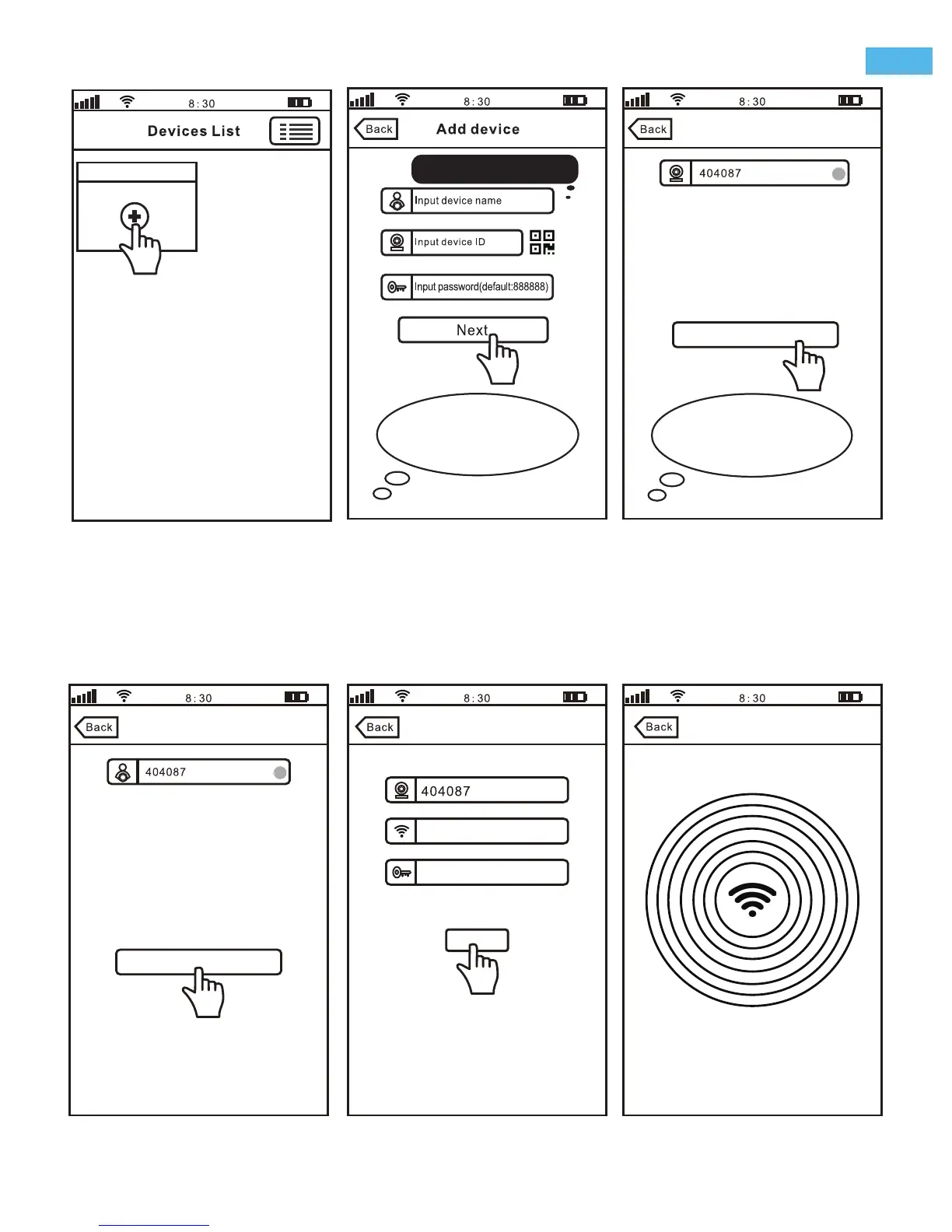
Your camera is offline.Please check camera
network connection
Step 1, Power on the IPCam
Step 2, Press Reset button by the reset pin
for 10 seconds untill hearing a clash sound
from the IPCam
Step 3, Wait untill you hearing continuous Di-
Di-Di...sound from the camera,Touch Next
Add device
Next
Add device
salestest
Next
Input Wi-Fi Password
Wi-Fi Setting..., Please wait...
Wi-Fi setting
Note:
Go directly to Next if you already
finished this tips at “Step3 Product connection”
Smart Wi-Fi Setting
Add device
Note: You can find the device
ID from the label which sticked on
the camera.
Creat the device name here,
such as: Office, Home...
Note: Mini IP Camera
without Lan Port(RJ-45), So
after power on the camera, touch
“Smart Wi-Fi Setting” for
add new device
Add new device
Step4. Add the camera on App
4-1 4-2 4-3
4-4 4-5 4-6
Your camera is offline. please check camera network
connection
step 1, Power the IPCam
Step 2, Connect the IPCam to your router or switch
with a net-cable, wait for switching to online mode ,
if not ,touch Smart Wi-Fi setting button
-3-
EN


 To Next Page