Input Wi-Fi Password
FAQ1-2
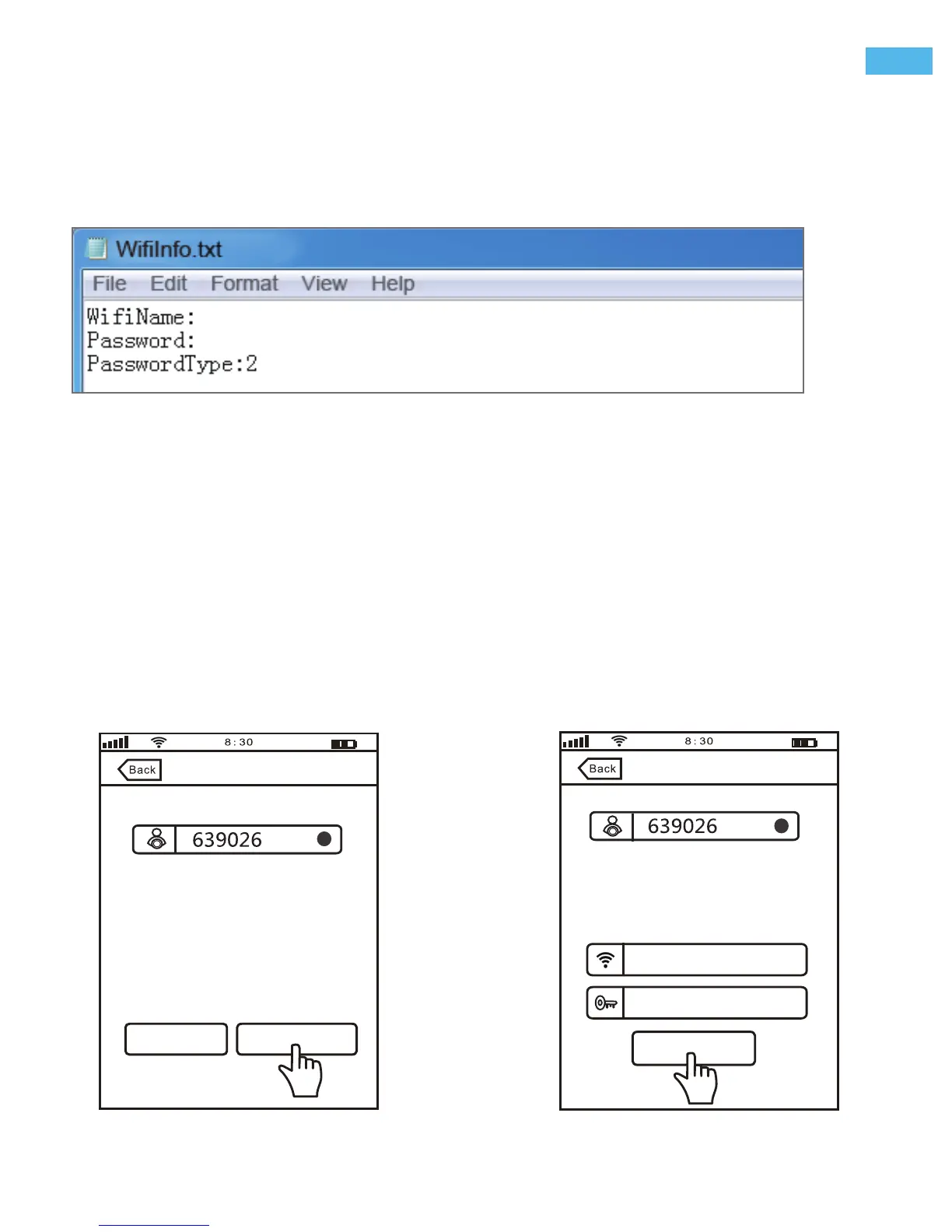
FAQ1-1
FAQ1-3
Method-1: WiFi setting via MicroSD card
1) Power off the camera.
2) Download WifiInfo.txt from:www.download.sricam.com/Manual/WifiInfo.txt
3) Open the WifiInfo.txt file and input your router's Wi-Fi SSID and password. For example:the router's
Wi-Fi SSID is: sricam and Password is: sricam123. then input this information as picture :FAQ1-1.
4) Copy this WifiInfo.txt file to a empy MircoSD card.
5) Insert the MircoSD card to IP camera and power on the camera.
6) Wait for 1 min until hear a “clash”sound from the camera,the clash sound means Wi-Fi settings success.
7) Add the camera to App, Back to user manual Step4 Add the camera on the App.
Method-2: WiFi setting via scan QR Code
1) After
Wi-Fi setting failed
, You will get the following tips:
FAQ1: Wi-Fi setting failed
Sricamsales
Next
Please confirm whether the device sound
the beeping sound
If beeping,please check the Wi-Fi
password again
If this setting fails several times, please
try “QR Code Setting” way to configure
Try Again
QR Code Setting
Wi-Fi setting failed
QR Code Setting
Wi-Fi Setting...
Before Wifi setting, please make sure the camera still on WiFi setting Part..., you can still hear continuous
“Di-Di-Di...”sound from the camera. If can't, you need reset the camera first. ( For reset the camera check
user manual Step3 Product connection 3-3)
sricam
sricam123
press “Reset” button by the Reset-
pin for 10seconds your will hear a
clash sound, Untill you hearing
“Di-Di-Di...” sound from the device,..
-5-
EN


 To Next Page