Start/Stop Audio Streaming | 13 12 | Pairing
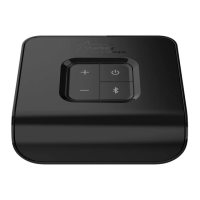
4. Press the button on the TV device. The front
LED will begin blinking blue. Audio streaming will
be temporarily stopped during this step.
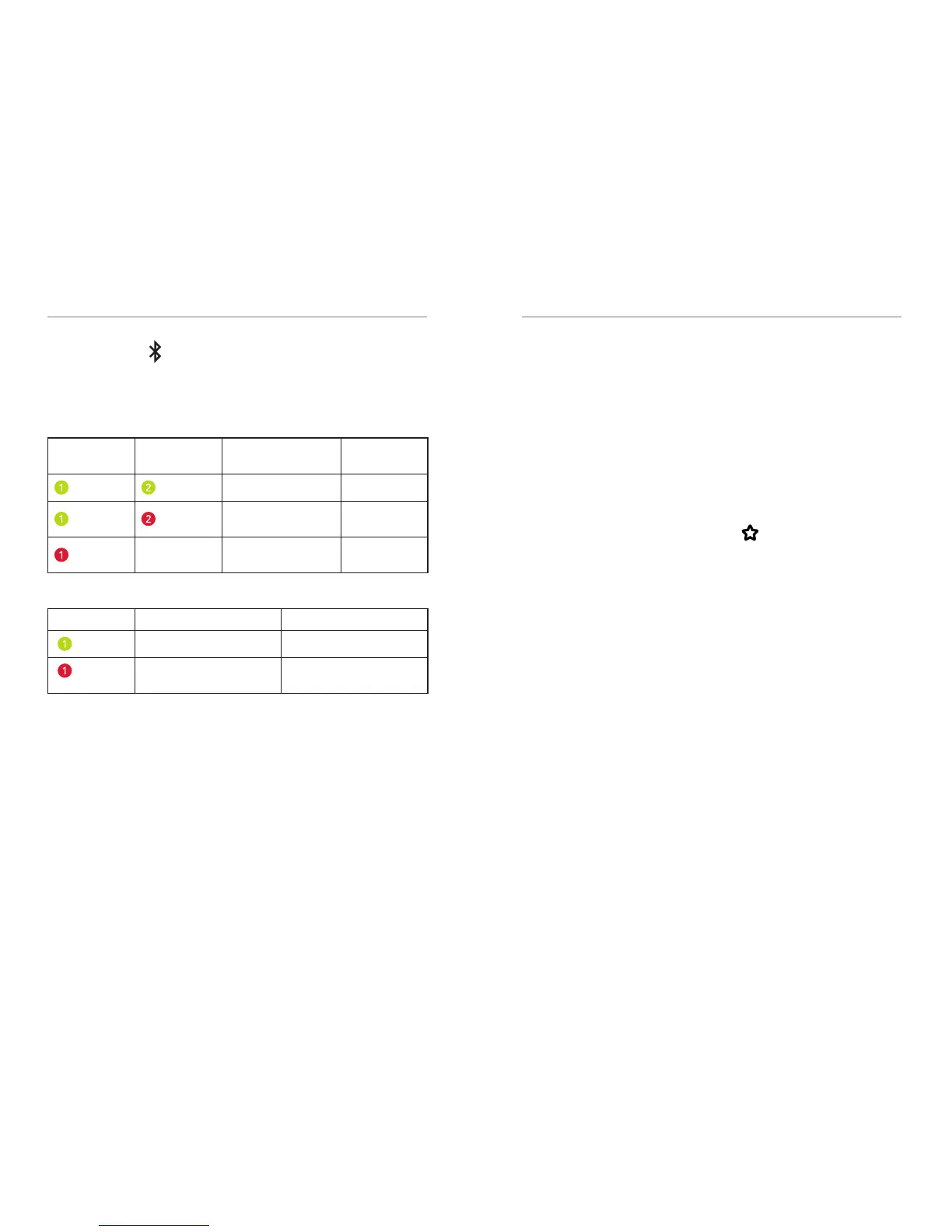
5. For Binaural hearing aids:
First LED
blink
Second LED
blink
Pairing Result Next Step
Binaural success Complete
Only one hearing
aid paired
Repeat steps
1 – 4
n/a
No hearing aids
paired
Repeat steps
1 – 4
6. For a Monaural hearing aid:
LED blink Pairing Result Next Step
Monaural success Complete
Pairing unsuccessful Repeat steps 1 − 3
and 5
Start/Stop Audio Streaming
Audio streaming from Starkey Hearing Technologies TV
may be started (or stopped) in a variety of ways:
• Thrive Hearing Control – Open the App on
your mobile phone or tablet. Select the option to
Start/Stop Streaming.
• Starkey Hearing Technologies Remote – If
preconfigured by your hearing professional,
press the Favorite button ( ).
• Hearing aid user control – If preconfigured by
your hearing professional, a specific gesture (e.g.
a Long Press on a Push Button) can start/stop
streaming.
Audio streaming will also stop when:
• An incoming audio signal is not detected.
• The TV device is turned off.
An audible indicator may play in your hearing aids to
signal the start/stop of audio streaming.


 To Next Page