6
|
Get to know your TV Streamer Get to know your TV Streamer
|
7
Set up your TV Streamer
Power ON/OFF
When plugged in, a white indicator will blink for 4 seconds
and then it will glow solid. Your TV streamer is powered on.
Use the power button to turn your TV streamer ON or OFF:
• ON – press the power button. Release when the indicator
light glows white.
• OFF – press the power button. A red indicator will light
up for 2 seconds and then turn off.
To pair with hearing aids
Before using your TV Streamer for the first time, you’ll need
to pair it with your hearing aid(s). This allows your accessory
to recognize your hearing aids so they can work together.
STEP 1: Turn ON your TV Streamer
STEP 2: Turn your hearing aids OFF and ON.
• For CROS hearing aid systems: Turn OFF your hearing
aid and CROS transmitter. Next, turn ON your hearing aid
but leave the CROS transmitter OFF.
STEP 3: Pair your TV Streamer with your hearing aid(s):
1. Ensure your hearing aids are not connected to nearby
Bluetooth
®
devices:
• Turn OFF Bluetooth
on your mobile phone.
• Turn OFF any wireless accessories already paired
to your hearing aids.
2. Place your hearing aids within 6 inches (15 cm) of your
TV Streamer. Next to, but not on top of your TV streamer.
3. Press the Pair button on the TV Streamer. The indicator
light will begin to blink green.
• NOTE: Audio streaming will be temporarily stopped
during this step.
4. The green light will turn solid for 2 seconds, for each
hearing aid, when pairing is successful.
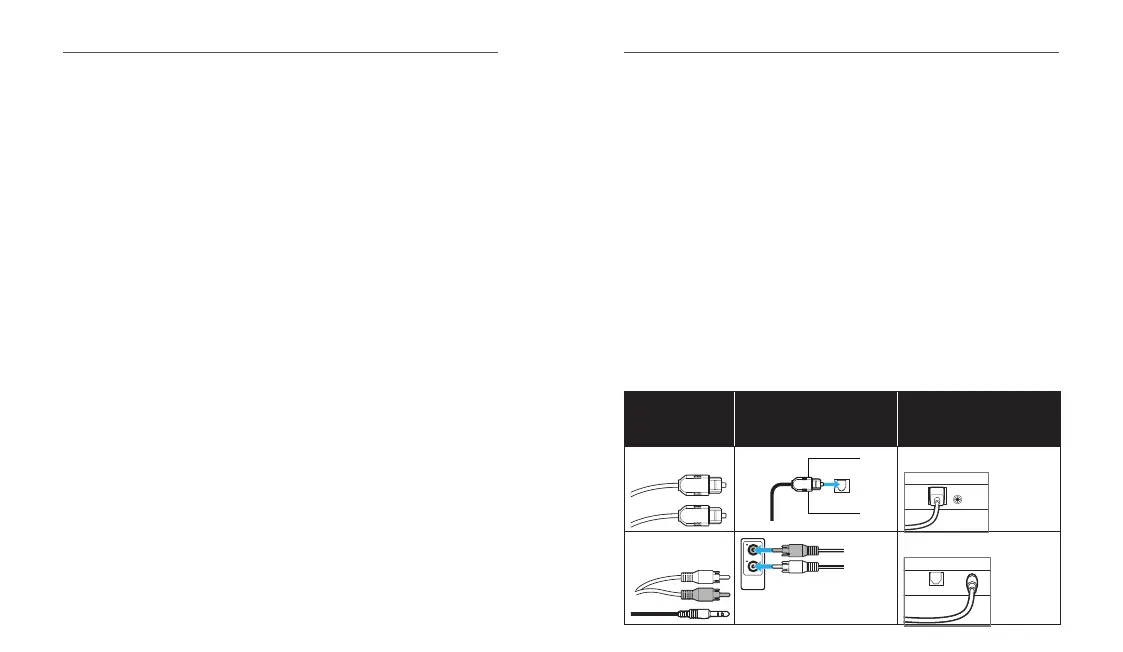
To connect your TV Streamer to an electronic audio source
There are several ways to attach an audio source to your
TV Streamer. Carefully look at your electronic audio source
(e.g., a television, computer, MP3 player, DVD player, or
cable box) to determine which AUDIO OUT options it has.
Insert cable into the
AUDIO OUT jack on your
electronic audio source
Attach the other end of
cable to the rear of the
TV Streamer
Optical TOSLINK
Audio Out
Use jack B
B
C
Analog RCA-to-
3.5mm
Note: Connect the red to red and
the white to white.
Use jack C
B
C


 To Next Page