Using the Video Switch
Once you have connected devices to the video switch, you can proceed to test the
connection to the television or other display. Turn on the display, and select the input to
which you connected the video switch. Consult the documentation for your display if you
are unsure on how to select A/V inputs. Usually, there will be a button on the display’s
remote or front panel labeled INPUT or A/V. If the display has multiple inputs, you will
need to ensure the input you have selected corresponds to the connectors on the
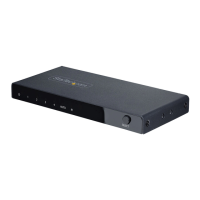
television you used for the switch. A red LED indicator will light on the front panel of the
switch to show which device is active.
Power on all of the devices you connected to the video switch. You should now be able
to use the SELECT button on the video switch to select which device has an active
connection to the display.
UUssiinngg tthhee RReemmoottee LLeeaarrnniinngg FFeeaattuurree
This video switch allows you to select an input using the signal from any remote, using
the remote learning feature. To program an existing remote to work with CPNT410IR:
1. Press and hold the LEARN button on the video switch until the LED indicator for input
1 begins to flash.
2. Aim your universal remote at the video switch. Press the key on the remote that
corresponds to the key you want to use to select input 1 on the video switch (i.e. DVD,
VCR, SATELLITE etc.) Once the video switch has stored that setting, the LED
indicator for input 2 will flash on the video switch.
3. Repeat this process for inputs 2, 3, and 4. When the process is complete, the video
switch will automatically return to the input you selected before entering Learn Mode.
To abort the programming at any time, press the LEARN button once.
TTrroouubblleesshhoooottiinngg
If you’re having difficulty using the video switch, try the following solutions based on the
nature of the problem.
None of the devices connected to the video switch are displayed on the screen.
1) Ensure the video switch is plugged in and receiving power. One LED indicator
on the front panel will be lit when the switch is receiving power.
2) Try selecting another input on the display and verify which input the switch is
Instruction Manual
3




 To Next Page