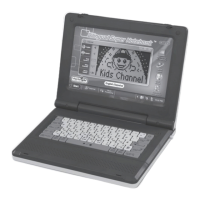
Translation Direction Key
Press this key to enter Activity 19 Translation.
For details, please refer to Description of Activities.
Scoring
There are 10 questions in most of the activities.
Each time you answer a question correctly, the Trilingual Laptop
Plus™ will say, “Good”.
If the answer is incorrect, the unit will say, “Try Again” and then give
you another chance to answer correctly. If your second answer is
also incorrect, the unit will then display the correct answer.
Once the game is fi nished, the unit will display your score and remark
about your performance.
The Trilingual Laptop Plus™ will say:
“Excellent!” and display “Perfect” if there were no mistakes;
“Good” and display “Good” if there were just a few mistakes; and
“Try Again” and display “Fair” if there were many mistakes.
Description of Activities
To change modes during any activity, pressing the “ON/MODE” key
will prompt the Trilingual Laptop Plus™ to ask you to select a new activity.
After selecting an activity mode, the activity mode title will be displayed
on-screen for a short period of time. To skip this message, you may
press the “ENTER” key once.
Activity 1: Type Message
When the cursor appears, you can type in any message on-screen.
The user may press any of the arrow keys (“DRAW” or “MOVE”) to
move the cursor or to change a character (edit).
Hold down the “SHIFT” key to change the whole keyboard to upper
case letters and release to return to lower case. Alternatively, press
the “CAP/ANSWER” key once. An arrow mark will appear on the upper
line to denote the change.
Press “ALL CLEAR” to erase the whole message.



 To Next Page