(1) repeat all track (2) repeat 1 (3) off mode
E-4
Indicator on CD/CD Recorder
Play mode operation display area
Repeat all
Repeat 1
Off mode --------------
Random play mode (by remote control)
Press the Random button at remote control will active the shuffle play function and the random indicator “ RAN “ will show on
CD Recorder operation display area (2). Press the stop button to stop the unit and cancel the random play function.
CD disc programming (by remote control)
Up to 32 tacks can be programmed for CDII playing. Before use, be sure the system is at stop mode before programming :-
1. Set in CDII mode & stop the disc playback.
2. Press the “Program” button of CDII by the remote control, “ PROG “ indicator will appear. Moreover, it will indicate
program no. (P-01) and digits for track no. to be programmed on CD/CD Recorder operation display area.
3. Select a desired track by pressing skip up or down buttons.
4. Press the “ Program ” button to store the trace into memory.
5. Repeat steps 3 and 4 to enter additional tracks into the memory if necessary.
6. When all the desired tracks have been programmed, press CDII “ play/pause ” button to play the disc in assigned
order.
7. To cancel the programmed file, press CDII “Stop” button on remote handset until “ PROG “ indicator is disappear on
LCD display (2).
Remark:-
- After program play and you can delete the programmed track in the order from the last one to the 1
st
one after the
programmed track start to played. Press stop button to set the unit in stop mode first, press “ Clear “ button at remote
control once by once. The programmed track will delete one by one from the memory
Recording function
Apart from the CD playback function, it can perform the CD recording function either from Phono/Aux/Tape/CD/USB/SD mode
respectively. All the recording track will be stored at “ audio-CD “ format:-
Before start, place a CD-R or CD-RW disc in the CDII tray (27). The disc is able to record only if the LCD display show “ NO
TOC “ indicator.
Important notices:-
- CD-R disc can be recorded once only and not support erase or re-record function. The playback quality of either CD-R(W)
disc is various from differences kind of audio CD player device.
- The revolving speed of CD burner is higher than normal CD mechanism. Thus, some mechanical noise and vibration of
unit cabinet may occur during operation. This is not the malfunction of the system.
- Due to the variety on the quality and the compatibility of CD-R(W) disc from the market. Please change other brand if you
found the used one is not able to record or the performance is not so stable.
A) Recording mode
i) Phono/Aux recoding
1. Select the Function switch (7) to “ SOURCE ” position, then press the “ Phono/Aux “ function button (19). Place the
recorded vinyl & get ready for playback.
2. For Aux in recording, connect the headphone output at the audio device (such as MP3 player, CD player etc) to the
3.5mm Aux-in jack (31) via a 3.5 mm connecting cable (not provided). The audio channel will change to Aux in
automatically and the turntable was not able to turn.
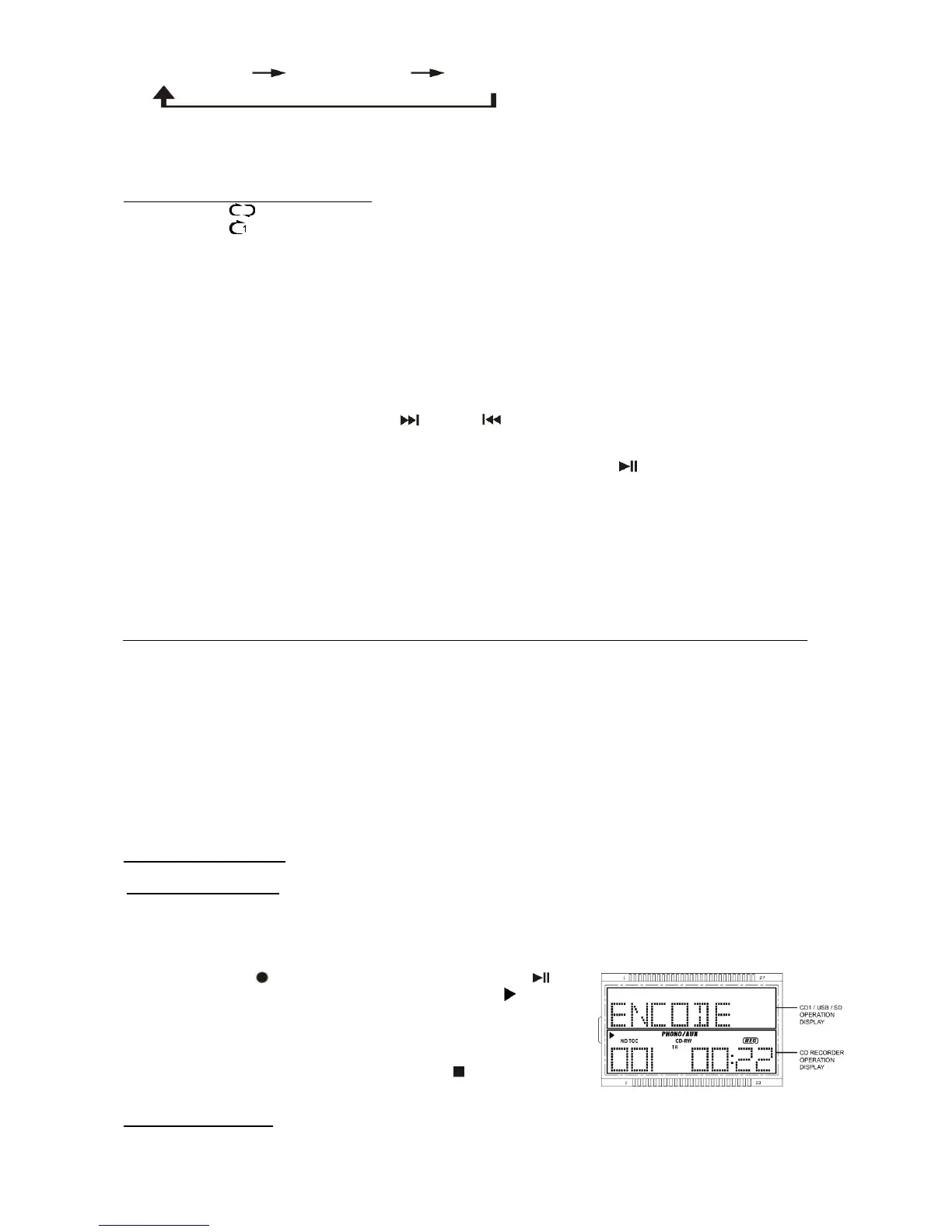
2. Press “CDII Rec “ button (33) and then the “ CD Play/Pause ”
button (26) to confirm start recording until the play indicator “ “ and “ REC
“ indicator show on CD Recorder operation display area. (Figure 4)
3. After few seconds, the CD Recorder operation display area (2) will show
the time counter and now the system is start recording process. (Figure 4)
Now start the playback of the vinyl at Phono or Aux in device.
4. After completing of recording, Press the “ CD Stop ” button (7) and
then stop the playback of vinyl or Aux in device.
(Figure 4)
ii) Cassette recording
1. Select the Function switch (7) to “ SOURCE ” position, then press the “ Tape “ function button (18). Place the recorded
cassette tape to the cassette slot (27) to get ready for playback.


 To Next Page
 Loading...