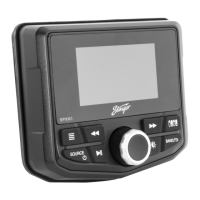
SPXM1
16
17
StingerElectronics.com StingerElectronics.com
®
Press & Hold the [MENU] button for 3 seconds to access SETTINGS
(See page 7 for Navigating and Changing Settings)
Settings
SETTINGS > AUDIO
AUDIO > 7 BAND EQ
EQ Presets: Flat / Rock / Classic / Acoustic / Dance / Electronic / Hip Hop
Custom Preset: Adjust and save custom EQ preset using [M-KNOB]
AUDIO > CROSSOVER
Front / Rear
High Pass Filter (HPF): OFF / 60 / 80 / 100 / 120Hz
Slope: -6 / -12 / -24dB
Sub-W
Low Pass Filter (LPF): OFF / 60 / 80 / 100 / 120Hz
Slope: -6 / -12 / -24dB
AUDIO > REAR RCA
REAR RCA channels are selectable between REAR or SUB
Note: Selecting SUB and setting Sub-W CROSSOVER to OFF will allow
"dual-zone" volume level control between Front and Rear channels.
AUDIO > SOURCE GAIN
Allows gain adjustment for individual sources
Source: Radio / USB / Bluetooth / AUX
Gain: -3 / -2 / -1 / 0 / 1 / 2 / 3dB
AUDIO > INTERNAL AMP
When using external amplier(s), the internal amplier can be set to OFF
to reduce heat and power consumption.
SETTINGS > BT PAIRING
Turns BT Pairing mode ON/OFF
SETTINGS > TUNER REGION
Radio tuner can be set by region/country
USA, Europe, Russia, Latin, Asia, Japan, Mideast, Australia
SETTINGS > SOFTWARE
SOFTWARE > VERSION
Displays current sofware version
SOFTWARE > UPDATE
Select to update rmware
Note: Updating rmware requires access to USB.
SETTINGS > THEME
Allows adjustment of display color theme
Day / Night / Auto
SETTINGS > RESET
RESET > AUDIO
Resets all audio settings to factory default.
RESET > SYSTEM
Resets system harware and software.
Use the [BAND/BACK] button to go back
a level or to save a setting and exit.


 To Next Page