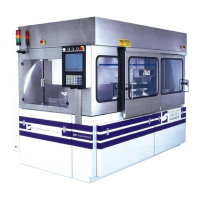
Maintenance Model 6DS-SP Planarizer
10 - 72 Version 4.0 - February 1998
11. At the left load chuck sensor display enter the new value for the M2
setpoint:
a. Press the Mode Select Switch, located to the right of the Down
Arrow (Set-up Decrement Key), until “M2” is displayed.
b. Using the Up and Down Arrow keys, set the value of M2 to the
value calculated above (for example, - 6.5).
c. Press the Mode Select Switch once more to return to return to the
normal display.
12. Repeat Steps 9. and 11., above, to enter the M1 and M2 setpoints for the
right load chuck vacuum sensor.
C. TEST THE ADJUSTMENT BY MANUALLY APPLYING AND
REMOVING WAFERS
1. At the Diagnostics Menu, select Toggle Output and enter 13 to turn
Output 13 (Left Load Chuck Vacuum) OFF.
2. Manually remove any test wafers.
3. At the Diagnostics Menu, select Toggle Output and enter 13 to turn
Output 13 (Left Load Chuck Vacuum) ON.
4. Select Toggle Output and enter 14 to turn Output 14 (Right Load Chuck
Vacuum) ON.
5. Observe each vacuum sensor’s red indicator light.
GOAL:
The red indicator light on the vacuum sensor should be OFF
when no wafer is present.
6. Place a test wafer on each load chuck.
7. Observe each vacuum sensor’s red indicator light.
GOAL FOR
BOTH LOAD
CHUCKS:
The red indicator light on the vacuum sensor should be
ON when a wafer is present.


 To Next Page
 Loading...