Logging in to the Web Interface
Using a web browser, either in the Chroma’s terminal, or on a different workstation or mobile device that can
connect to the Chroma over the local network, connect to the IP address of the Chroma.
Example:
http://10.0.4.10
Streambox Chroma has a web interface for each mode supported by the Chroma Encoder and Decoder. When
you first connect to the web interface, the mode in operation on the machine you’re accessing will be
highlighted in blue, while the other will show as offline. Click the blue icon next to the active mode, and log in:
Username: administrator
Password: demo
Select Mode and Codec
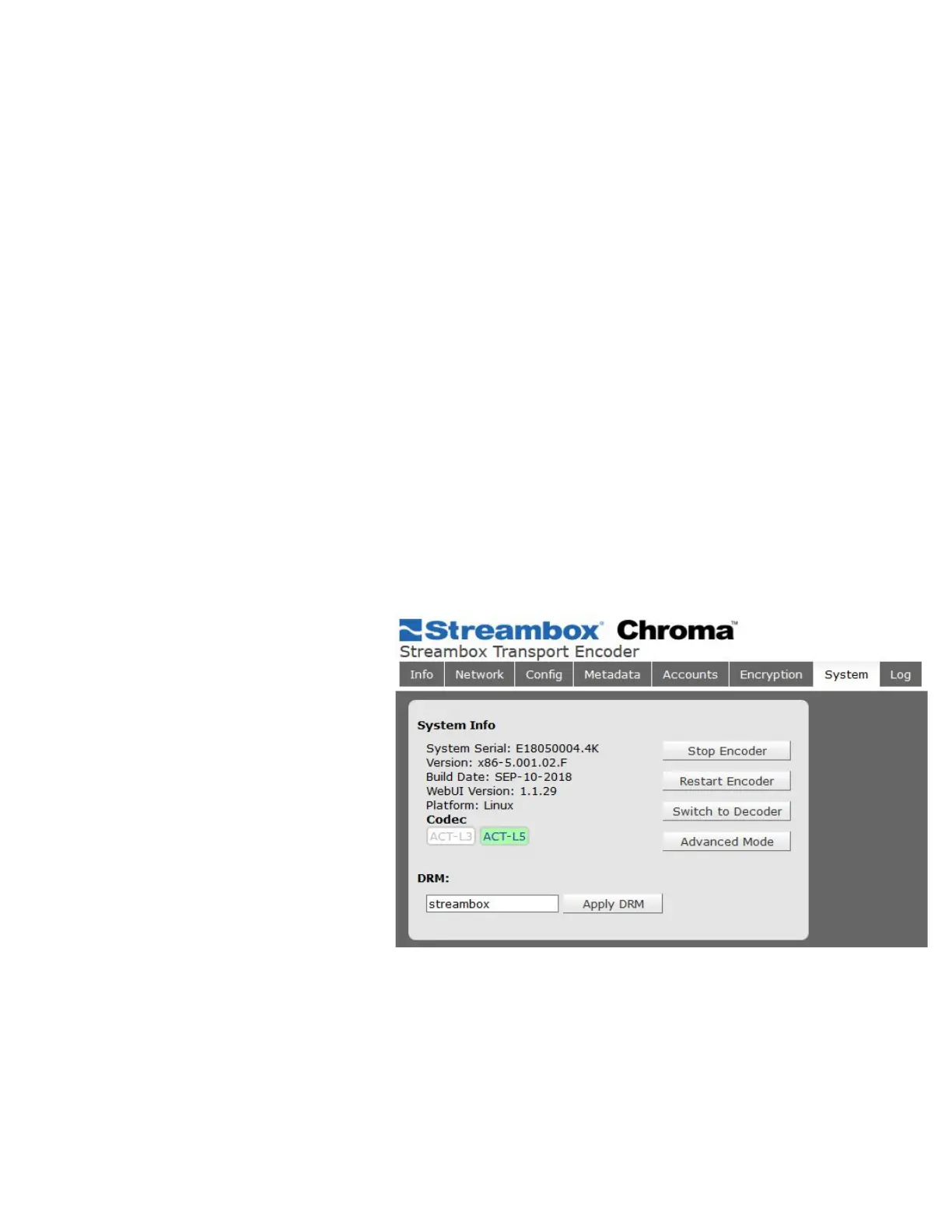
Start your setup with the System Tab. This tab is where you can select whether you’ll be sending or receiving a
stream, by selecting “Switch to Encoder” or “Switch to Decoder” if the unit is not yet in your desired mode.
Furthermore, you can select whether that stream should be ACT-L3 or ACT-L5.
● ACT-L3 supports 4:2:0 and 4:2:2 chroma subsampling, 8-bit and 10-bit color depth, and Rec. 709 color
space.
● ACT-L5 additionally supports 4:4:4 chroma subsampling, 12-bit depth, and additional color spaces.
Whichever you select must also be
selected on the other Streambox units
involved in the stream. Streambox Servers,
such as Enterprise and Cloud Servers,
support both codecs, but Encoder and
Decoder must be set to use the same
codec.
In the picture to the right, the Chroma is
set in Encoder mode (as shown by the title
bar, and indicated by the buttons), and in
ACT-L5 mode. The software version
number also indicates ACT-L5 by virtue of
the fact that it starts with a 5.
Setting the IP address
There are 2 ways to set the IP address on Chroma: Using the Front Control Panel (FCP) or using the Advanced
Web Interface. The latter requires web access, either through the terminal or another computer.



 To Next Page