E-8
CONNECTING TO A COMPUTER FOR RECORDING
Before getting start, please install the “ AUDACITY ” recording software to your computer.
Below is an example using a computer with Microsoft XP and the Audacity software
installed. For other Windows OS or Mac OS, please visit Audacity website for details.
http://audacity.sourceforge.net/
INSTALLING THE AUDACITY SOFTWARE
1. Insert the Audacity disc (included) into the CD drive of your computer.
2. Click on “MY COMPUTER” on the desktop.
3. Double click “CD DRIVE” drive to view the contents of the CD and select “Windows”
under “Audacity” folder.
4. Open “Windows” folder and select “Audacity 2.0.3 (Windows 2000, XP, Vista, 7, 8)”.
5. Double click the Audacity set up icon with file name “audacity-win-2.0.3” to install the
Audacity software according to the instructions. Please read license agreements of
Audacity before installation.
NOTE:
Free software (AUDACITY) licensed under the GNU general public license (GPL).
More information as well as open source code can be found on the provided CD or on
the website at: http://audacity.sourceforge.net/
INSTALL THE USB DRIVE
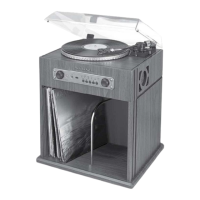
1. Use the included USB cable to connect the turntable to your computer.
2. Your computer will detect the SB6055 as “USB PnP Audio Device” and start to install
USB drivers for it automatically.
3. Wait until your computer shows a pop up a message that it is installed properly and
ready to use.
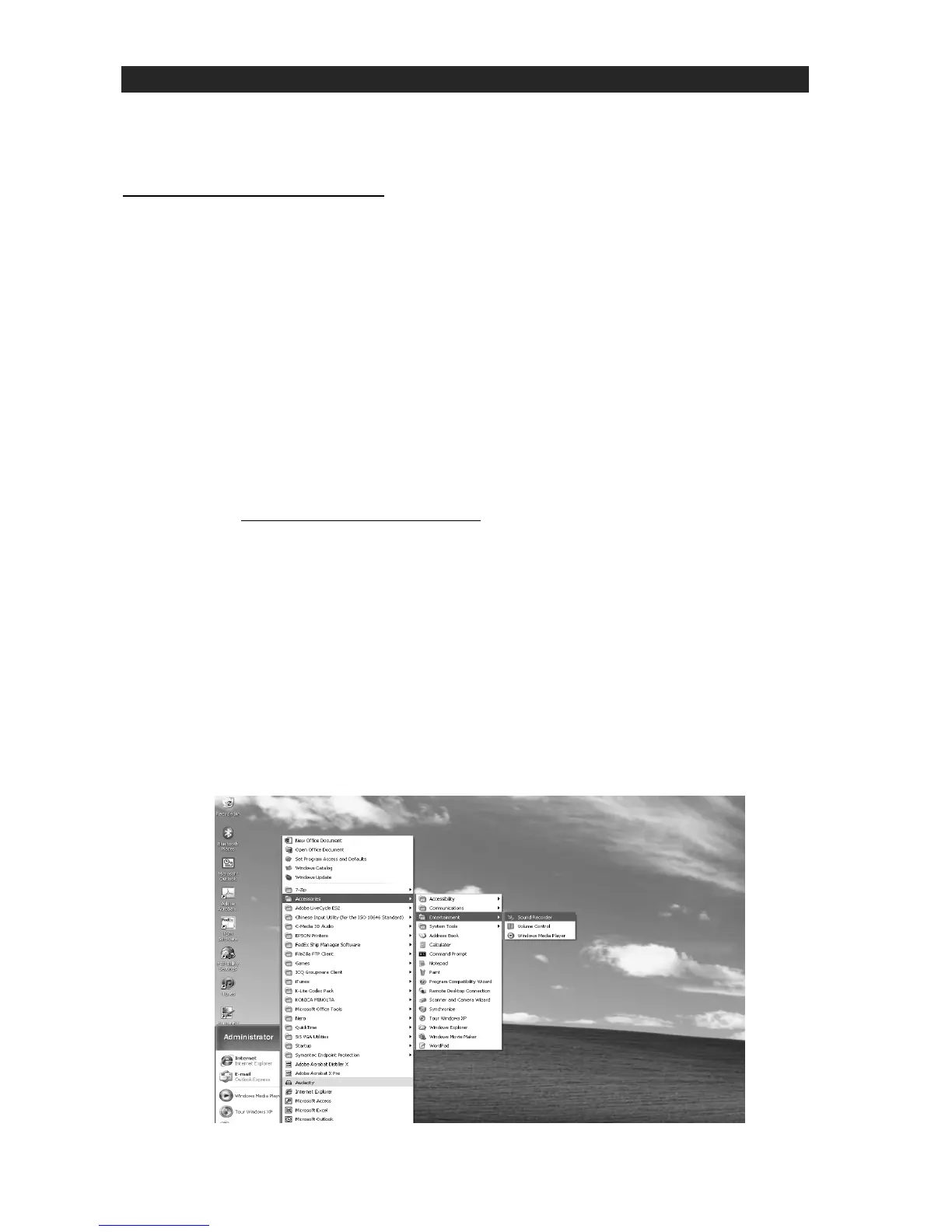
SET RECORDING INPUT LEVEL (USE WINDOWS XP COMPUTER)
1. Click the “Start“ in the left corner of your computer
2. Select “All Programs“ “Accessories”
“Entertainment“ “Sound Recorder“ to
open the sound record interface.


 To Next Page