7
Connections / Examples of use
Connections using a USB MIDI Class compliant device.
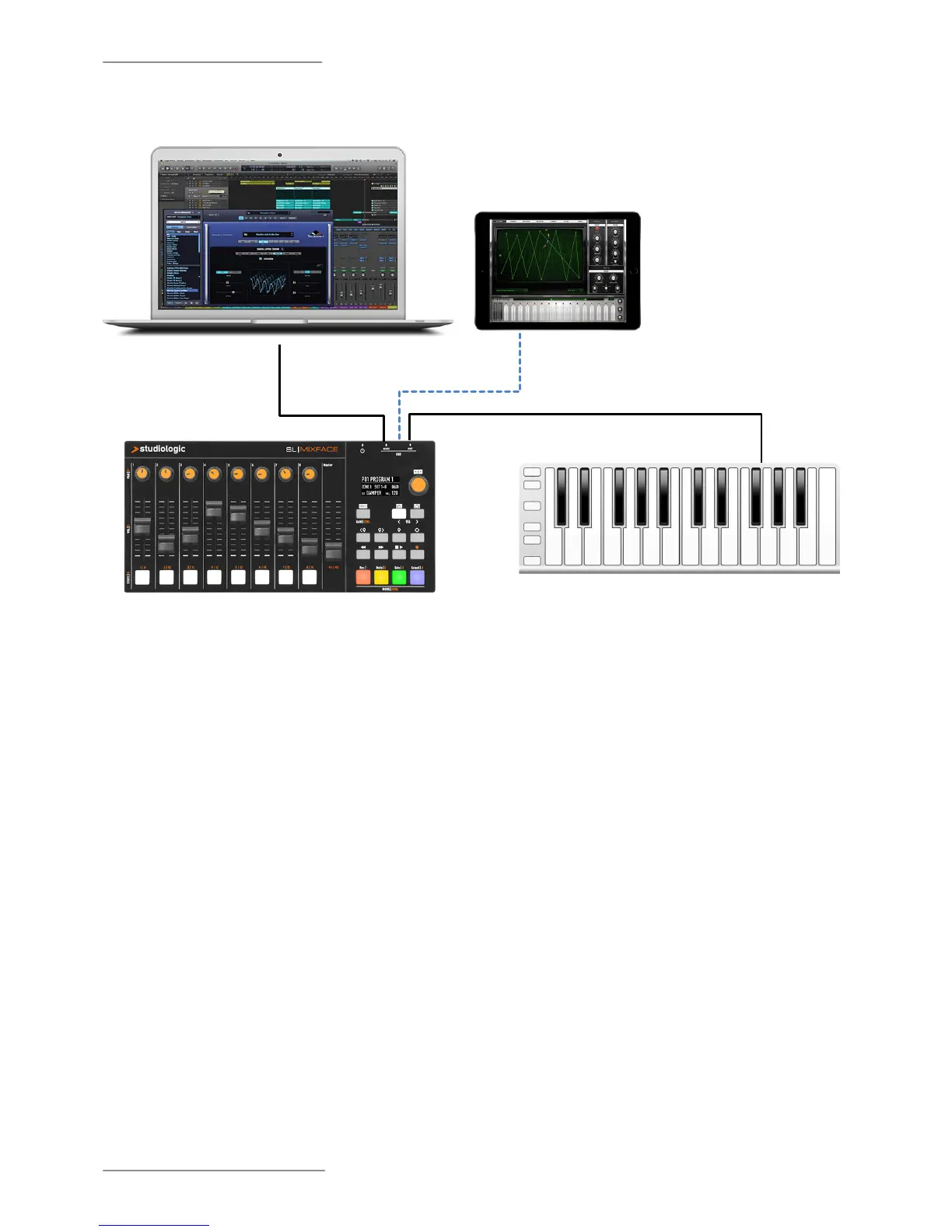
The example illustration shows how Mixface can be used in a generic system.
The connections made in the example are:
• Mixface USB HOST port connected with USB port of a USB MIDI Controller
1
;
• Mixface USB device port connected with computer USB port;
• Matching via Bluetooth Mixface with an iPad.
In this conguration the Zones are set in EDIT of Mixface, choosing the destination ports corresponding to the
instruments that you want to control in CTRL mode; for example, Zone 1 is assigned to the USB device port to
control a VST plugin on the computer. Zone 3 through the Bluetooth port can control a MIDI app on the iPad.
In DAW mode, after correctly setting the DAW and the USB port, it is possible to manage the track controls and
the Transport buttons.
DAW MODE
Transport and
channel controls
CTRL MODE
VST / AU plugin
Instruments
CTRL MODE
iOS instruments
USB MIDI PORT
MIXFACE USB HOST
MIXFACE BLUETOOTH
MIXFACE USB DEVICE
MIXFACE ANY USB MIDI CLASS COMPLIANT KEYBOARD
1
Mixface is compatible with USB class compliant MIDI controllers limited to the MIDI subclass, meaning that they do not require the installation
of specic drivers to communicate with Windows, MacOS and iOS operating systems. Devices that use USB Audio cannot be used.


 To Next Page