Connecting up
MIX OUTPUT L & R sockets as described
previously.
Plug the vocal microphone into MIC 1 input. Note Inputs MIC 1 to MIC 4 are “Combo” type sockets
for live use will usually be the dynamic type, but in some AV situations condenser mics may be in
Use Input MIC 2 for the instrument. Acoustic instruments such as acoustic guitars will need to
be mic’d up. An electroacoustic guitar can either be connected directly using a standard guitar
directly.
If you need to use a stereo source such as a laptop, tablet or similar audio device, it is most easily
connected to STEREO input 2, which is available both in the form of a 3.5 mm jack socket and
separate left and right ¼” jack sockets.
Making a mix
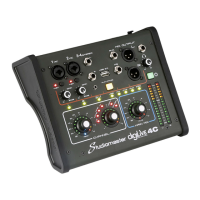
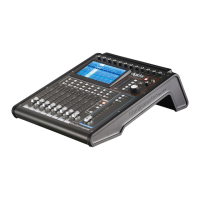
digiLiVE
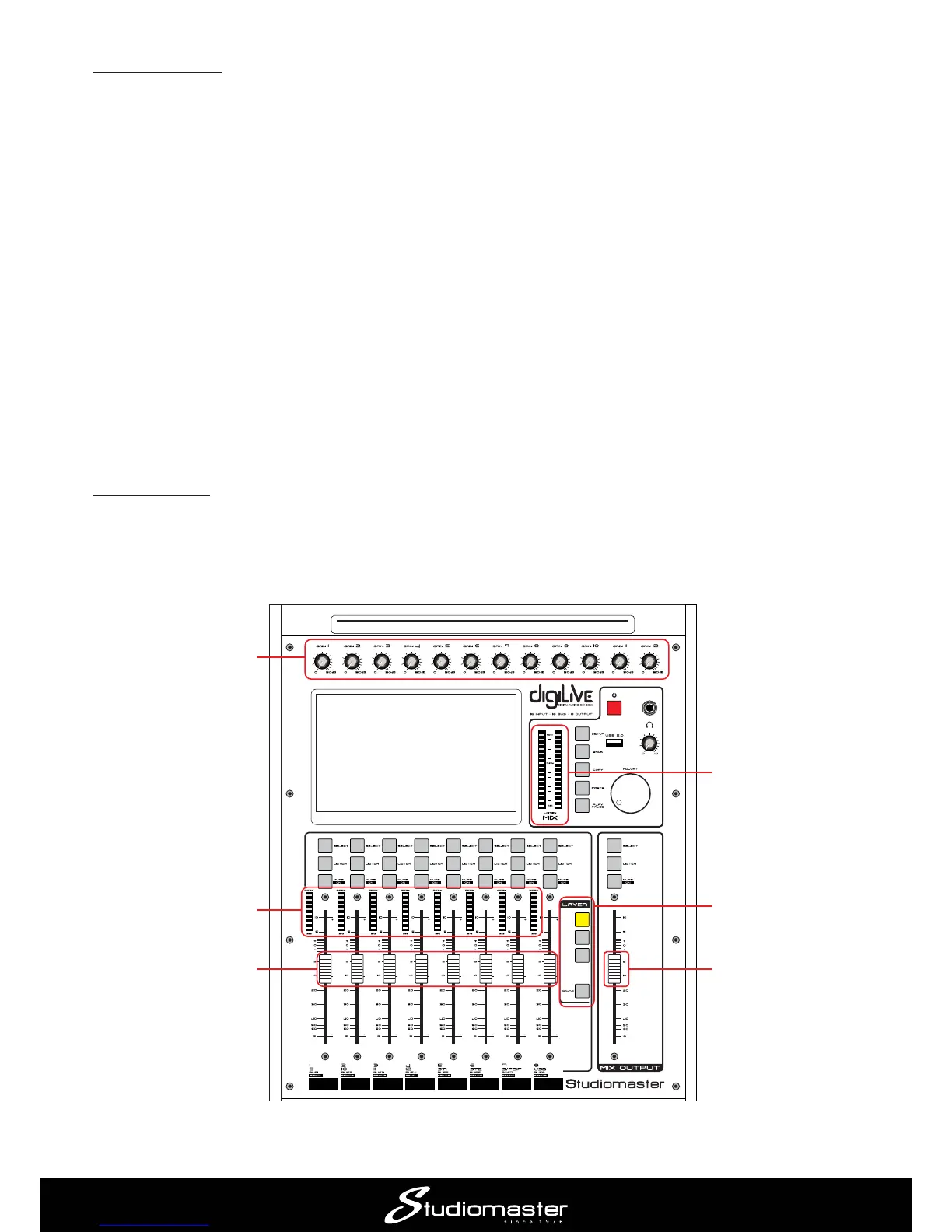
gain and then opening the channel and main faders. On switching on, INPUT 1-8 is selected in
MUTE, SOLO and SELECT
buttons control Inputs 1 to 8, and the screen display shows Channels 1 to 8.
INPUT GAIN CONTROLS
INPUT METERS
INPUT CHANNEL FADERS
MIX OUTPUT FADER
LAYER BUTTONS
MIX METERS



 To Next Page