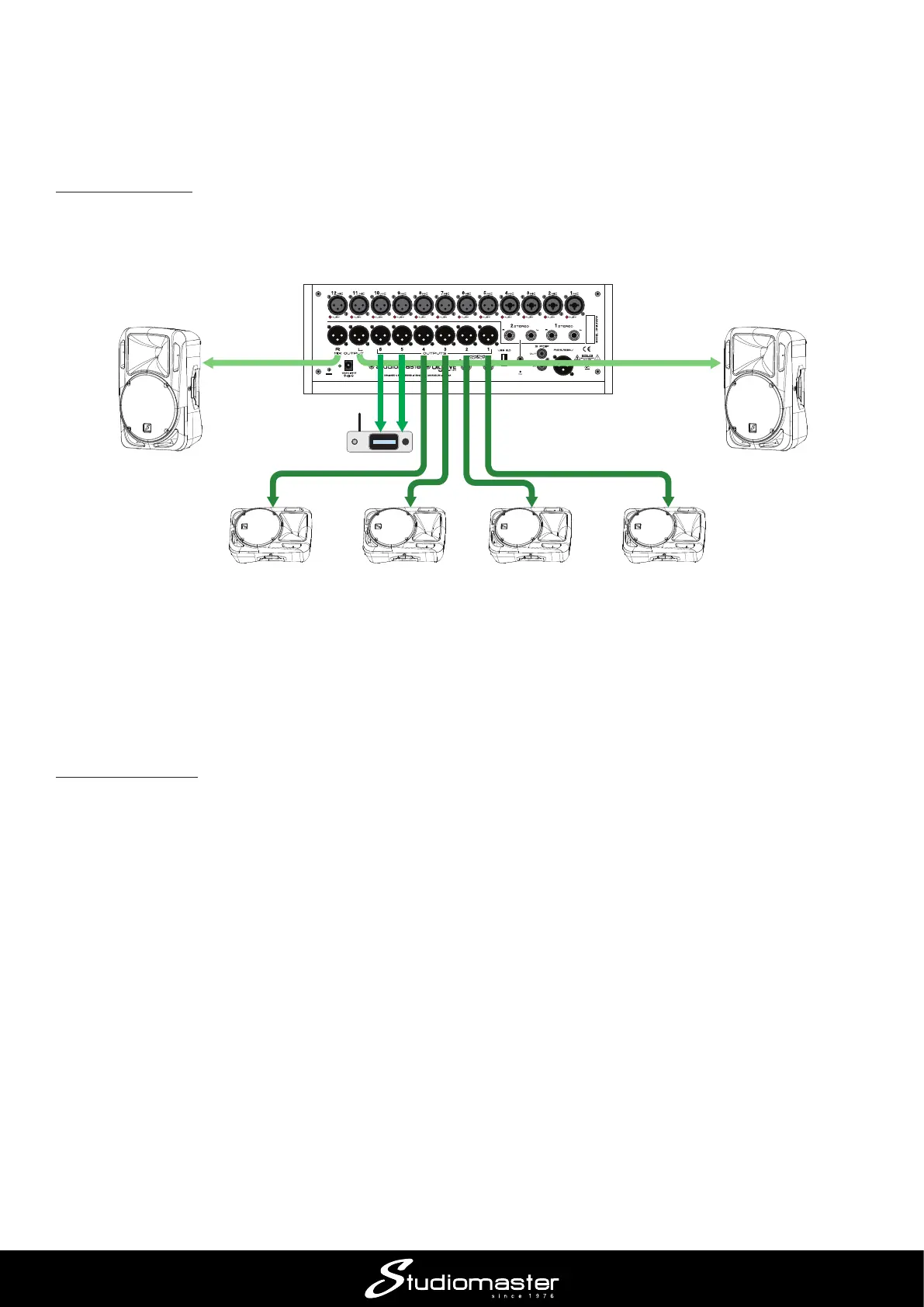
Application Example 4 – using digiLiVE as a dedicated monitor console
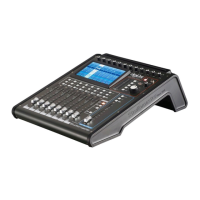
digiLiVE may also be used as a dedicated monitor console if the band has a separate FOH mixer
or is using the house PA system.
Connecting up
In this situation, all eight outputs (OUTPUTS 1 to 6 and MIX OUTPUTS L & R) are available for
use as monitor feeds. Therefore you can create up eight mono or four stereo monitor mixes, or a
combination of the two.
IEM
TRANSMITTER
(STEREO)
POWERED
MONITOR
3
POWERED
MONITOR
4
POWERED
MONITOR
2
POWERED
MONITOR
1
SIDE FILL SIDE FILL
FREQ
POWERED
MONITOR
4
In the example shown, we are using four powered wedge monitors are at the front of the stage,
plus two side lls; the lead vocalist is using an in-ear monitoring (IEM) system. Connect the wedge
monitors to OUTPUTS 1 to 4, the IEM transmitter to OUTPUTS 5 and 6 and the side lls to MIX
OUTPUTS L and R.
Making the mix
digiLiVE’s faders have a fourth “layer” or mode – SENDS, which works in a dierent manner to
the other layers, but is ideal for this application. To select Send mode you must rst select an
input channel by pressing its SELECT button. Selecting SENDS only aects the faders and MUTE
buttons; the screen display remains unchanged.



 To Next Page