TS7-Pro 7-inch Touch Screen
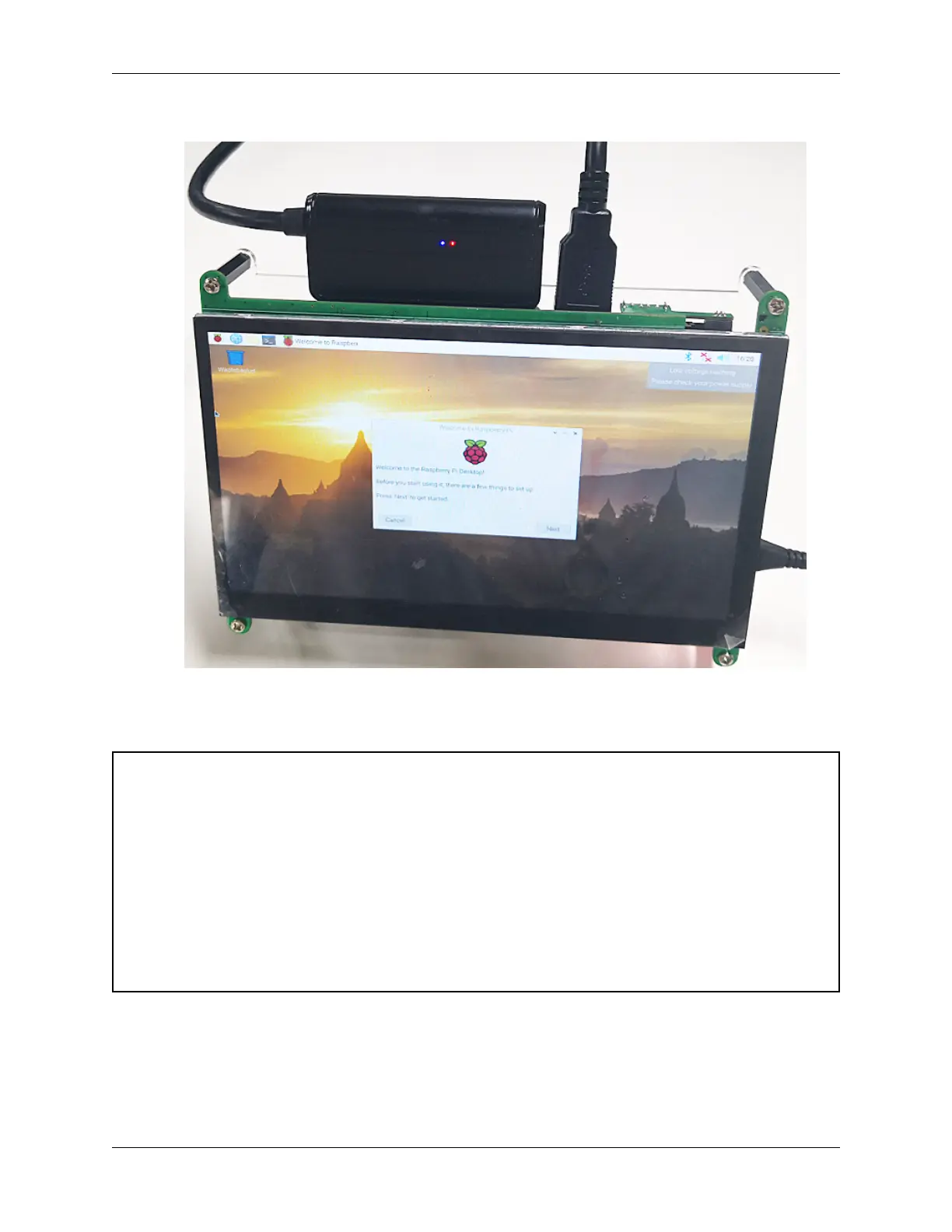
8. Now power up the Raspberry Pi again and you will see the Raspberry Pi desktop.
You can refer to the official Raspberry Pi tutorial at:
https://www.raspberrypi.com/documentation/computers/raspberry-pi.html#updating-the-bootloader
Warning: If you are trying to get Raspberry Pi 4B to boot from Micro SD card again, but found that it cannot
boot and black screen. It may be that the Raspberry Pi is not reading the Micro SD card, you need to follow the
tutorial below to change the configuration of the Micro SD card now.
• Reinsert the Micro SD card into the computer with a card reader.
• Open the boot/ hard drive.
• Double click on the cmdline.txt file to open it.
• Add sdhci.debug_quirks2=4 at the beginning and then press spacebar.
• After saving the changes, remove the Micro SD card from the computer.
• After reinserting it into the Raspberry Pi, you will be able to get the Raspberry Pi to reboot.
48 Chapter 4. ADDING PERIPHERAL DEVICES



 To Next Page