4
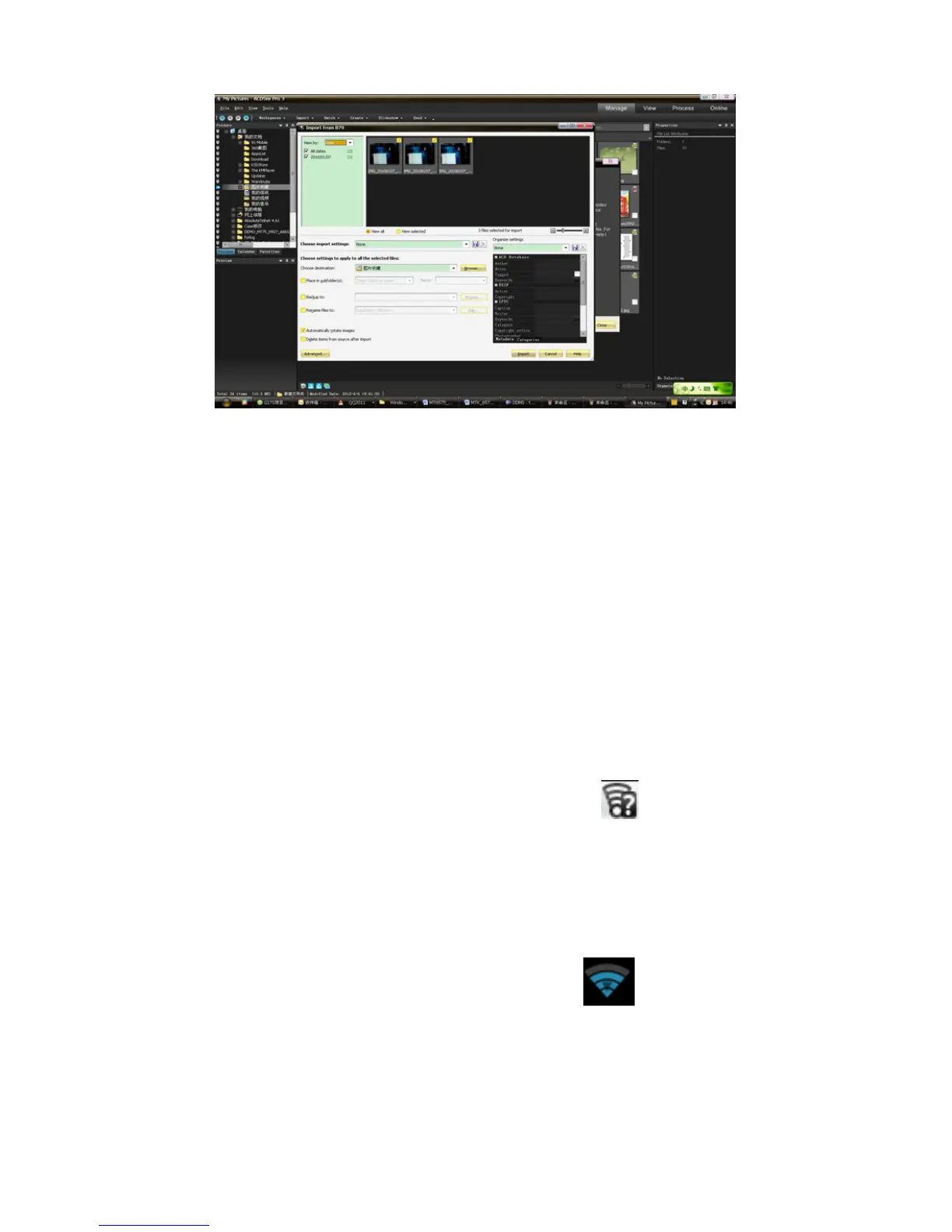
• Notice: Different PC operating systems and how to use the U
disk.
1) WIN7 Can be use directly.
2) XP update Windows media player to the latest version.
3) Install wpdmtp.inf driver
• Notice :On the PC operation assistant tool such as mobile phone,
Must be open the USB debugging.
3.WIFI
Open Wi-fi and to connect to the wireless network
1) Press home>menu,then touch settings>wifi and internet
2) Select the wi-fi box,to open Wi-Fi. Phone will automatically scan
for available wireless networks.
3) Touch Wi-Fi settings. Then a list of Wi-Fi network will show the
founded network name and security settings. (open network or
WEP、WPA/WPA2 with password).If you enable the notification in
Wi-Fi settings, The status box will show this icon (
) when open
available wireless network founded.
4) Touch one of the Wi-Fi choices to connect the network. When
you choose open network, phone will connect to it automatically. If
you choose WEP、WPA/WPA2 with password, you should type the
password first, then touch to connect it.
• Notices:when the phone is connected to the wireless network,
The status box will show this Wi-Fi icon(
), and the
approximate
signal strengthen (the number of lit bars).If touch the connected
network,will display the name of Wi—Fi network, status, speed,
signal,
strength, security, information and IP address.


 To Next Page