Page 17 of 24 Form 0157G 1805 10/02/2007
Superchips Inc.
Superchips Inc. 1790 East Airport Blvd., Sanford, FL. 32773 (407) 585-7000 http://www.Superchips.com
Superchip & Superchips are registered trademarks of Superchips, Inc.
Section B – (F.A.Q) Frequently Asked Questions
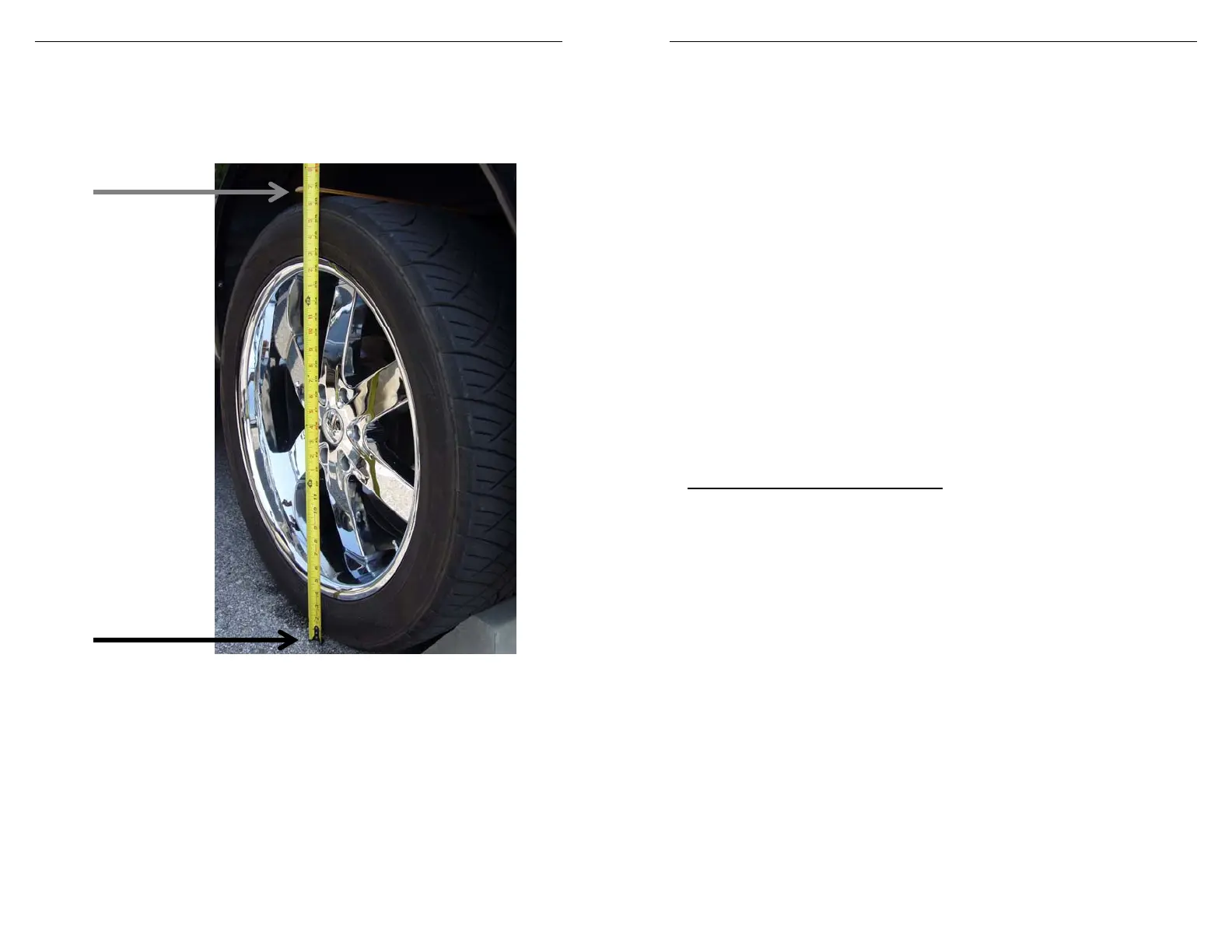
A. Measuring my tire in order to adjust my “Tire Size” setting.
Solution: Measure your “Tire Size” vertically, and place a ruler or a flat level item on the top of
your tire in order to measure accurately. Measure your vehicle’s Tire in inches and round up to
the nearest quarter of an inch. Note: “Tire Size” includes tire and rim.
See the picture below as an example of how to measure your specific vehicle’s tire.
B. Blank Display Screen when plugged into vehicle
Solution: Your diagnostic port may share power with the Cigar Lighter fuse. Please check the
owner manual & replace if bad.
If a blown fuse is not found, check the pin connectors in your vehicle diagnostic connector.
Make sure that none of these pins have been pushed out of the connector body.
(Note: Typically not all pins are present in this connector)
If still no resolution, plug your tuner into another supported vehicle. If the tuner powers up, your
vehicle has something wrong with either the pins/wiring harness or there is still a blown fuse in
that circuit of the vehicle.
If your tuner fails to power up on a second supported vehicle, call Superchips Customer
Service at 407-585-7000 to ask for a Return Authorization (RA) to send the FLASHPAQ Tuner
in for inspection.
Top of Tire
Ground Level
------------------------------------Tire
ize------------------------------------
Page 18 of 24 Form 0157G 1805 10/02/2007
Superchips Inc.
Superchips Inc. 1790 East Airport Blvd., Sanford, FL. 32773 (407) 585-7000 http://www.Superchips.com
Superchip & Superchips are registered trademarks of Superchips, Inc.
Section B – (F.A.Q) Frequently Asked Questions
C. FLASHPAQ ‘Tuner Requires an Update’
Solution: Your FLASHPAQ Tuner does not have the calibration files necessary to tune your
vehicle; therefore a database update may be necessary.
1) Write down any screen prompted text, such as
Tuner Requires
an Update...
Please visit www.flashpaq.com to update your tuner!
2) If you have internet access follow below, if not skip to step 4
3) From any PC running Windows XP, 2000 or higher
a. Connect to the internet
b. Go to www.flashpaq.com
c. Click ’New Users’ or ‘Existing Users’ (if previously registered)
d. Follow on screen prompts
i. Install software drivers, as prompted
ii. Run the application to update your tuner
iii. Plug in your supplied USB cable to your PC
iv. When prompted by setup plug in the USB cable to Flashpaq
v. Close Internet
vi. Disconnect tuner
vii. Return to vehicle for programming
4) Call Superchips customer service and request a RA #
a. Superchips will issue a RA#
b. Please include your Proof Of Purchase (POP)
c. Return ship the tuner to Superchips
D. Vehicle Requires a Factory (Dealer) Update
If your FLASHPAQ Tuner has found your vehicle box code and it is problematic to tune, the
following messages will be displayed:
Vehicle Requires
a Factory Update
Call Superchips!
Use Code #E-XX
(XX=a two digit number)
Record this File
Name: XXXXXXXXXX
Solution: Superchips has found that some stock applications have numerous problems that
have been fixed with an updated stock program available from a dealer for your vehicle. An
update of the stock program in your vehicle is required before your FLASHPAQ Tuner may be
used on your vehicle.
You may call Superchips Customer Service for confirmation that a dealer updated file is
available and instructions about how to have the stock files for your vehicle updated. Write
down both the Code number (#E-XX) and the File Name XXXXXXXXXX and give this to the
Superchips customer service representative.


 To Next Page
 Loading...