— 54
© 2016 Skier’s Choice, Inc.
User Settings
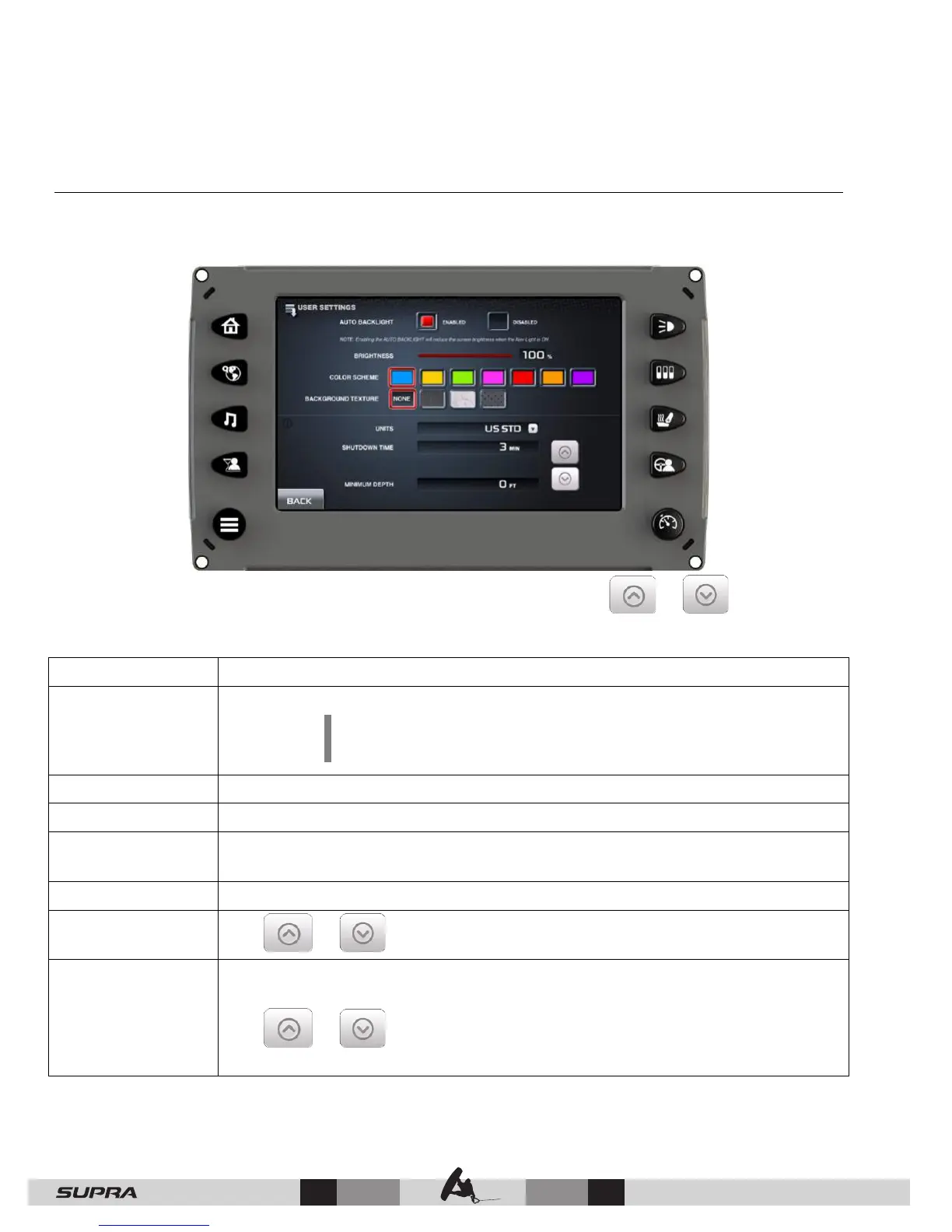
On the Main Menu screen, touch [USER SETTINGS] to access the User Settings screen. The
User can set viewing preferences for the display.
To edit the settings, touch the field to the right of the label or touch or arrows to
adjust the settings. Touch [Back] to save the settings and return to the Main Menu screen.
Auto Backlight
The choices are: Enable or Disable.
NOTE: Enabling the Auto Backlight will reduce the
screen brightness when the Nav Light is ON.
Brightness Touch and slide finger along the brightness bar to adjust the setting.
Color Scheme Touch one of the colors to change the color scheme of the display.
Background
Texture
Touch one of the background textures to change the texture of the
display.
Units Pull down the arrow and choose either US STD or Metric.
Shutdown Time
Tap or to adjust the setting.
Minimum Depth
This allows you to choose a minimum depth (measured from bottom of
keel) to give an alarm if the vessel comes into a minimum depth situation.
Tap
or to adjust the setting. Choosing zero turns this option
OFF.



 To Next Page