5. Customize Settings
91
Copyright © 2008, Suprema Inc. On the web: www.supremainc.com
5.1.2.5 Input tab
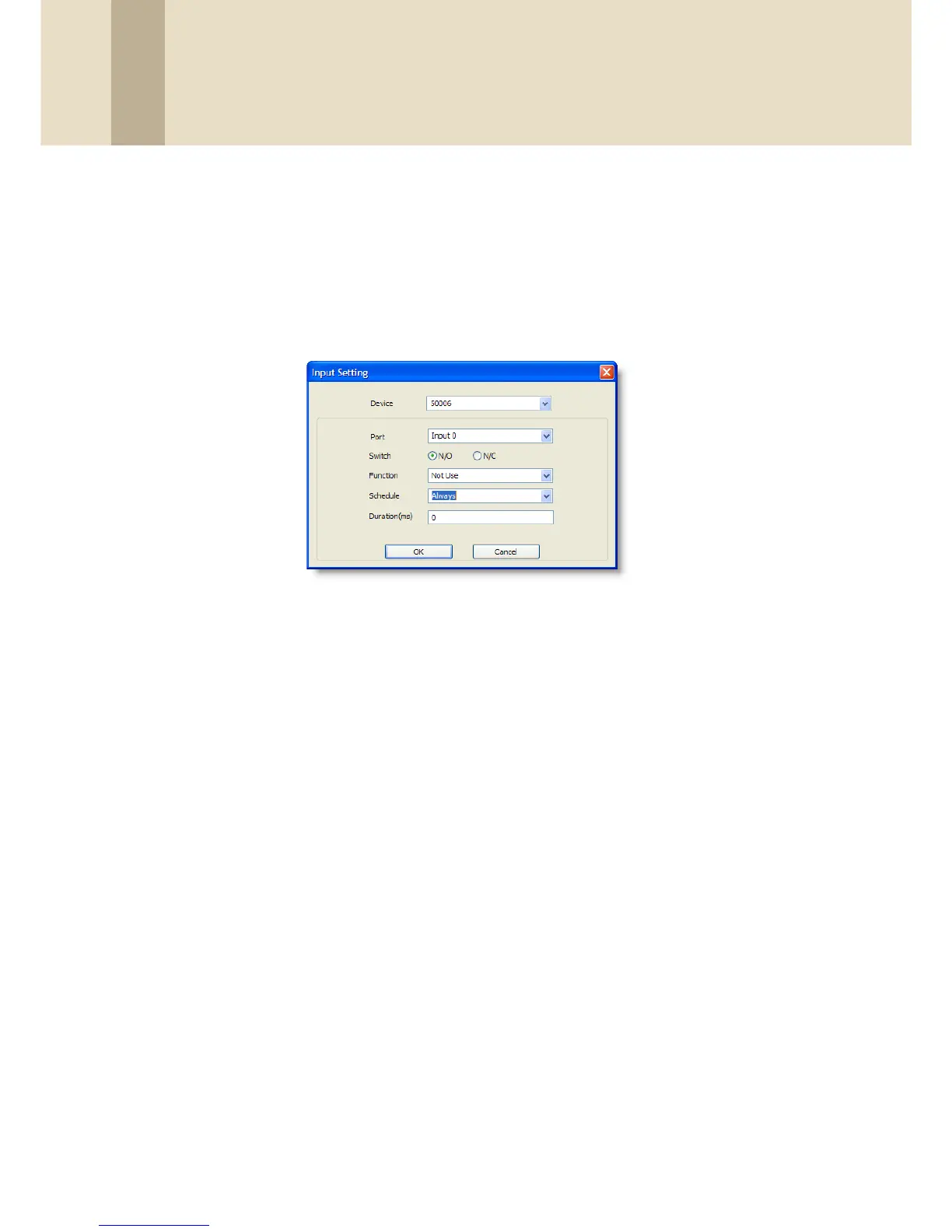
The input tab lists input settings you have specified for a BioEntry Plus
device. Buttons at the bottom of the tab allow you to add, modify, or
delete input settings. To add or modify settings, you must specify them
from the Input Setting window. For more information about configuring
input settings, see section 3.8.3.2.
•
Device
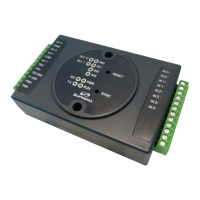
- select the BioEntry Plus (or Secure I/O) device for which you
will add or modify settings.
•
Port
- select an input port (
Input 0
,
Input 1
, or
Tamper
). For Secure
I/O devices, these settings are available:
Input 0
,
Input 1
,
Input 2
,
Input 3
.
•
Switch
- click the radio buttons to specify the normal position of the
input switch (
N/O - normally open
or
N/C - normally closed
).
•
Function
- select an action to associate with the input:
-
Not Use
- the input port will not be monitored.
-
Generic Input
- the input port will be monitored for a triggering
action (events specified with “Detect Input 1-3” in the Output
settings window—see section 5.1.2.6).
-
Emergency Open
- open doors controlled by this device. The
normal door open period will be ignored and doors will remain
open until an operator sends a “Close Door” command via the
Door/Zone Monitoring tab (see section 4.3.1).
-
Release All Alarms
- cancel alarms associated with this device.
-
Restart Device
- restart the device.
-
Disable Device
- disable the device. A disabled device will not
communicate with the BioStar server or process fingerprints or
card inputs. To enable communication again, an administrator


 To Next Page